
Advanced motionChain moves as nodes.
A zoom in, a hold, a pan, a fade out. Build the move once on a canvas, watch each step's preview, and apply the whole chain to one clip or many.
- Node chain
- Gaps for holds
- 114 node presets
- Per-node anchor
- Preview per node
- Time-left bar
- Save & load
- Star for Auto-pilot
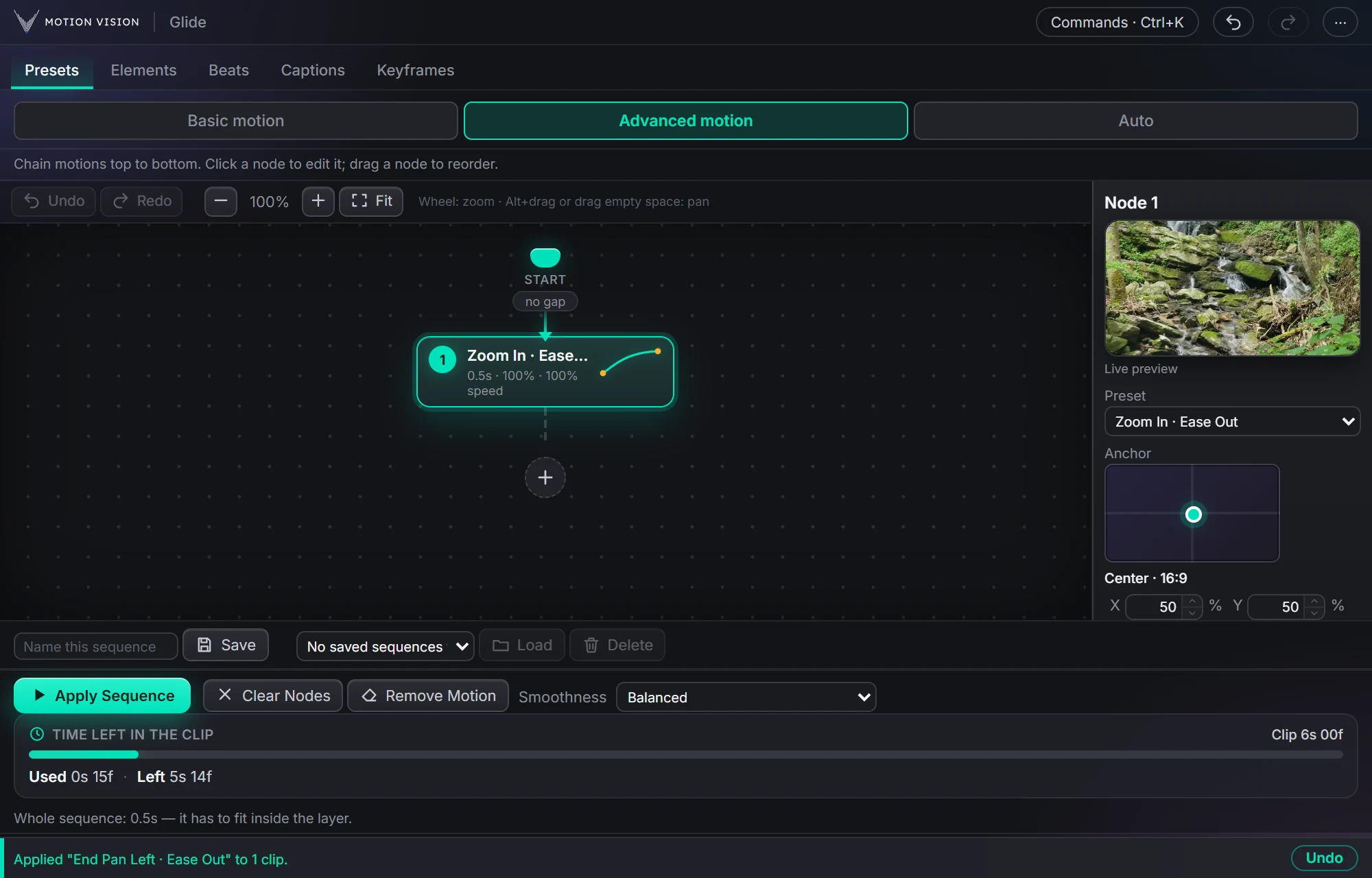
Advanced motion is the second sub-tab of Clip presets, for moves a single preset can't describe. Each node is one preset with its own gap, strength, speed and anchor, and each starts where the one before stopped, so a pan after a zoom pans while still zoomed in. Glide writes the chain as one continuous set of keyframes and tells you how much of the clip it uses.
Four nodes, one move.
Zoom in, hold, pan, zoom out. The node lights up as its part of the move plays.
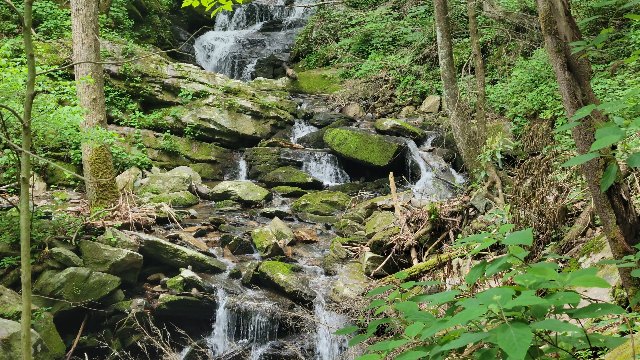
What Advanced motion gives you.
A canvas, not a list
Click a node to edit it, drag it to reorder, press + for the next step. Zoom the canvas from 30 to 250 %, drag empty space to pan, and Fit brings it all back into view.
Settings per node
Pick each node's preset from the 114 that work as a step, then set its Gap before, Strength, Speed and, for zooms, Anchor. A preview beside the canvas loops the move.
Time left in the clip
A bar shows how long the chain runs and what the selected clip has left. It turns amber at 85 % and red when the chain is too long.
Saved sequences
Name a chain and load it on the next clip, or in the next project. Each one shows its number of nodes; delete the ones you outgrow.
Star a chain for Auto-pilot
Star a saved chain and Auto-pilot, in Clip presets › AI, can use it as one move several seconds long.
Many clips at once
Apply Sequence puts the whole chain on every selected clip. A clip shorter than the chain is skipped and named, with the reason.
Canvas, node, apply.
Start and gaps
Every chain begins at Start, the clip's first frame. Each node has a Gap before it: the picture holds where the last move left it, then moves on.
The selected node
On the right, or under the canvas on a narrow panel: the preview, the preset list with your Favourites first, Anchor with X, Y and Reset for zooms, Gap, Strength, Speed, when it runs, and Move up, Move down and Delete.
Drifts to the end
A Continuous node drifts for the seconds you set. As the last node, tick Until end of layer and it takes whatever time the clip has left.
Canvas controls
Undo and Redo for up to 100 chain edits, also on Ctrl+Z and Ctrl+Y. They change only the chain; Glide's own Undo takes back what Apply did. The chain is still there next time you open the panel.
Apply Sequence
Replaces the clip's earlier Scale, Position and Opacity animation. The Scale goes up where needed so pans show no black edges, and a Zoom Out never goes below the clip's own size.
Smoothness
How many keyframes the chain is written with, from Smoothest to Lightest, Balanced by default. One setting shared with Basic motion and the Curve Editor.
Three steps.
Add nodes
Press + and pick a preset for each step of the move.
Tune each node
Gap, Strength, Speed and Anchor, with the preview and the time-left bar updating as you go.
Apply Sequence
One click writes the whole chain onto every selected clip.
Questions about Advanced motion.
What if the chain is longer than the clip?
The Time left bar turns red and says by how much, and Apply is refused. Shorten a gap, raise Speed or remove a node, then apply.
Can I reuse a sequence?
Yes. Save it with a name; Load puts it back on the canvas for any clip later, in any project. Star it and Auto-pilot can use it too.
Which presets can be a node?
114 of them: every Start preset, the Continuous drifts and Fade Out. End and Start & End presets are left out, because a chain is one move after another.
Is the result still editable keyframes?
Yes. Like everything Glide makes, it is plain keyframes on the clip, and Glide's Undo takes it back off. Open the Timeline in the Keyframes tab to see and adjust every one.
The rest of the panel.
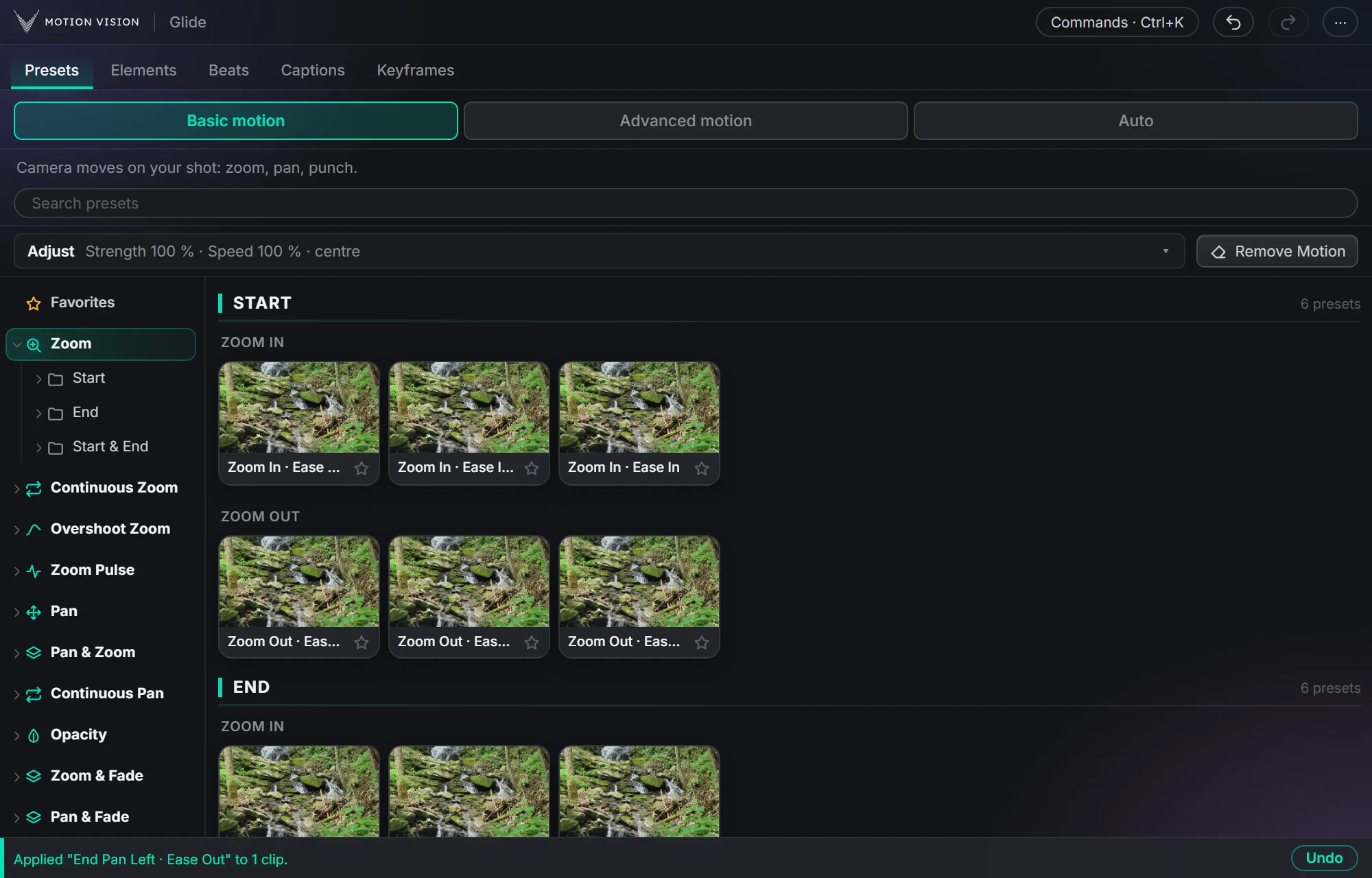 Camera movesClip presets321 zooms, pans, punches, drifts and fades, one click each.Learn more →
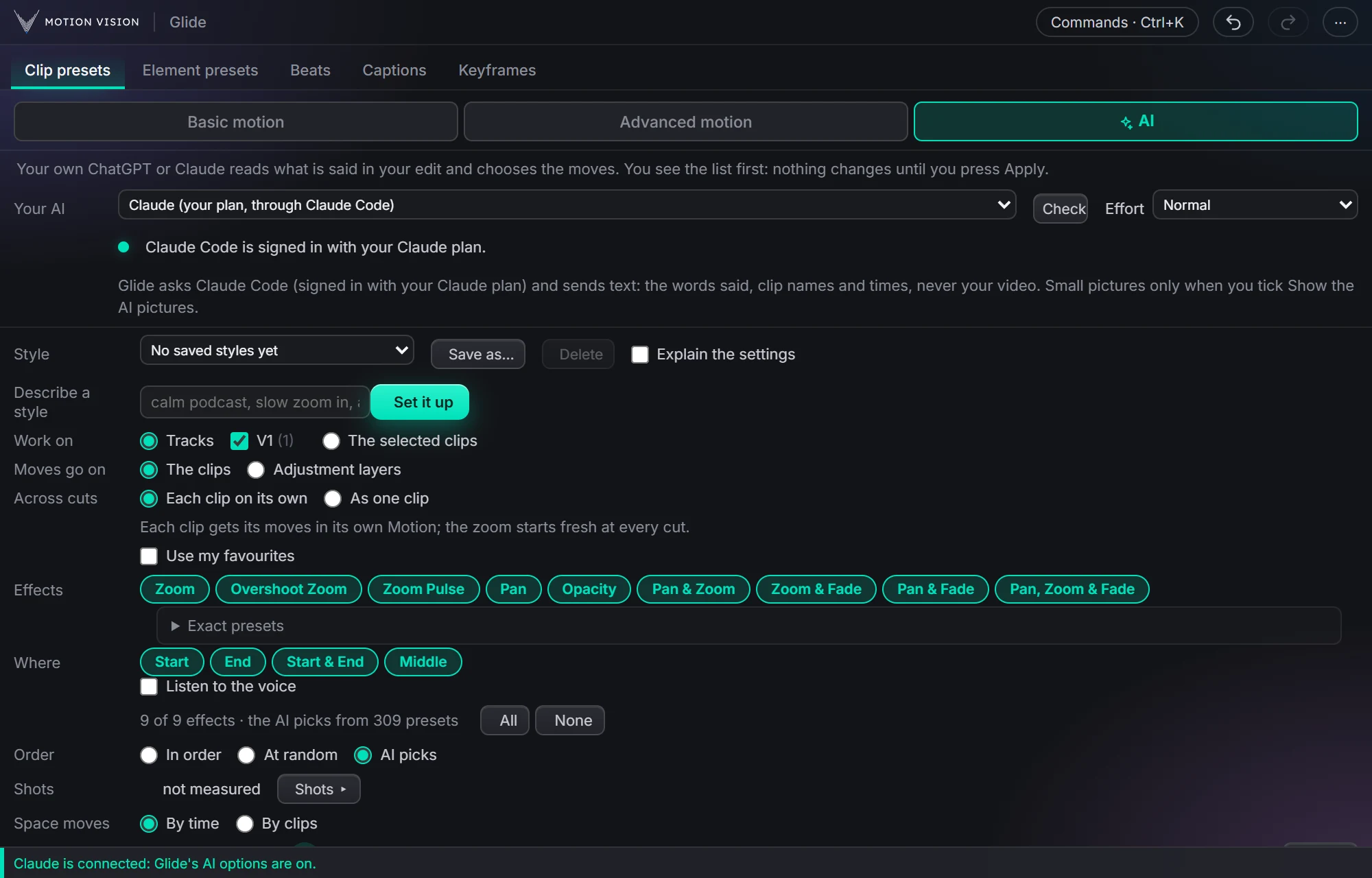 Whole editAuto-pilotMoves on a whole edit at once, with your own AI or without.Learn more →
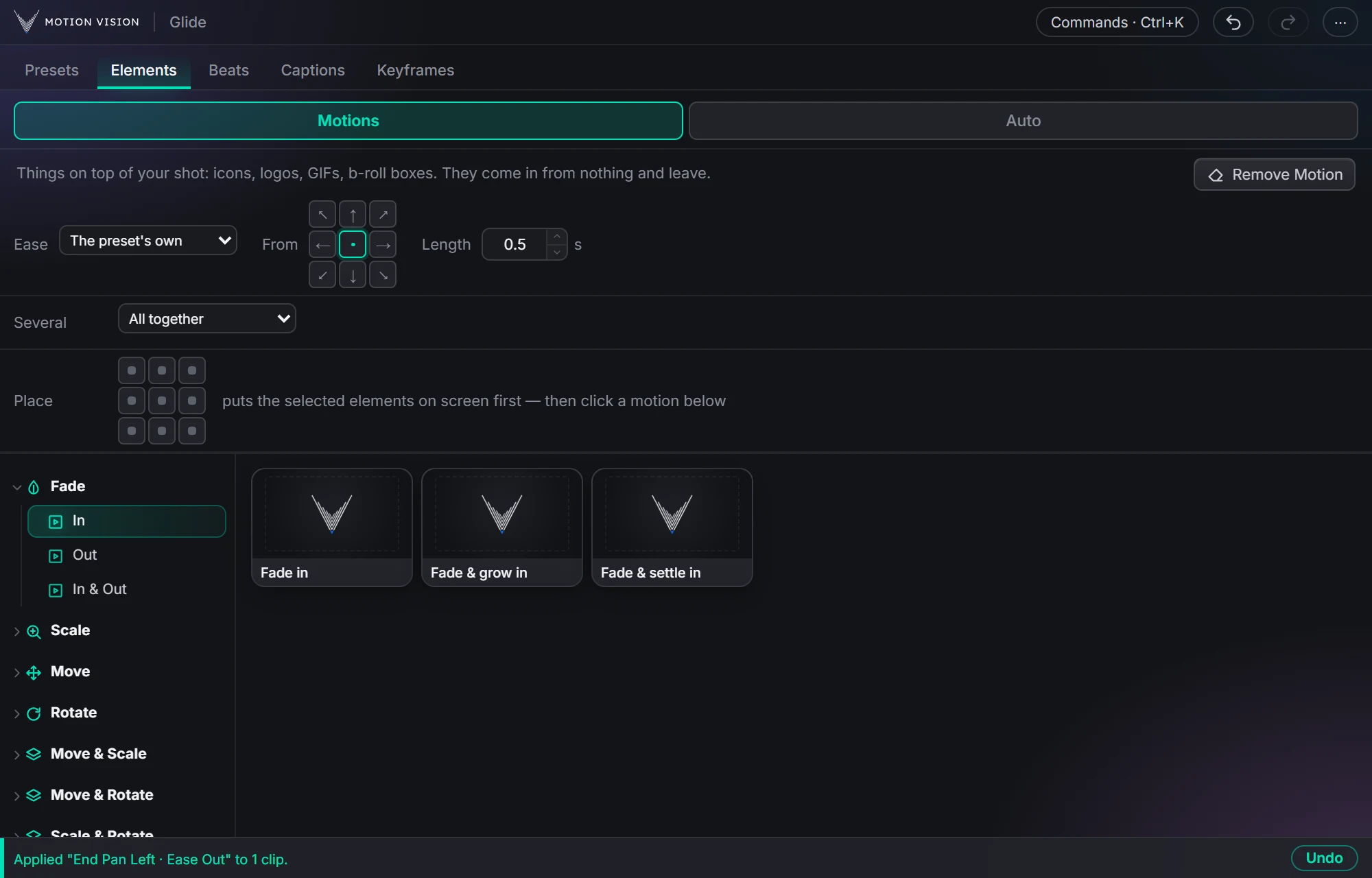 OverlaysElement presetsIcons, logos and b-roll that come in and leave.Learn more →
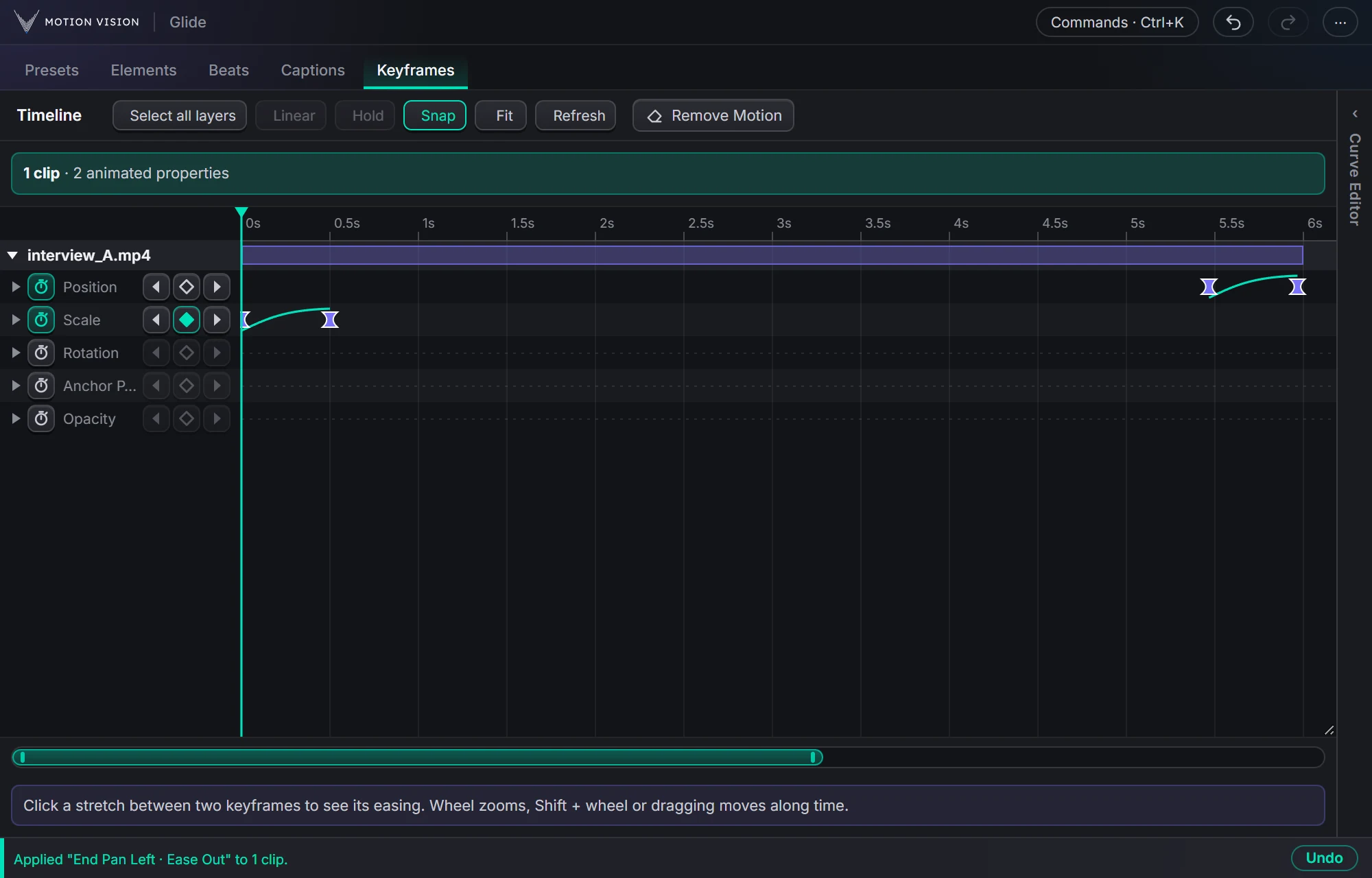 KeyframesTimelineEvery keyframe of the selected clips, in one view you can edit.Learn more →
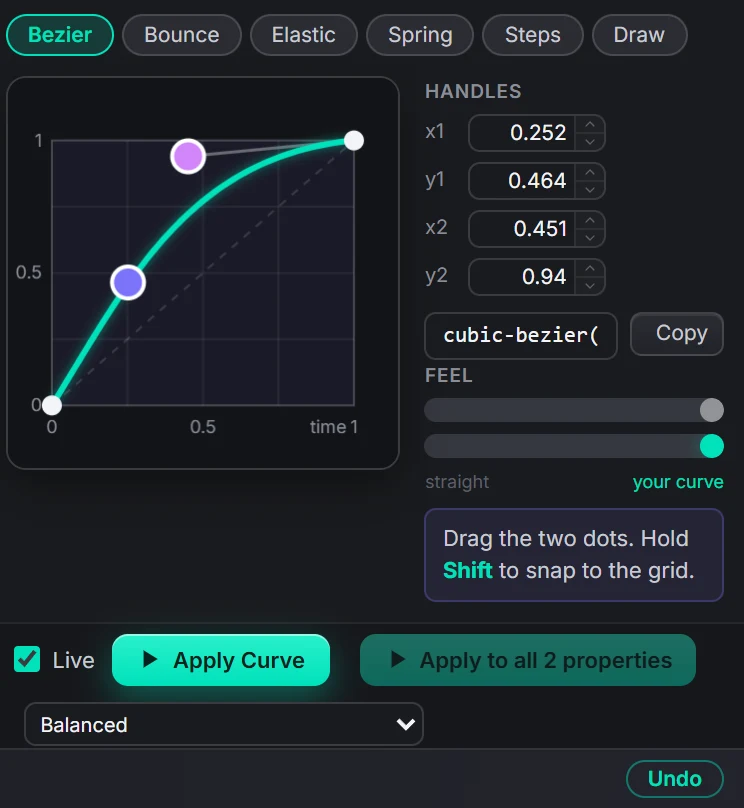 EasingCurve EditorBezier, bounce, elastic, spring, steps, or draw your own.Learn more →
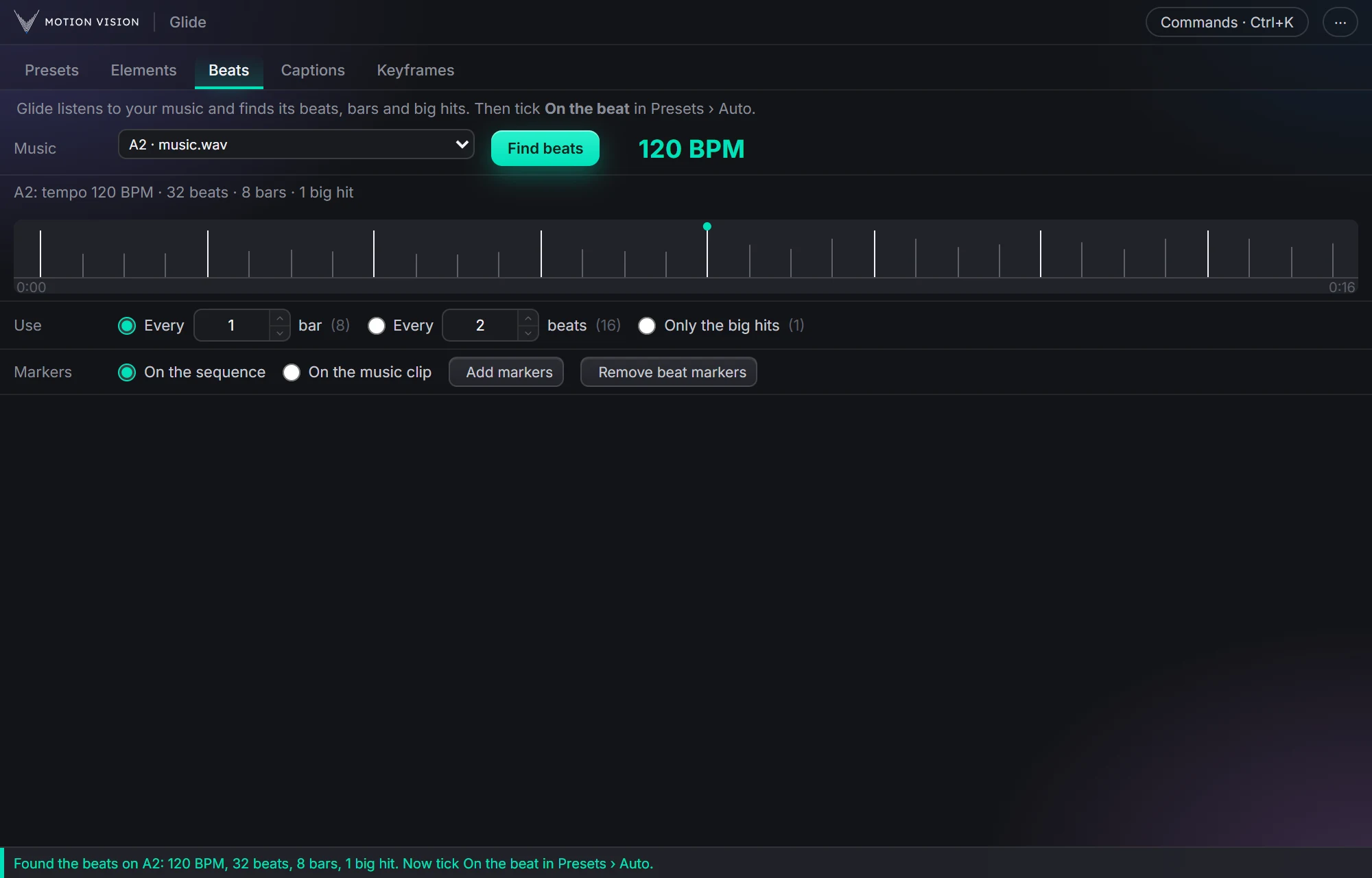 MusicBeatsReads the music and puts the motion on the beat.Learn more →
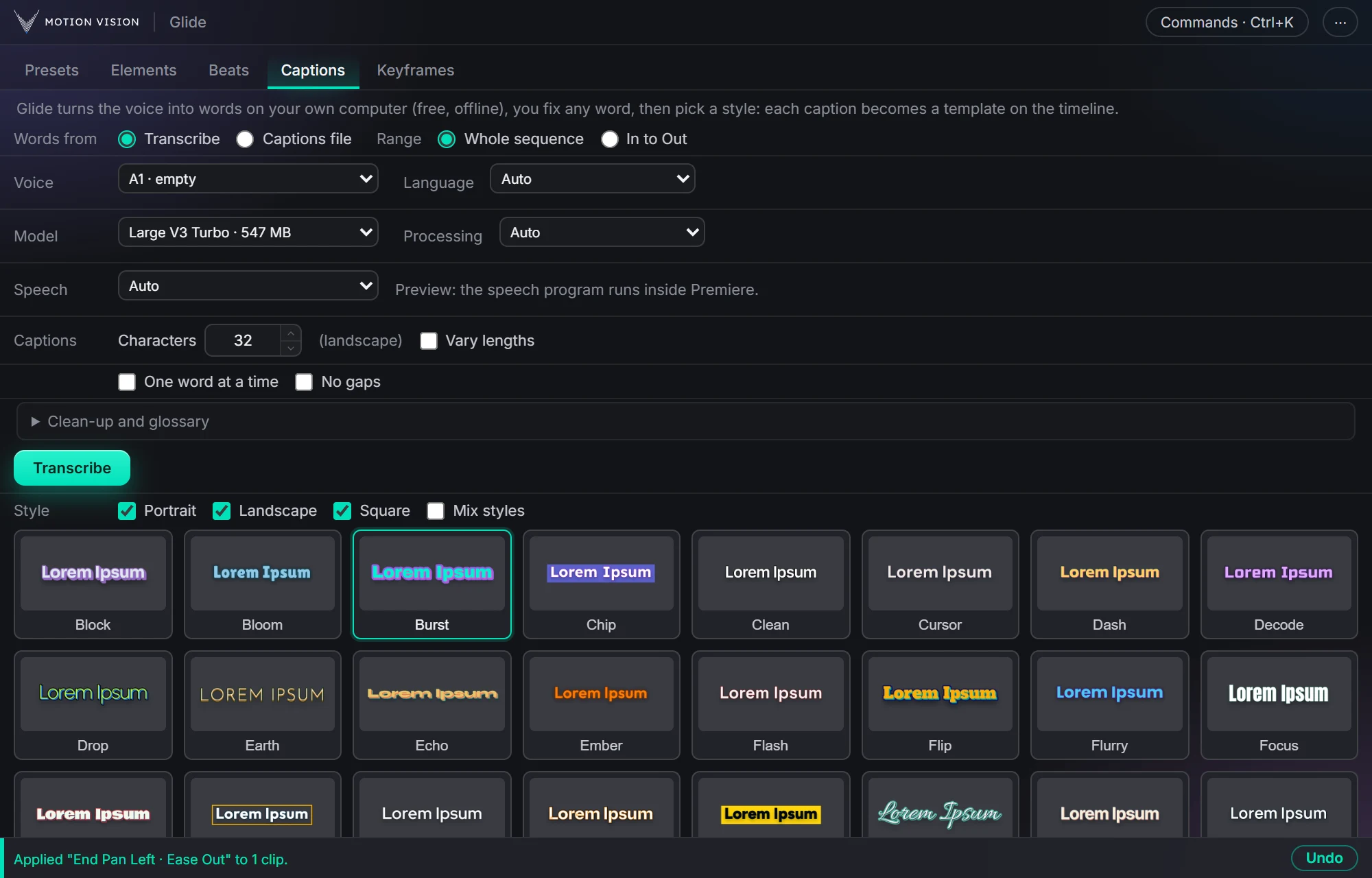 Speech to textCaptionsOffline transcription and translation, 82 animated looks and 12 fast ones.Learn more →
Get Advanced motionwith everything else.
One licence, all eight tools, with a 7-day money-back guarantee.