
BeatsMotion that hits on the beat.
Glide reads the music file itself and finds the beats, bars and big hits on the track you choose. Punch zooms and element motions then land right on them.
- Beats · bars · hits
- Music track only
- BPM
- Every N bars or beats
- On the beat
- Markers
- No export
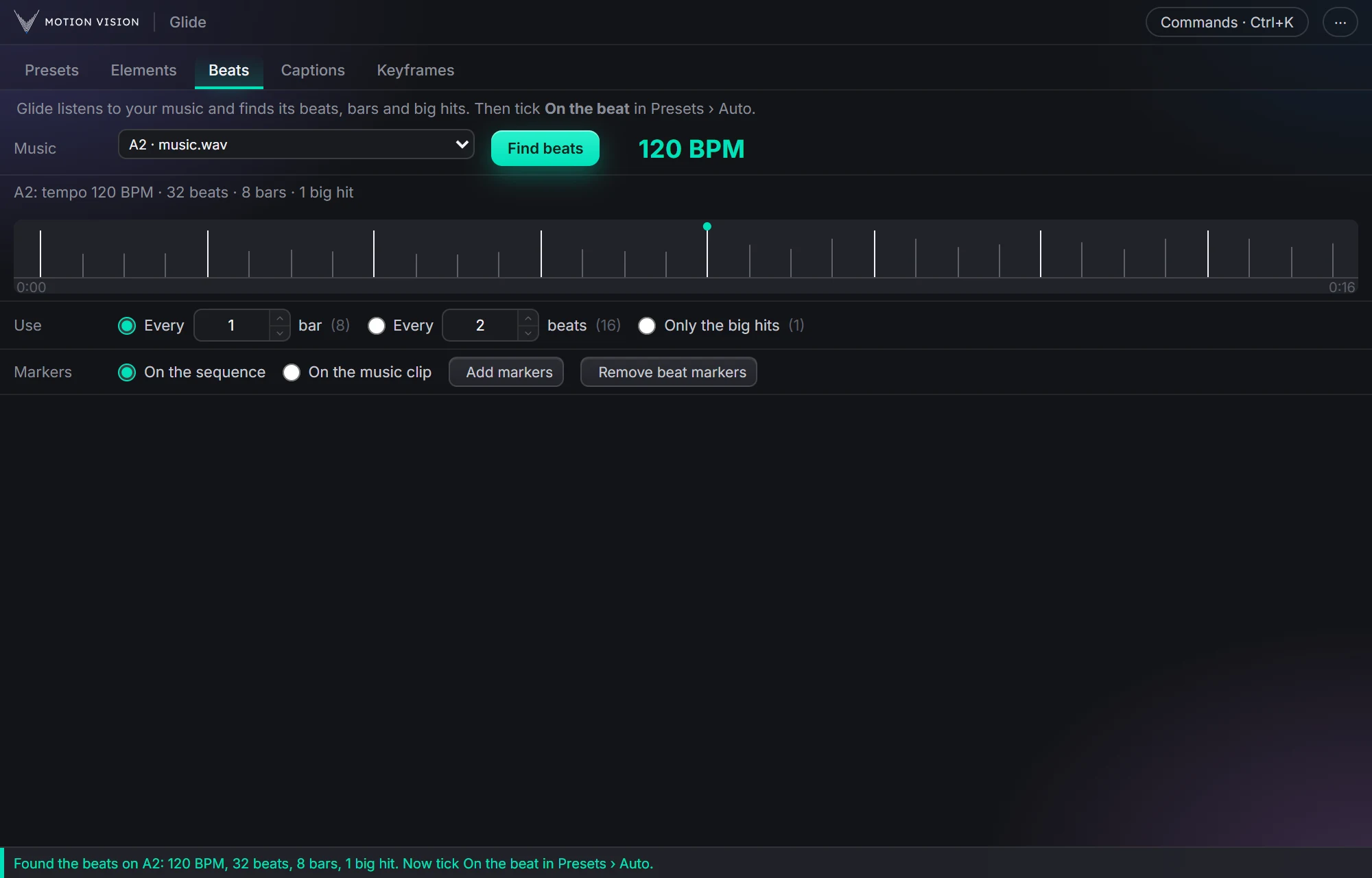
Beat tools usually drop markers and leave the rest to you. Beats listens to the music track only, so a voice on another track can't confuse it, and hands the beats you choose to Clip presets › AI and Element presets › AI: punches that peak on the beat, bigger on the big hits, and elements that land on it. If you cut by hand, it adds markers instead, and the Keyframes tab's Punch zoom can punch on them.
The punch lands on the hit.
Four seconds of a 120 BPM song: a beat every half second, a bar every two, a drop halfway. The frame punches on every bar and harder at the drop.

What Beats gives you.
Reads the file, no export
Pick the music track; Glide decodes the song itself, with no export and no AI, and shows its tempo in BPM.
Beats, bars, big hits
Every beat, the first beat of each bar, and the big hits: the drops and clear accents that carry the edit.
Choose which beats count
Every N bars, every N beats, or only the big hits, with N from 1 to 16. Once the beats are found, each choice shows how many it gives.
A strip you can read
A tick per beat, taller at bar starts, a dot on each big hit, the beats in use bright. It warns you when the beat is not very steady.
On the beat, in two tabs
Tick On the beat in Clip presets › AI for punch zooms that peak on the beat, or in Element presets › AI for motions that land on it. Both work without AI.
Markers
Add coloured beat markers on the sequence or on the music clip, and remove them again in one click. Your own markers stay.
What Beats hears and what it does with it.
The music track
Choose the audio track with the song; each entry shows how many clips it holds and the longest one's length. Until you pick one, Glide tries the tracks with the longest clips first and takes the first with a steady beat.
Songs cut into several clips
A song cut, looped, trimmed or sped up over several clips keeps its own bar count, so every 2 bars stays in step across the cuts. Reversed clips are left out.
Beats and bars
Glide counts four beats to a bar, and a bar starts on the beat with the strongest kick and bass. Every 2 beats means the 1st and 3rd of each bar; every 4 is the same as every bar.
Big hits
Drops, where the sound jumps up after a quieter stretch, and clear accents, at least a bar apart. Only the big hits gives a few strong moments instead of a steady pulse.
Markers
Bar starts blue, other beats white, big hits red, named Bar, Beat or Big hit. On the music clip they move with the song. Pressing Add markers again replaces them, so they never double.
Remembered
The last six songs are kept, so the second time is instant. A song file that has changed is heard again.
One set of beats, used in three places.
Clip presets and Element presets take the beats chosen under Use, and listen by themselves if you haven't pressed Find beats yet.
Clip presets › AI
Tick On the beat for Auto-pilot, with or without AI: a punch zoom on each beat in use, at its biggest on the beat. 105 % on a soft beat and 115 % on a big hit by default, settling back in 0.35 s. Each punch is a move in the list.
Element presets › AI
Tick On the beat, with Add without AI or Elements AI: each motion's length changes a little, 60 to 140 %, to land on a beat, or it waits up to 0.6 s for the next one.
Keyframes › Punch zoom
Add markers On the sequence, then right-click a layer in the Keyframes tab: Make a move › Punch zoom › Punch at the sequence markers.
Three steps.
Pick the music track
The one with the song. Voice stays on its own track.
Find beats
Glide reads the file and shows the tempo, the beats and the big hits on a strip.
Use them
Tick On the beat in Clip presets › AI or Element presets › AI, or Add markers and cut by hand.
Questions about Beats.
Do I need to export the audio first?
No. Glide reads the clip's file straight from the track.
Which audio formats?
MP3 and WAV are the safe choice. Glide decodes the file itself; a clip it cannot read is left out, and if none can be read it asks for an MP3 or WAV copy.
Does voice on another track confuse it?
No. Only the track you pick is read.
Does it need AI?
No. Finding beats, markers and both On the beat ticks work without AI: Auto-pilot without AI in Clip presets, Add without AI in Element presets.
Can I cut on the beat too?
Yes. Add markers on the sequence and cut to them, or let the Keyframes tab's Punch zoom punch on them.
The rest of the panel.
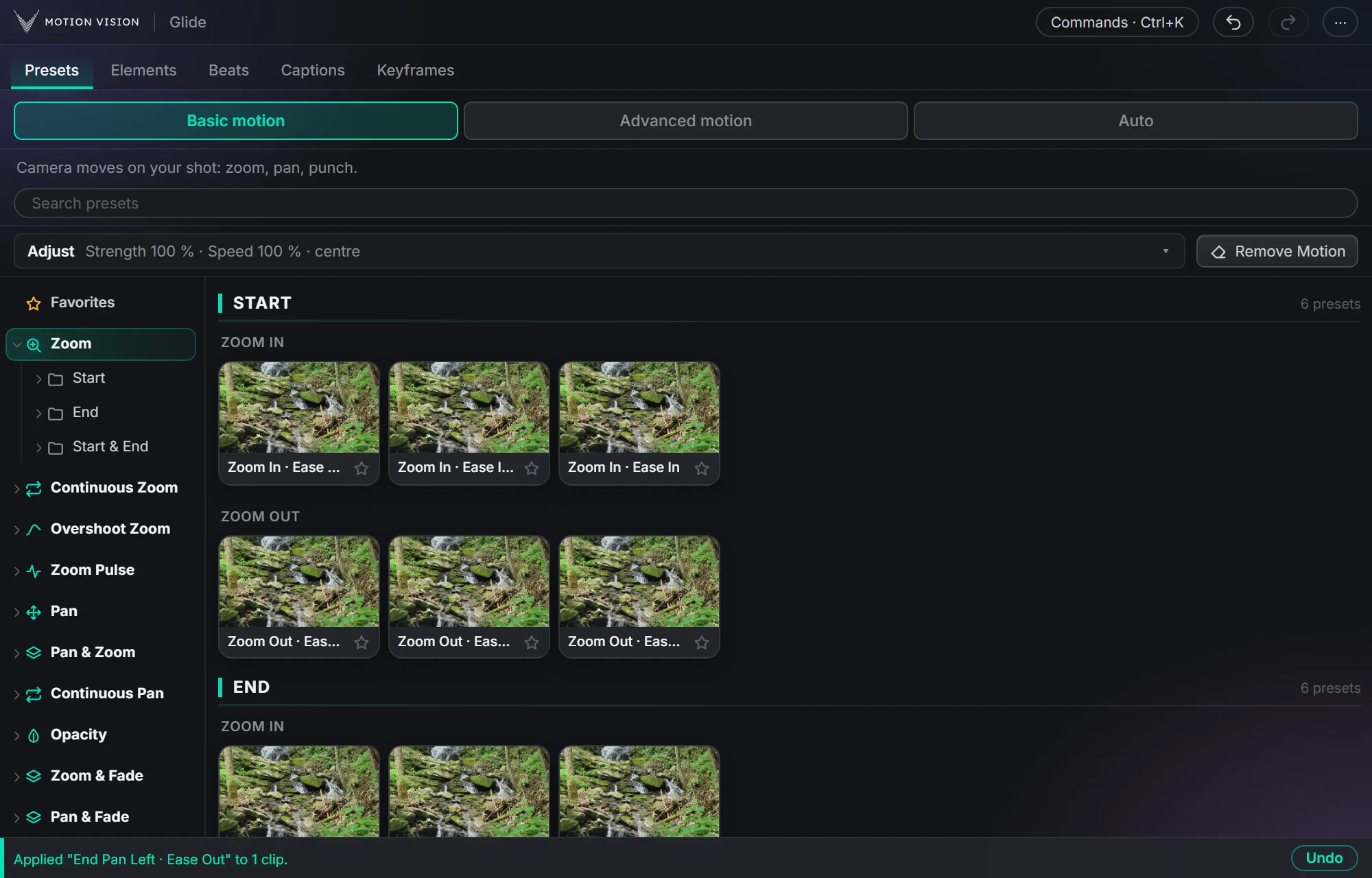 Camera movesClip presets321 zooms, pans, punches, drifts and fades, one click each.Learn more →
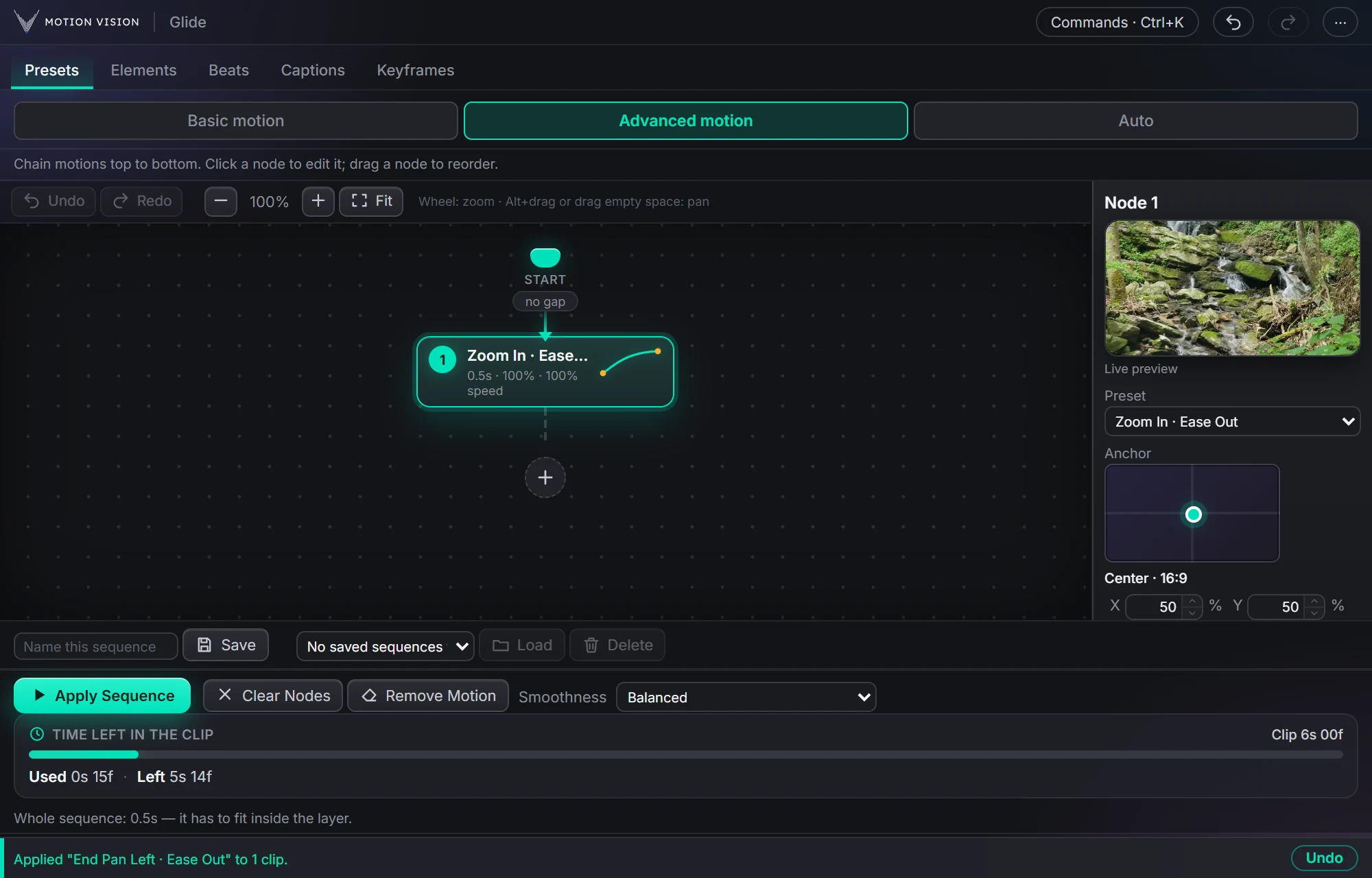 Chained movesAdvanced motionChain several moves on one clip and apply the whole sequence.Learn more →
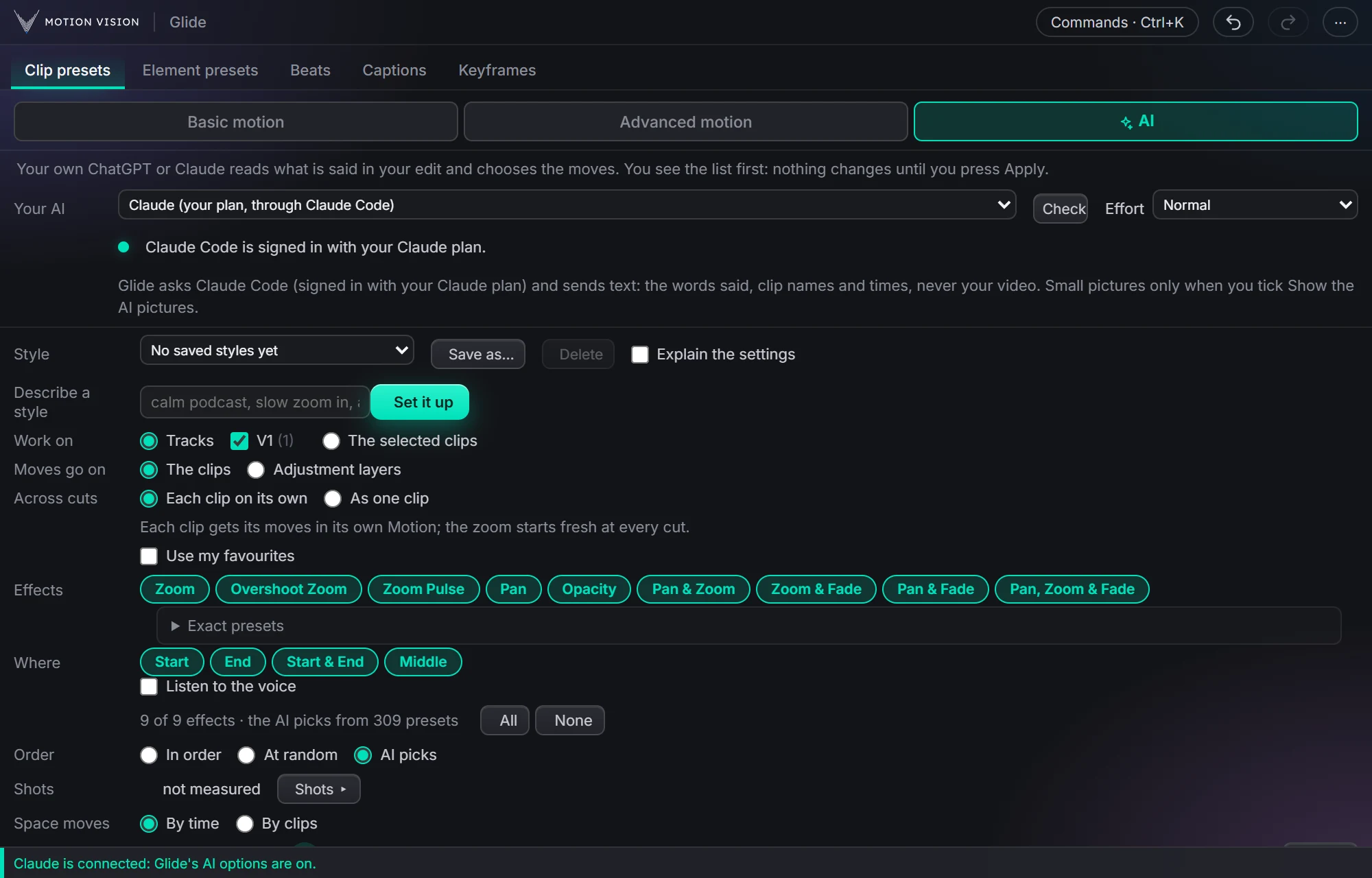 Whole editAuto-pilotMoves on a whole edit at once, with your own AI or without.Learn more →
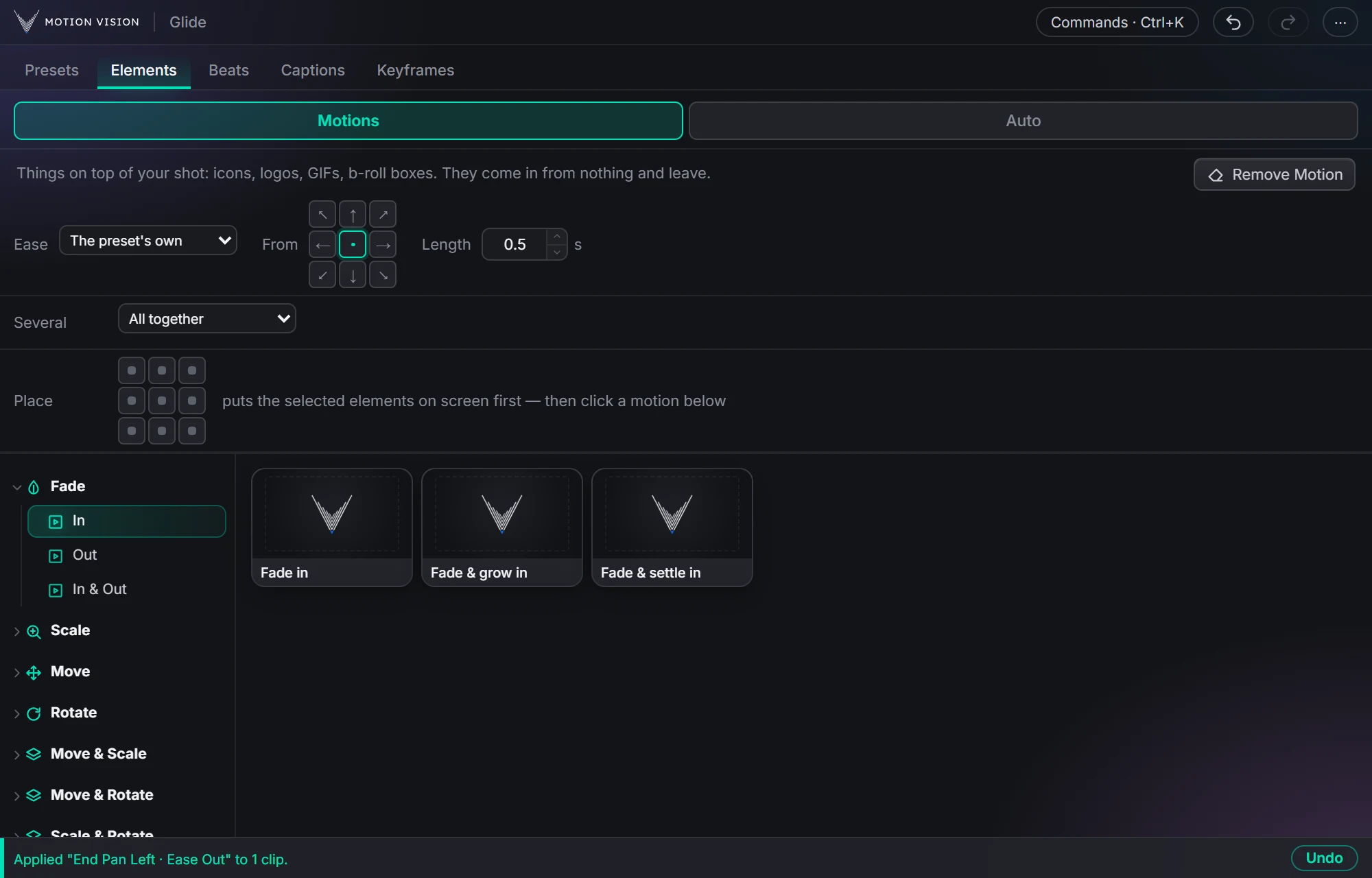 OverlaysElement presetsIcons, logos and b-roll that come in and leave.Learn more →
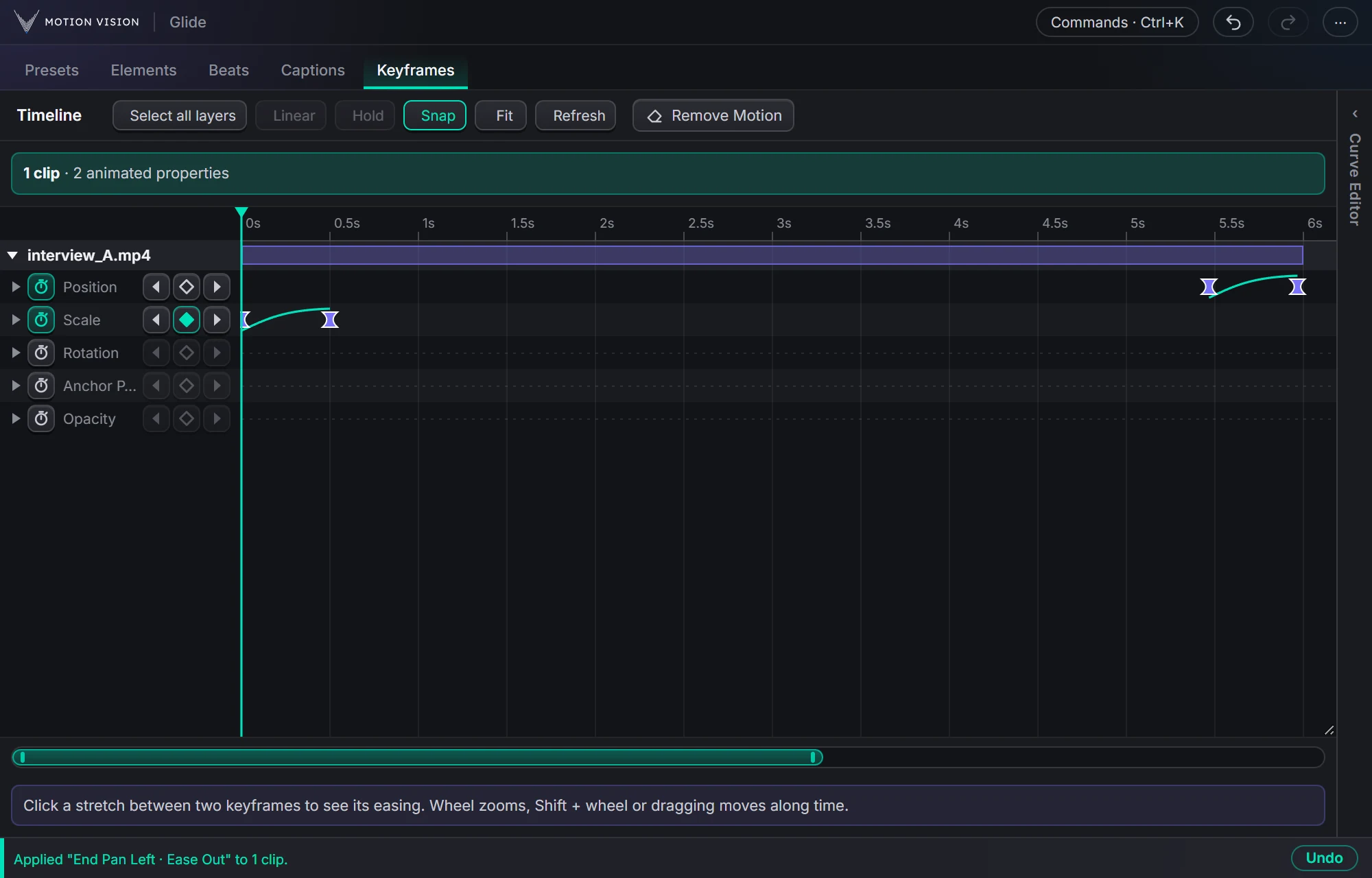 KeyframesTimelineEvery keyframe of the selected clips, in one view you can edit.Learn more →
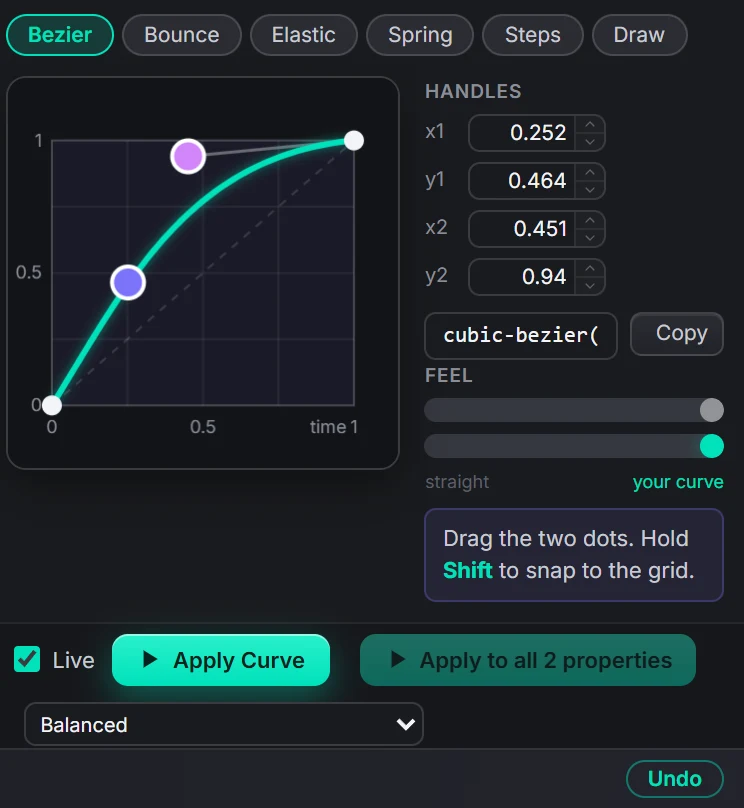 EasingCurve EditorBezier, bounce, elastic, spring, steps, or draw your own.Learn more →
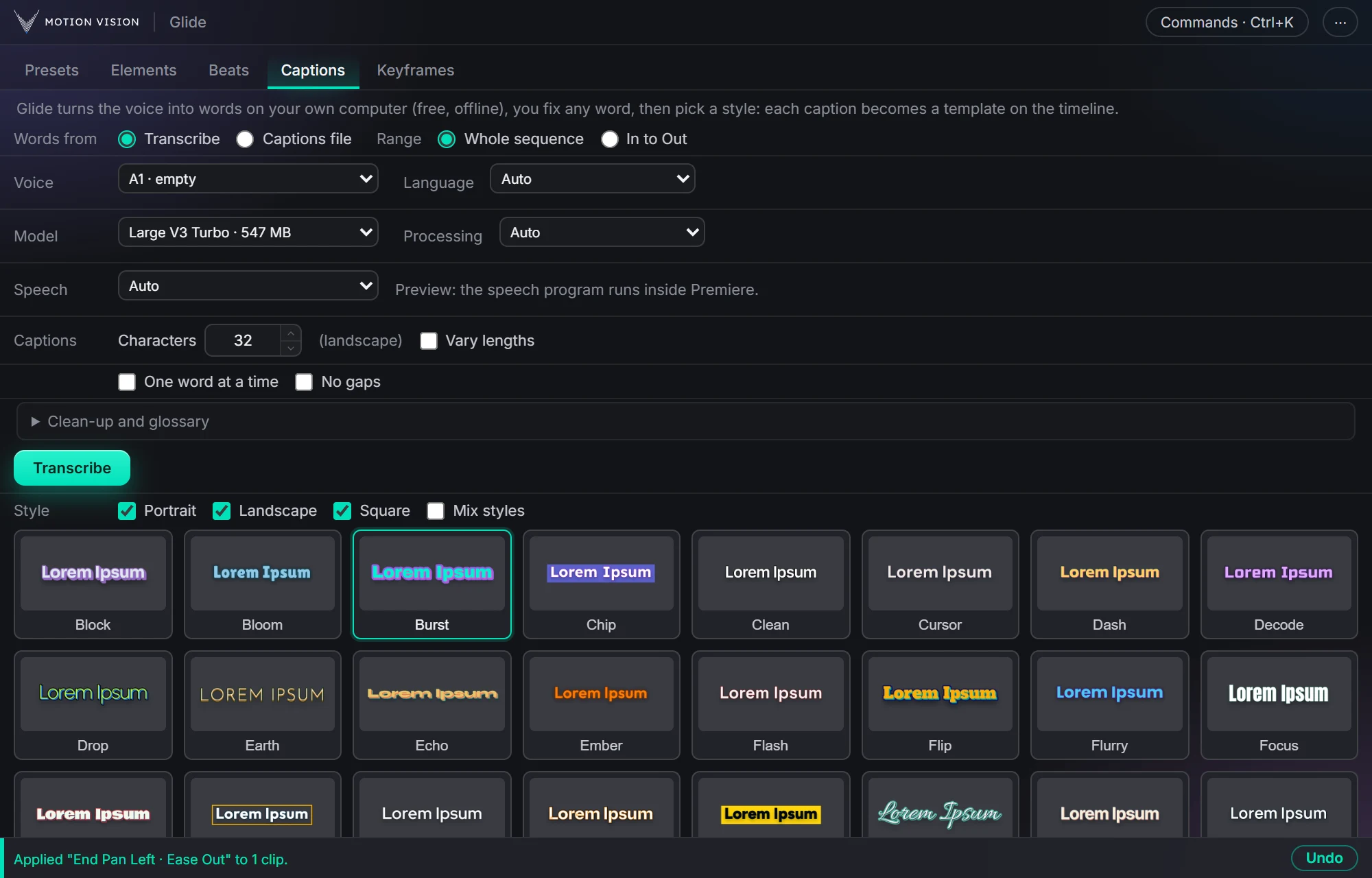 Speech to textCaptionsOffline transcription and translation, 82 animated looks and 12 fast ones.Learn more →
Get Beatswith everything else.
One licence, all eight tools, with a 7-day money-back guarantee.