
Auto-pilotThe whole edit, in one pass.
Pick the tracks, set the feel, press Auto-pilot. Your own ChatGPT or Claude picks the moments that matter, or Glide places the moves itself. You check a list, then Apply.
- With or without AI
- Your own ChatGPT or Claude
- Clip sizes
- Drift in the rests
- On the beat
- Review list
- One-go Undo
- Saved styles
- Element presets › AI
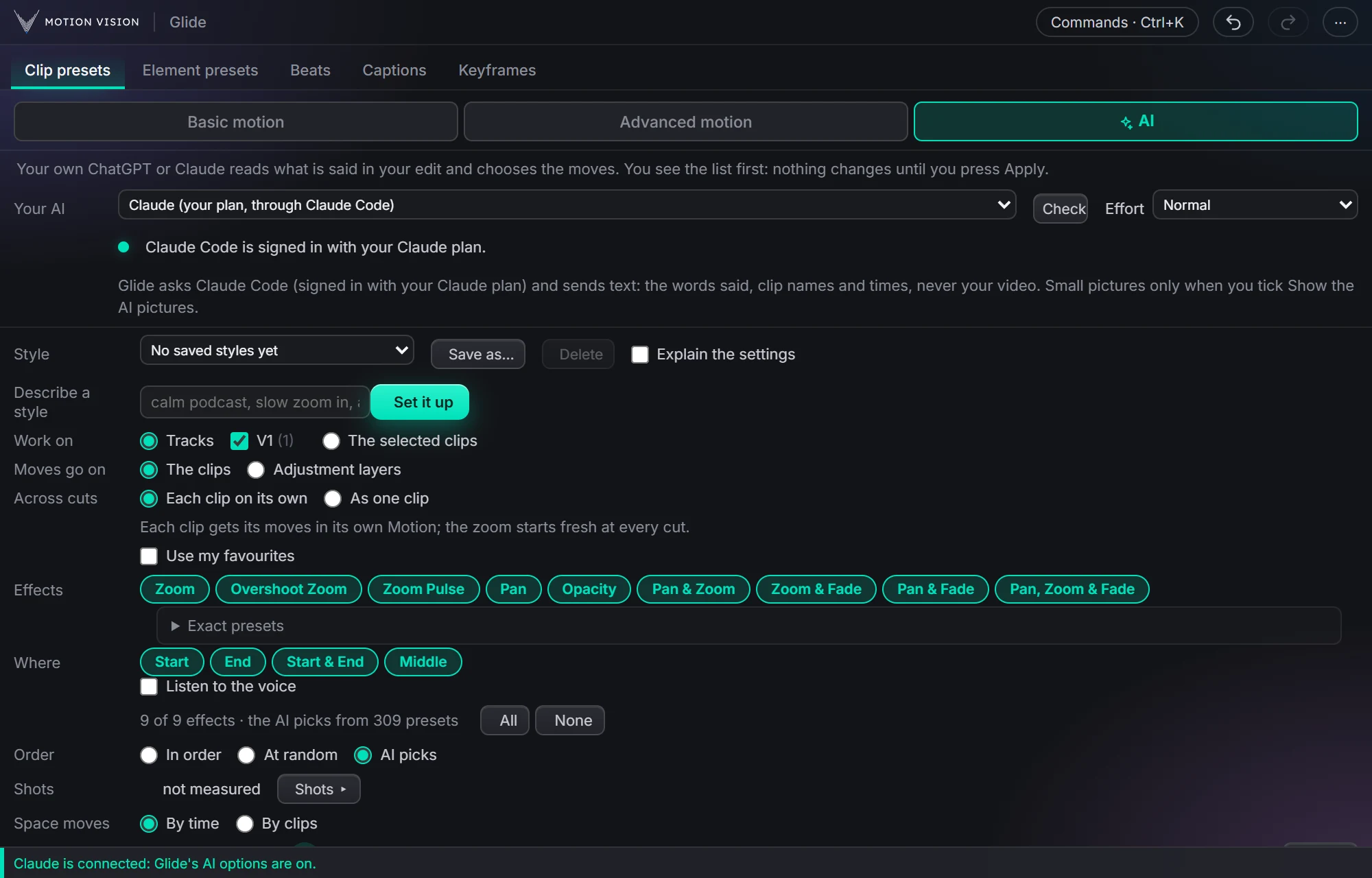
Auto-pilot is in Clip presets › AI, for the talking-head edit, the podcast, the long b-roll pass: work that is not creative but takes an hour. It plans the moves across every clip on the tracks you choose: presets from your list, a size per clip, slow drifts in the rests, punches on the beat. Your own ChatGPT or Claude can read what is said and pick the moments; without one, Glide places the moves at a rhythm you set. Either way you see a list first, and nothing changes until you press Apply.
Six clips, one Apply.
Clip sizes and Drift in the rests: each clip has its own size and drifts slowly in from its cut; two sit still, the way Drift on leaves them. The playhead is Premiere's.
 123456
- Clip sizes 100–115 %
- Drift in the rests: In
- Drift on: 4 of 6 clips
What Auto-pilot gives you.
With your AI, or without
Auto-pilot asks your own ChatGPT or Claude to pick the hook, punchlines, numbers and reveals. Auto-pilot without AI places the moves itself, with the same settings.
Your own ChatGPT or Claude
Through OpenAI's Codex or Claude Code on your paid plan, or with your own API key. Sign-in happens on the maker's own page; Glide never sees it.
Your presets, your rules
Pick preset families, exact presets or only your favourites, where on the clip they go, how strong and how fast, and how far the zoom may go.
The whole edit moves
Clip sizes hide jump cuts, slow drifts fill the rests between moves, a hand-held wiggle sits on top, and punches can land on the beat.
A list before anything changes
Every move is a row to tick or untick. Nothing touches Premiere until Apply, and one Undo puts the whole sequence back.
Saved styles
Save a tab's settings under a name (all but Work on) and load them on the next edit, in both AI sub-tabs. Or describe a style in a few words: your AI sets the tab up and shows the changes first, and your old settings are kept as the style Before Describe a style.
Which clips, which moves.
Work on
Every clip on the ticked tracks, V1 at first, or the selected clips. Captions, titles and adjustment layers are skipped.
Moves go on
Each clip's own Motion, or adjustment layers above the clips. Across cuts: each clip on its own, or As one clip so the zoom carries on through the cuts, starting fresh after a time you set if you like.
Which presets
A chip for each of the 9 preset families, an Exact presets tree to untick single ones, or only your favourites. Advanced motion chains you starred can join as one long move.
Where and Order
Start, End, Start & End, or Middle: on a word that matters inside the clip. Presets go In order, At random, or AI picks.
Measure the shots
Glide checks each clip on your computer: how much it moves, cuts inside it, dark or bright. A still shot gets a move first, a dark one no pans. H.264 video only.
Anchor
Where the zooms grow from: click or drag in a box the shape of the clip, with snapping to the centre, edges and corners, and exact X and Y. Or Let the AI decide, from the clip pictures: the main face, else the main subject.
How the moves sit on the edit.
Spacing
By time: a rest between Gap min and Gap max, 2 s and 4 s at first, each with Vary. Where a rest runs longer, Glide adds a move. Or by clips: every clip, every 2nd, or a share.
Speed, strength, variety
Speed 50 to 200 %, Strength 40 to 200 %, each with Vary. Variety sets how many different presets a list uses, and a Zoom limit, 130 % at first, keeps the zoom in check.
Clip sizes
Each clip its own still size, 110 % at first and up to 150 %, so every cut looks like a second camera angle. Neighbours never get nearly the same size.
Drift in the rests
A slow Continuous zoom or pan between moves: in, out, or both as a wave or at random. With each clip on its own, Drift on can leave a share of clips still. With As one clip, One peak climbs to the Zoom limit by the middle and comes back by the end.
Wiggle position
A smooth hand-held wander on top of the moves and drifts. Glide enlarges the picture a little so the edges never show.
On the beat
A punch zoom on each beat the Beats tab uses, biggest right on the beat: 105 % on a soft beat up to 115 % on a big hit, at first.
A list first, then Apply.
Auto-pilot
Your AI reads what is said (Glide writes the words down on your computer first) and gives a move to the clips that matter, choosing each preset, strength and speed.
Auto-pilot without AI
Glide places the moves itself, at a random rhythm or by clips. Listen to the voice lands them on loud moments and new sentences. The dice gives another mix.
Start and end
Start from scratch takes the old motion off first, in the same Undo. Start with a move at 0 s and End with a move open and close the edit on one.
The list
A row per move: the clip, the preset, where it goes, strength, speed and why. Untick, jump the playhead there, or Just select them. Drag a slider and the list follows without asking the AI again.
Apply and Undo
Apply puts the ticked moves on; Apply again replaces that result. Undo puts the sequence back as it was, in one go. Remove Motion clears the clips in Work on.
Move my photos
Your AI gives every still photo a slow Ken Burns zoom or pan for its whole length, each different from the photo before. Videos are left to Auto-pilot.
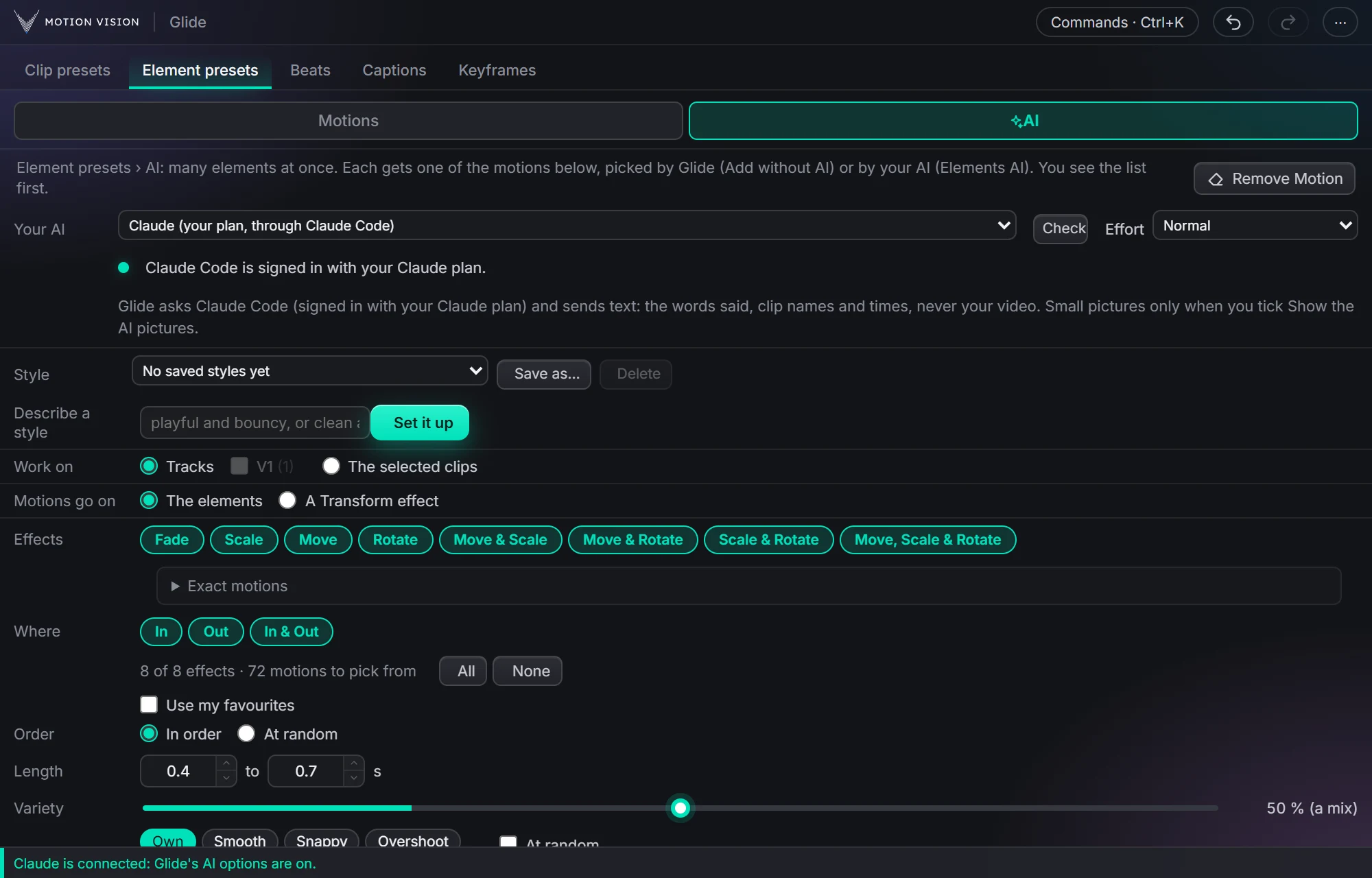
Every element on a track, each its own way.
Work on
Every element on the ticked tracks, every track above V1 at first, or the selected clips. The motion goes on each element, or on a Transform effect so you can still move it by hand. Remove Motion at the top takes the motion off them all.
Which motions
The 72 motions under 8 effect chips, an Exact motions tree, In, Out and In & Out, or only your starred favourites. In order or at random, each element its own length, 0.4 to 0.7 s at first.
Ease, From, Place
One for all, or At random from the ones you light. Place By hand keeps the spots you dragged to in the Program Monitor.
While on screen
Still, Float, Pulse, Sway or a Mix while each element rests, with a slow drift and a hand-held wiggle on top if you like.
On the beat, and which ones
Motions land on the Beats tab's beats. Skip very short elements, and animate every one, every 2nd, or about a share.
Elements AI or Add without AI
Your AI picks a motion for each element from its name, file, size, time on screen and what is said meanwhile. Add without AI hands them out itself. Either way: a list, Apply, and a one-go Undo.
Three steps.
Choose what to work on
Tick the tracks or use the selected clips, and pick which presets may be used.
Set the feel
Spacing, speed, strength, clip sizes, drifts, on the beat. Or load a saved style.
Run, check, Apply
Auto-pilot with your AI or without. Untick what you don't want and press Apply. One Undo puts it all back.
Questions about Auto-pilot.
Do I need an AI?
No. Auto-pilot without AI and Add without AI use every other setting on the page. Auto-pilot, AI picks, Show the AI pictures, Let the AI decide, Move my photos, Describe a style, Elements AI and Show your AI the elements need your own ChatGPT or Claude; they stay greyed out until it is connected.
Which AI, and who pays for it?
Your own: ChatGPT through OpenAI's Codex or Claude through Claude Code on a paid plan, or either one with your own API key, paid from your own credit with OpenAI or Anthropic. Effort sets how hard it thinks: Quick, Normal or Thorough.
What does the AI see?
Text: what is said, the clip names and lengths, and the shot notes if you measure the shots; for Elements AI, each element's name, file, size and time on screen. Pictures only if you tick Show the AI pictures (3 small frames per clip, up to 20 clips) or Show your AI the elements. A key you paste is kept on this computer, and Glide never sees your sign-in.
Does Apply pile up motion if I run it twice?
No. Apply again replaces Auto-pilot's earlier result, and Undo puts the sequence back as it was before Apply. Element presets › AI builds each element from scratch: the motion already on it comes off first, so motions never pile up.
What about my own keyframes?
Auto-pilot takes off only its own earlier moves. A clip with keyframes you made by hand is left as it is, and the result says so; a preset you put on yourself stays unless a new move goes on the same start or end. Tick Start from scratch to take the old motion off first, or choose Adjustment layers and the moves go on layers above the clips.
Can I keep some clips still?
Yes. Space moves by clips (every 2nd clip, or a share), or skip clips shorter than a length you set: those get no move of their own. With each clip on its own, Drift on leaves a share of clips without a drift.
The rest of the panel.
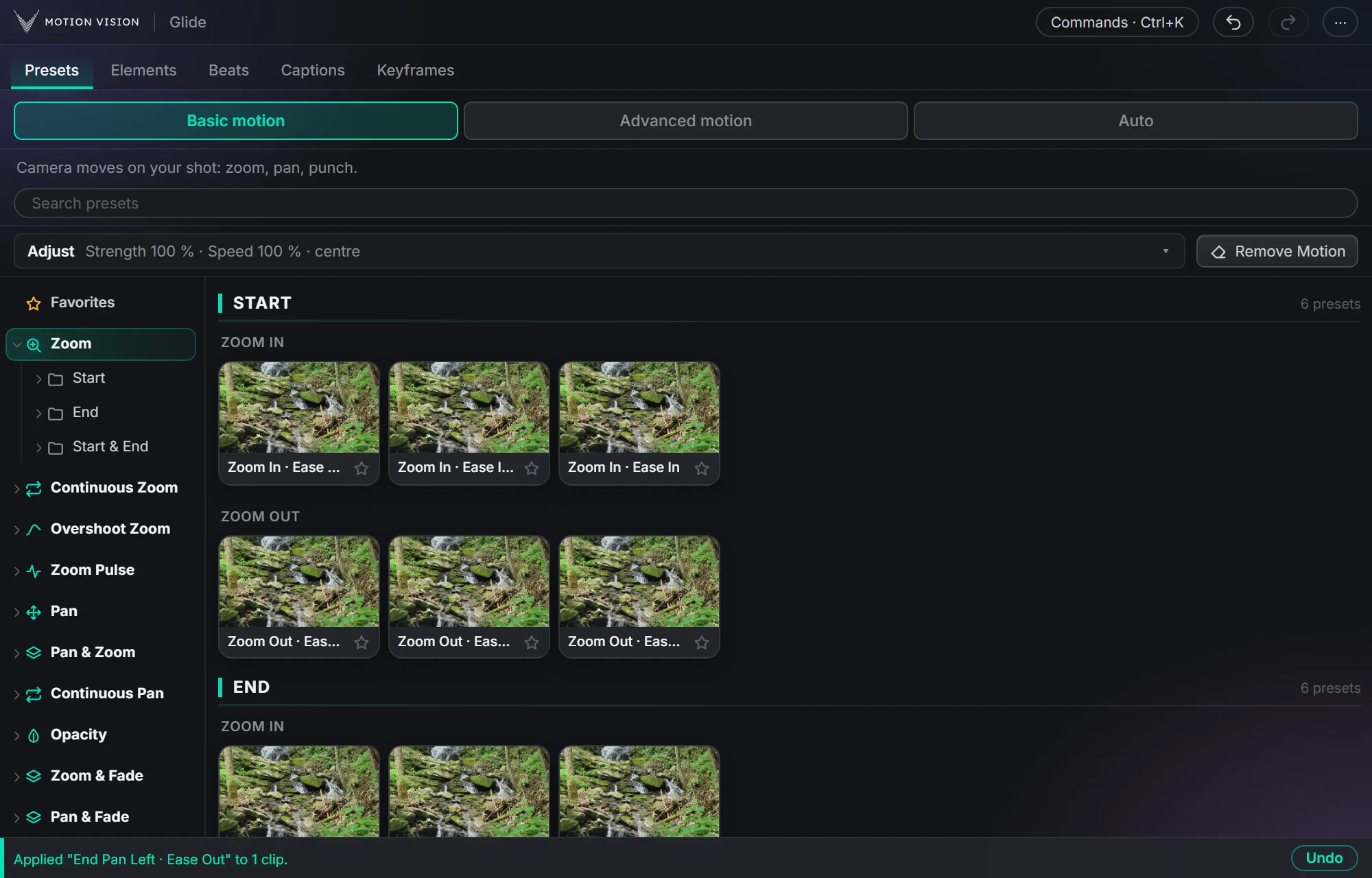 Camera movesClip presets321 zooms, pans, punches, drifts and fades, one click each.Learn more →
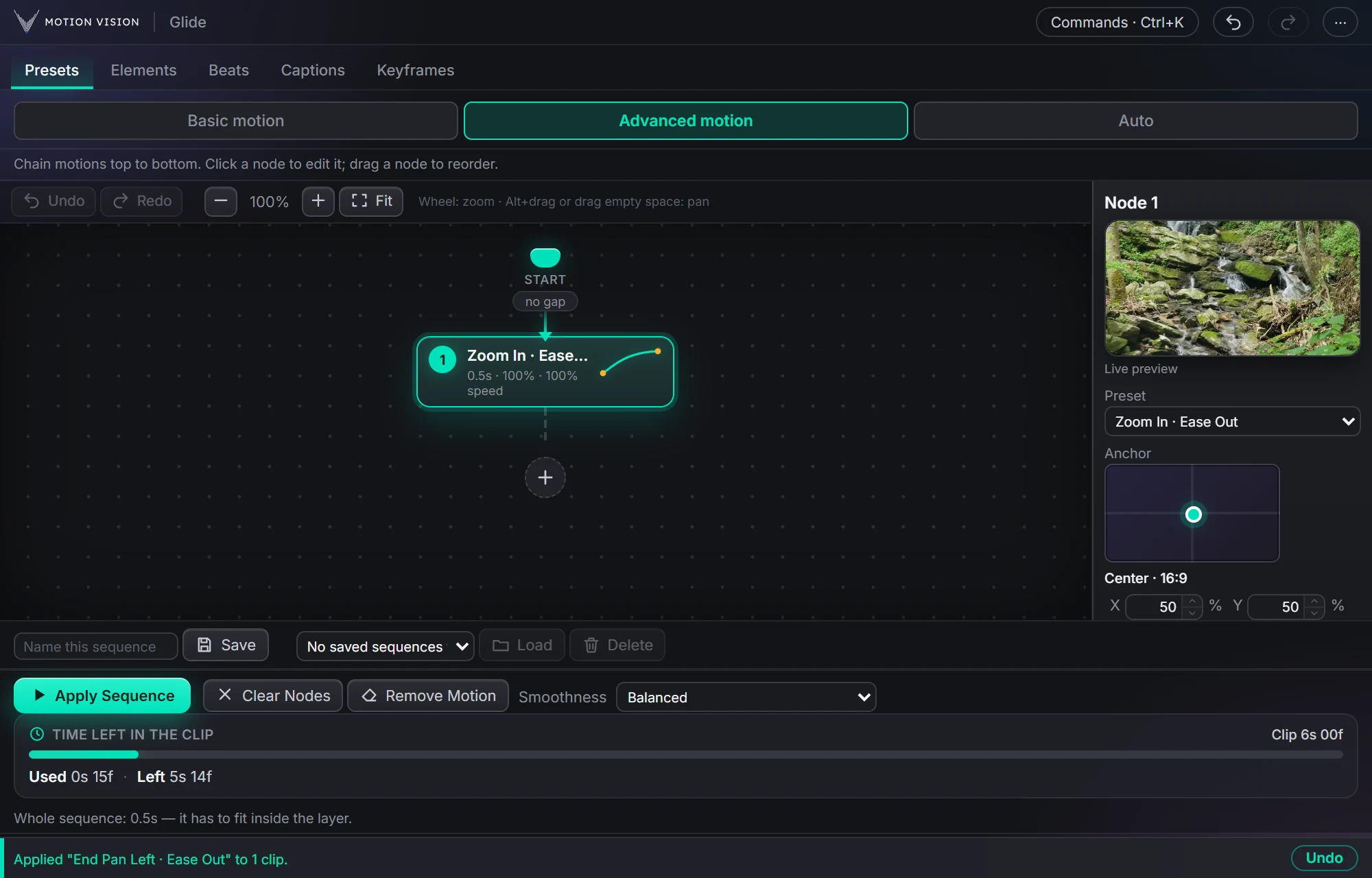 Chained movesAdvanced motionChain several moves on one clip and apply the whole sequence.Learn more →
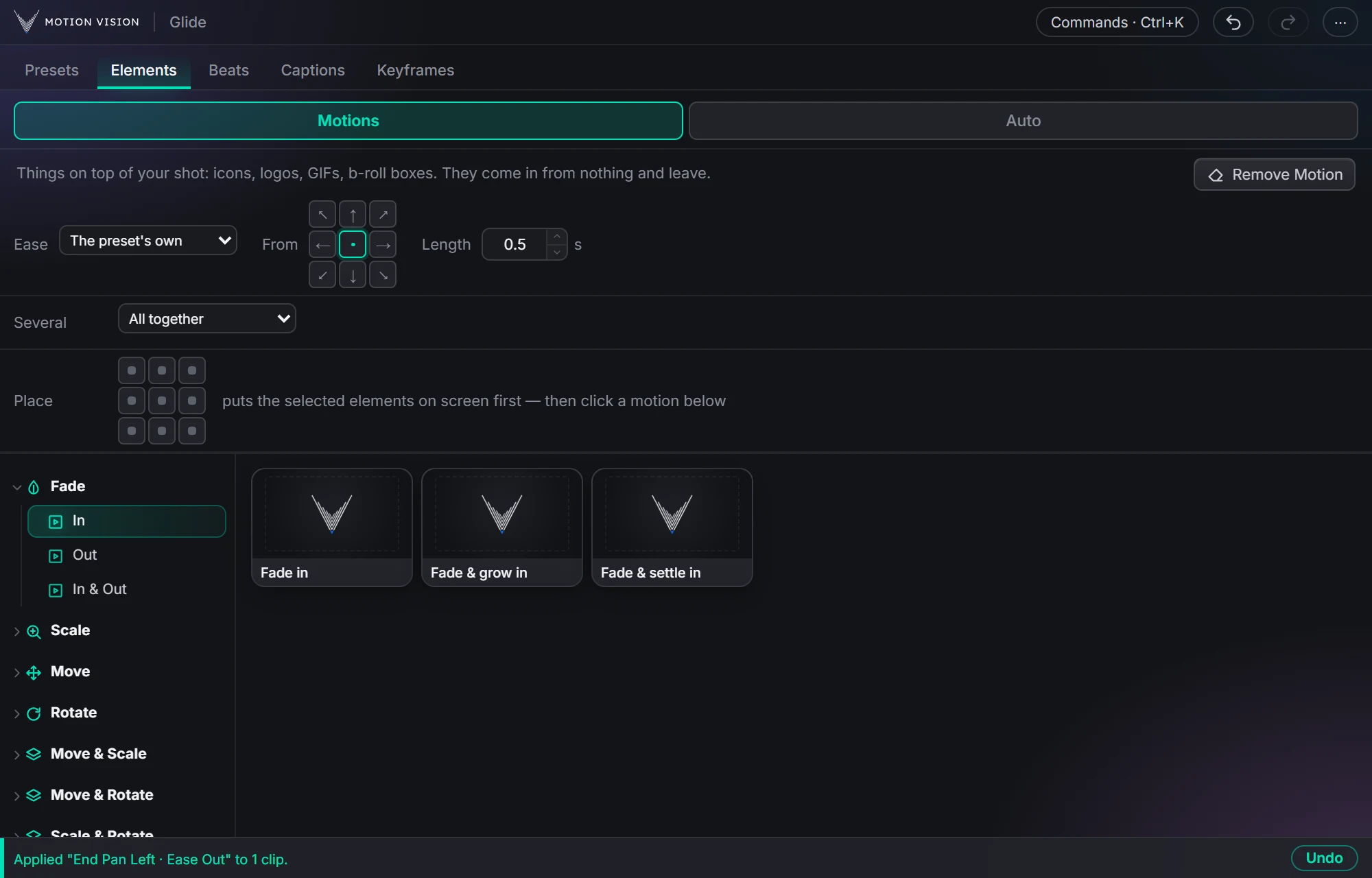 OverlaysElement presetsIcons, logos and b-roll that come in and leave.Learn more →
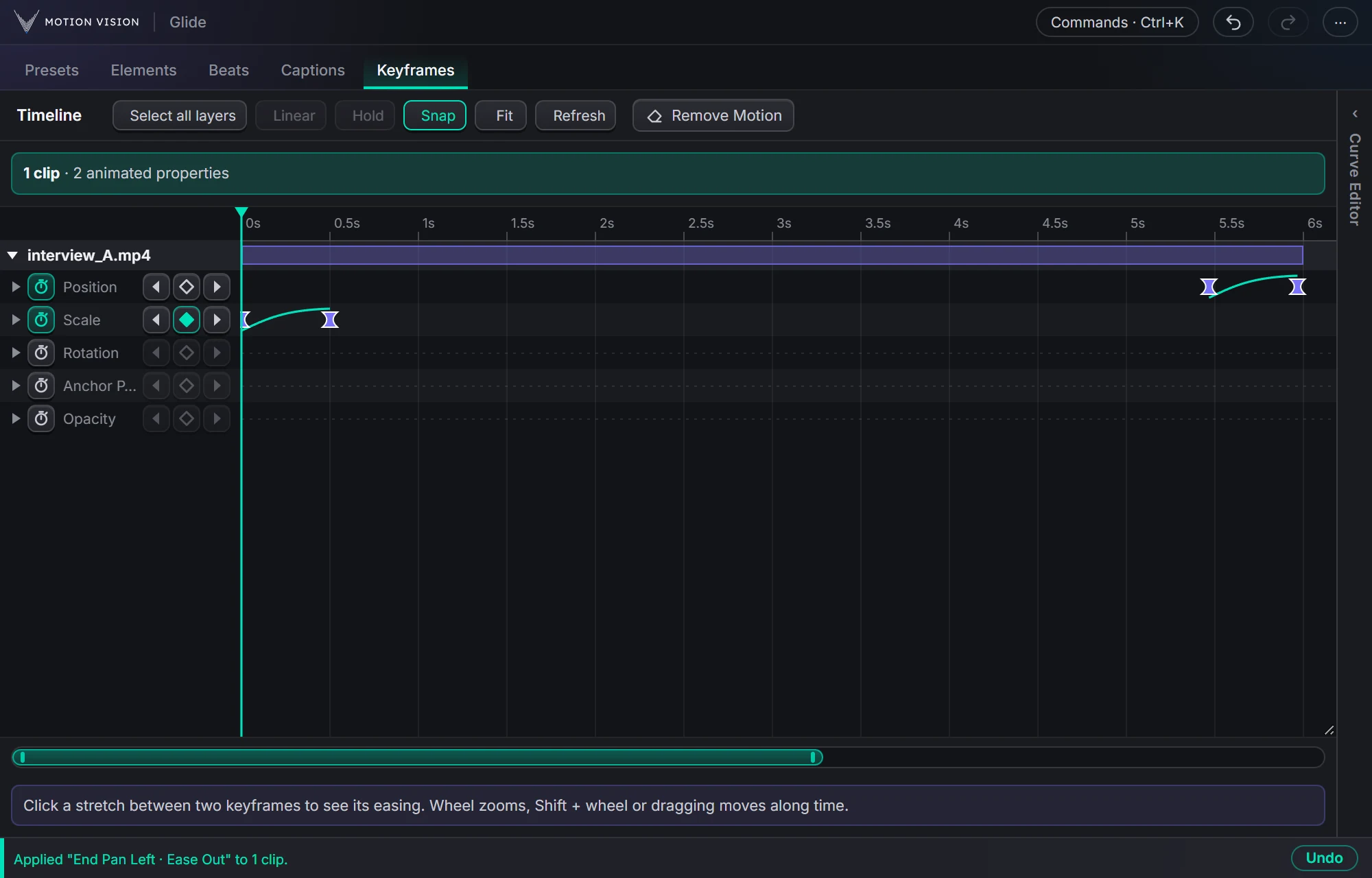 KeyframesTimelineEvery keyframe of the selected clips, in one view you can edit.Learn more →
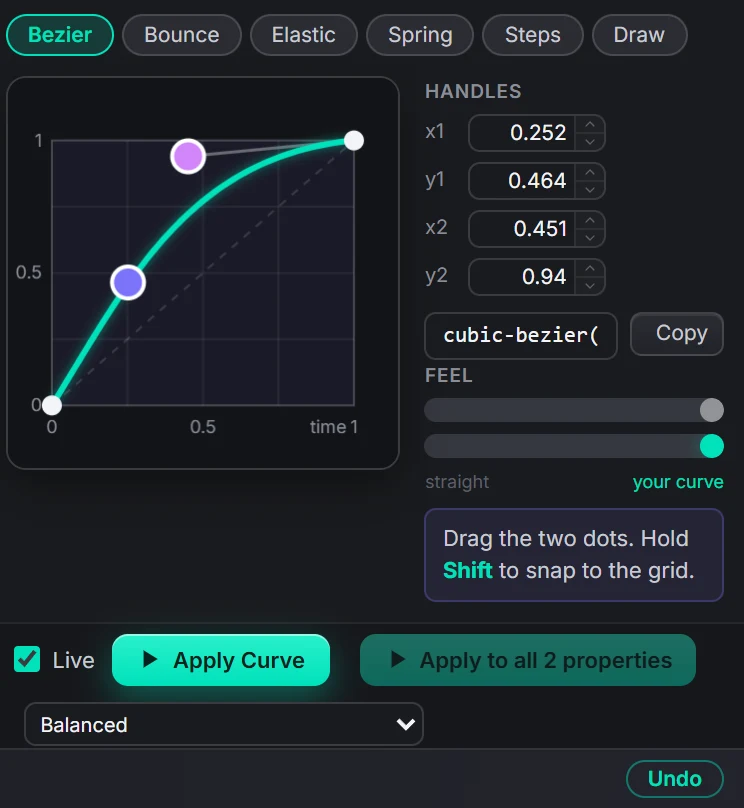 EasingCurve EditorBezier, bounce, elastic, spring, steps, or draw your own.Learn more →
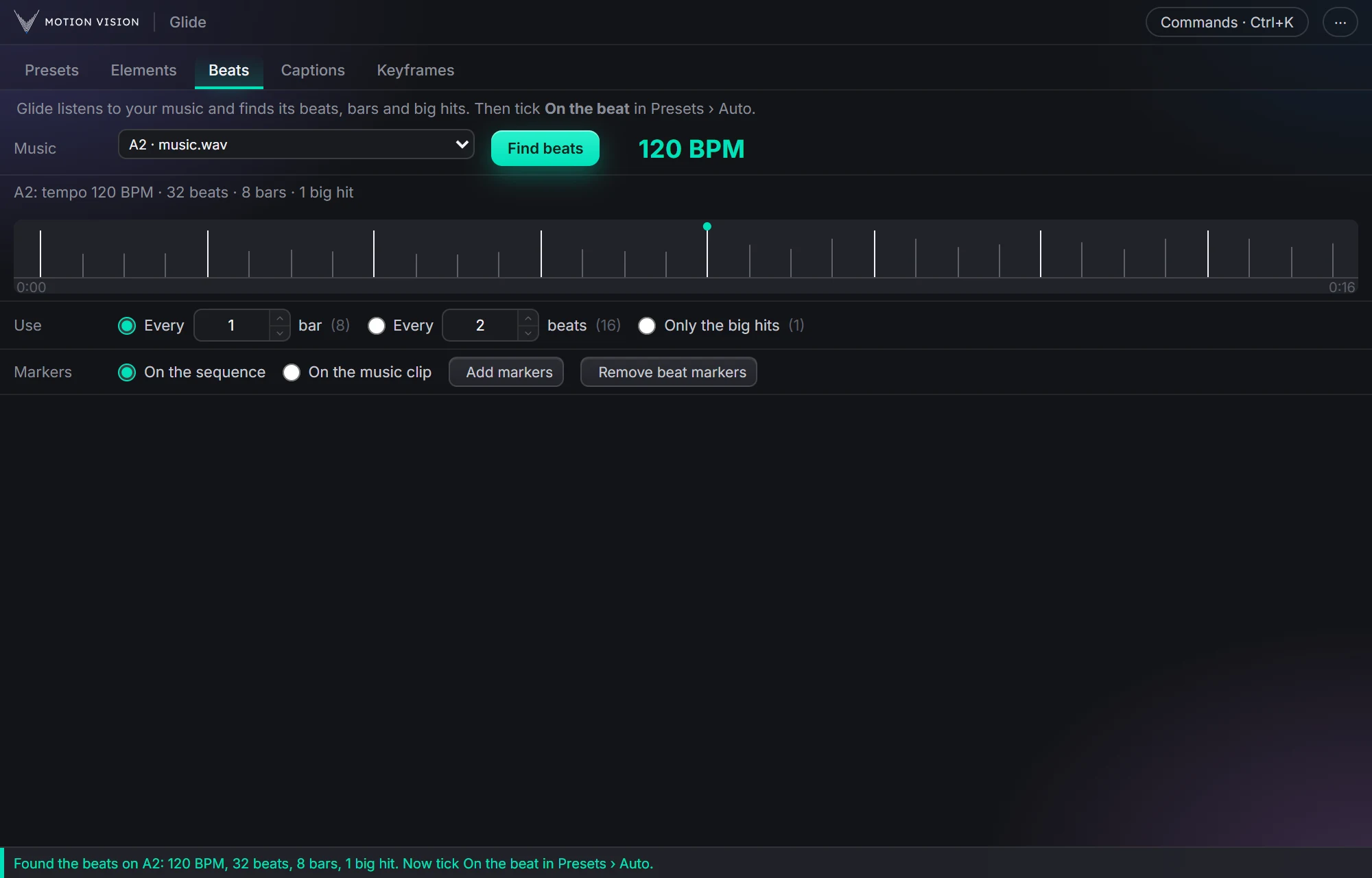 MusicBeatsReads the music and puts the motion on the beat.Learn more →
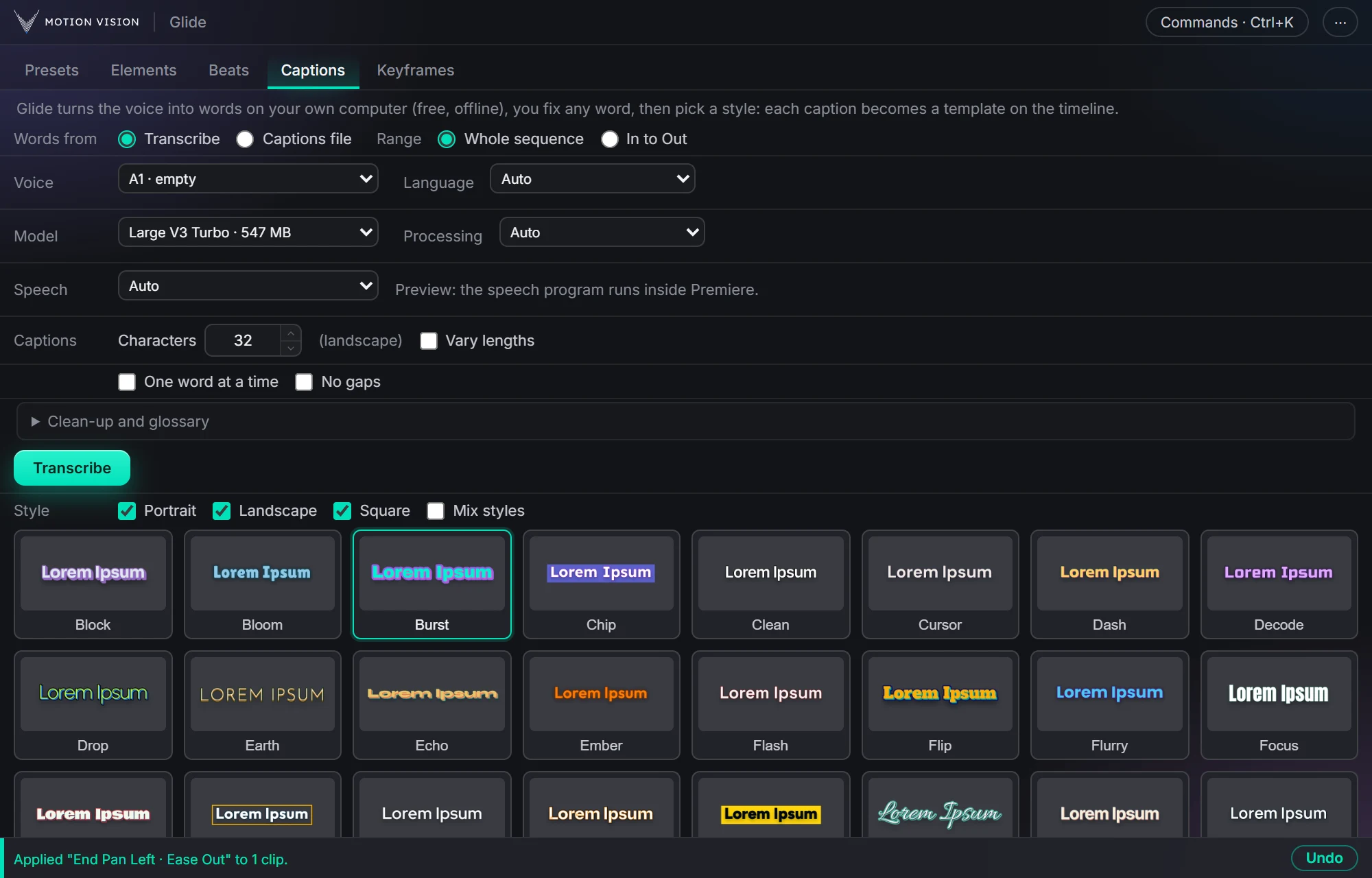 Speech to textCaptionsOffline transcription and translation, 82 animated looks and 12 fast ones.Learn more →
Get Auto-pilotwith everything else.
One licence, all eight tools, with a 7-day money-back guarantee.