
Advanced motionChain moves as nodes.
A zoom in, a hold, a pan, a zoom out. Build the move once on a canvas, watch the live preview, and apply the whole chain to any clip.
- Node chain
- Holds
- Live preview
- Per-node anchor
- Time-left bar
- Save & load
- Smoothness
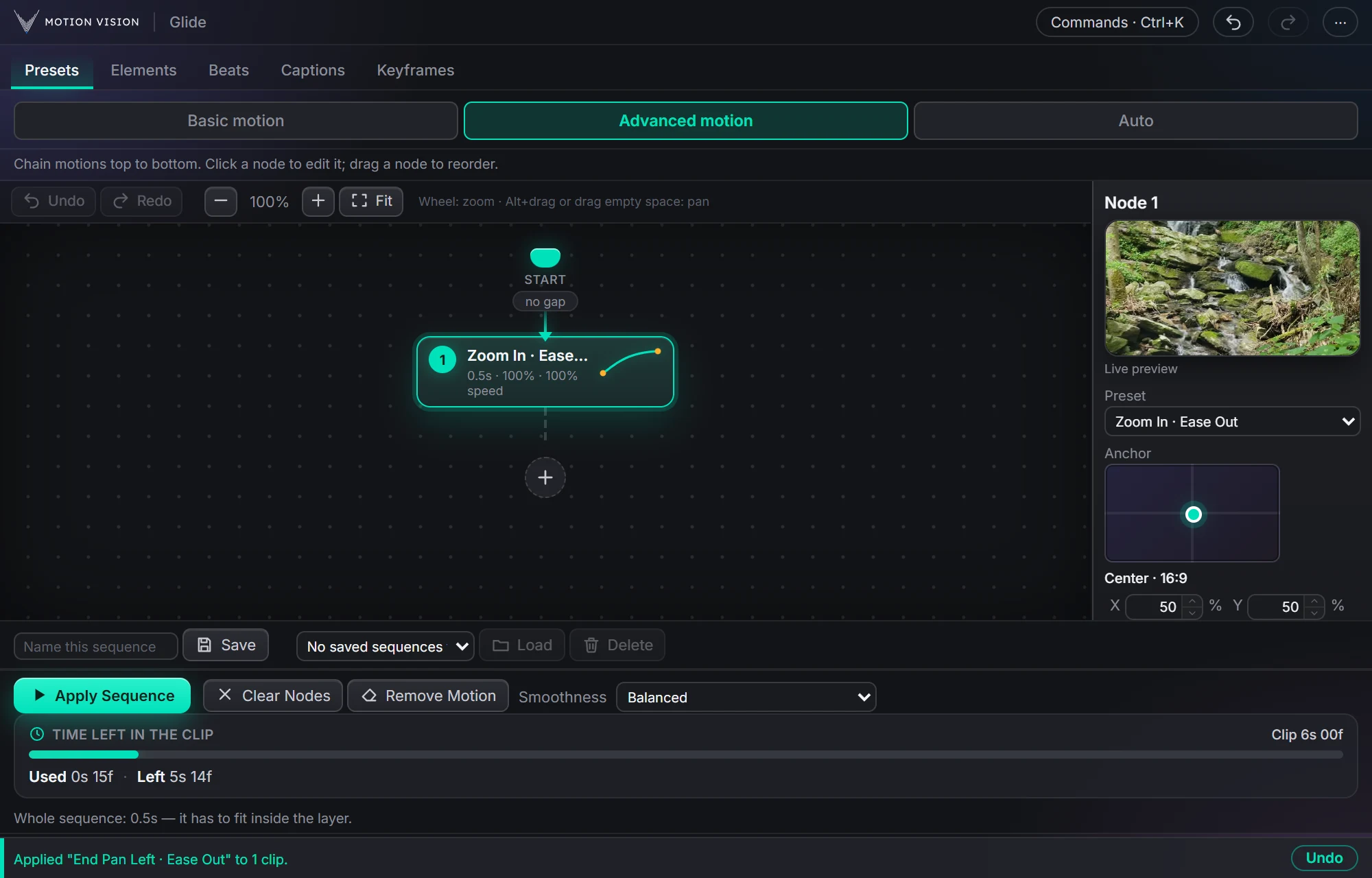
Advanced motion is for moves that a single preset can't describe. Each node is one preset with its own length, strength, speed and anchor; a gap between nodes is a hold. Glide writes the chain as one continuous set of keyframes and tells you how much of the clip it uses.
Four nodes, one move.
Zoom in, hold, pan, zoom out. The node lights up as its part of the move plays.
What Advanced motion gives you.
A canvas, not a list
Click a node to edit it, drag to reorder, add a gap for a hold. Zoom and pan the canvas like a node editor, Fit brings it all back into view.
Live preview and per-node anchor
See the move on footage as you tune it. Each node can pivot from its own point on the frame.
Time left in the clip
A bar shows how long the chain runs and what the selected clip has left, so the sequence always fits.
Save and load
Name a sequence and load it on the next clip, or the next project. Delete the ones you outgrow.
Canvas, inspector, apply.
Start node and gaps
Every chain begins at Start. Between nodes you choose no gap or a hold of a given length; the picture waits, then moves on.
The node
One preset from any family, its length in seconds, strength and speed in percent. The little curve on the node shows its easing.
The inspector
On the right: a live preview, the preset dropdown, and an Anchor picker for this node alone, with X and Y and Reset.
Canvas controls
Undo and Redo for the chain, zoom in and out, Fit, wheel to zoom, Alt-drag or drag empty space to pan.
Apply Sequence
Writes the whole chain onto the selected clips. Clear Nodes empties the canvas; Remove Motion clears the clip.
Smoothness
How many keyframes the chain is written with, from Smoothest to Lightest. Balanced by default.
Three steps.
Add nodes
Press + and pick a preset for each step of the move.
Tune each node
Length, strength, speed and anchor, with the preview updating as you go.
Apply Sequence
One click writes the whole chain onto the selected clip.
Questions about Advanced motion.
What if the chain is longer than the clip?
The Time left bar tells you: the whole sequence has to fit inside the clip. Shorten a node or a gap and apply.
Can I reuse a sequence?
Yes. Save it with a name; Load puts it on any clip later, in any project.
Is the result still editable keyframes?
Yes. Like everything Glide makes, it's plain keyframes on the clip. Open the Timeline tab to see and adjust every one.
The rest of the panel.
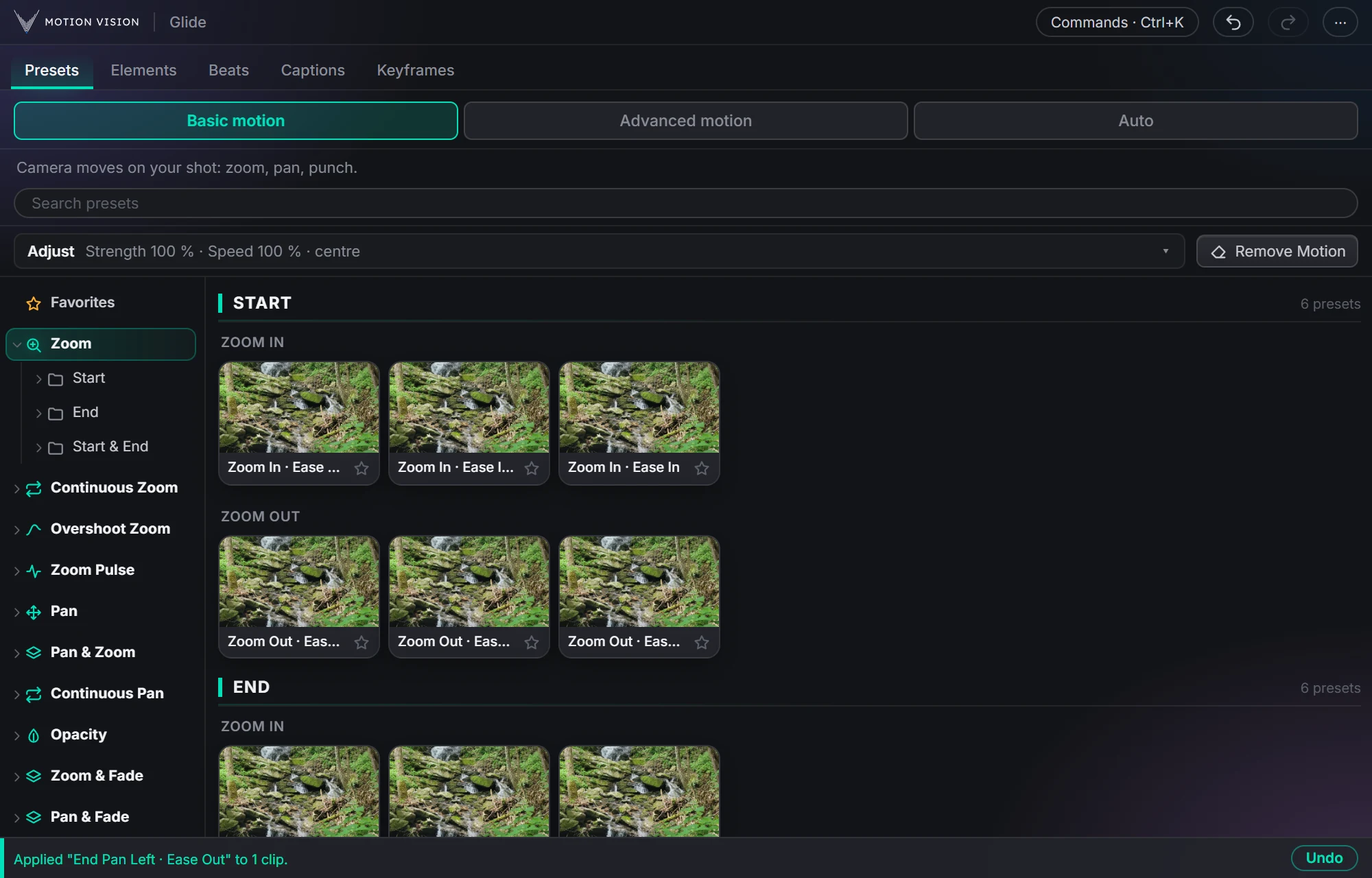 Camera movesPresetsZooms, pans, punches and fades in one click.Learn more →
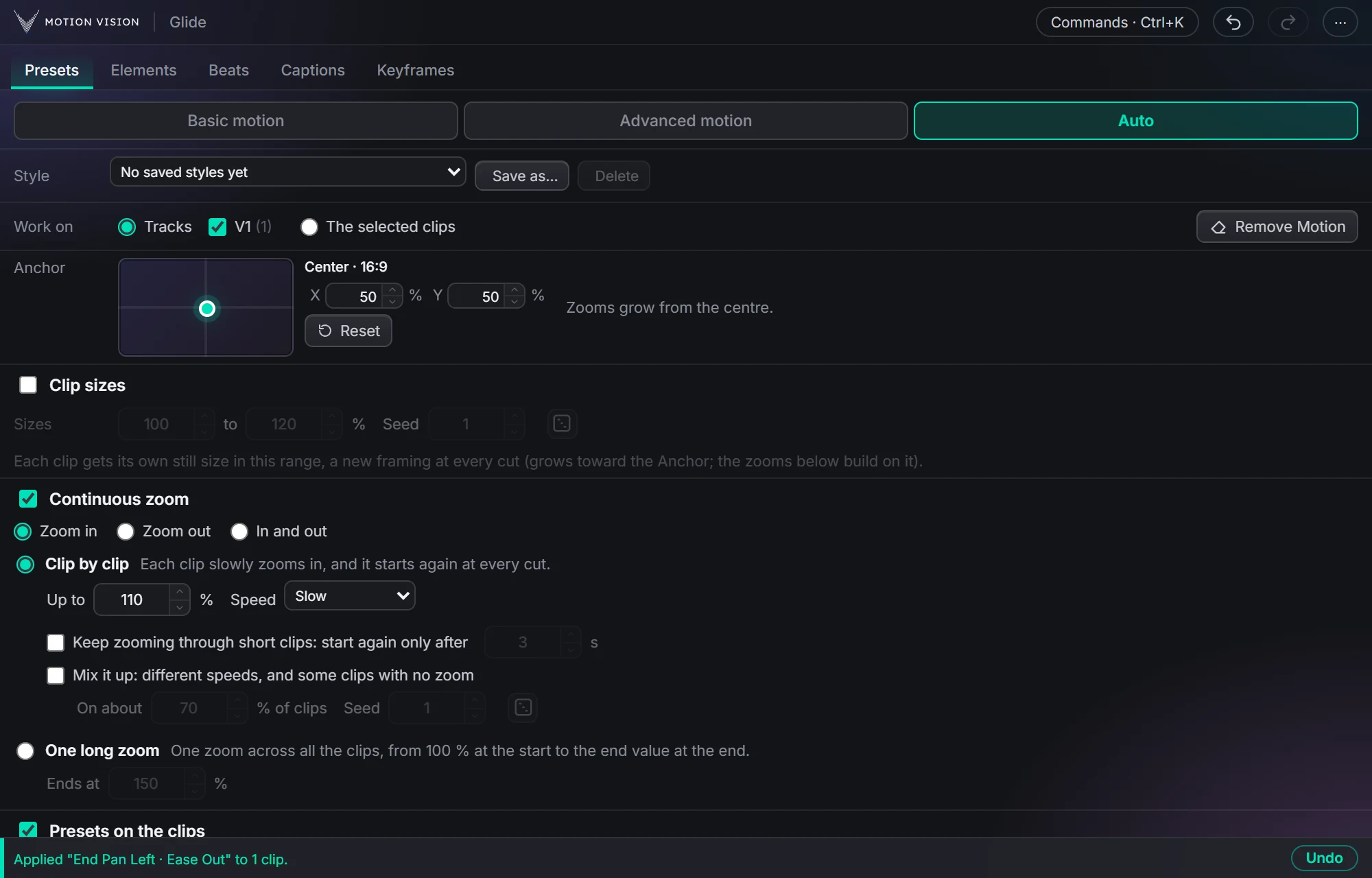 Whole timelineAutoAnimate whole tracks in one click, on the beat if you like.Learn more →
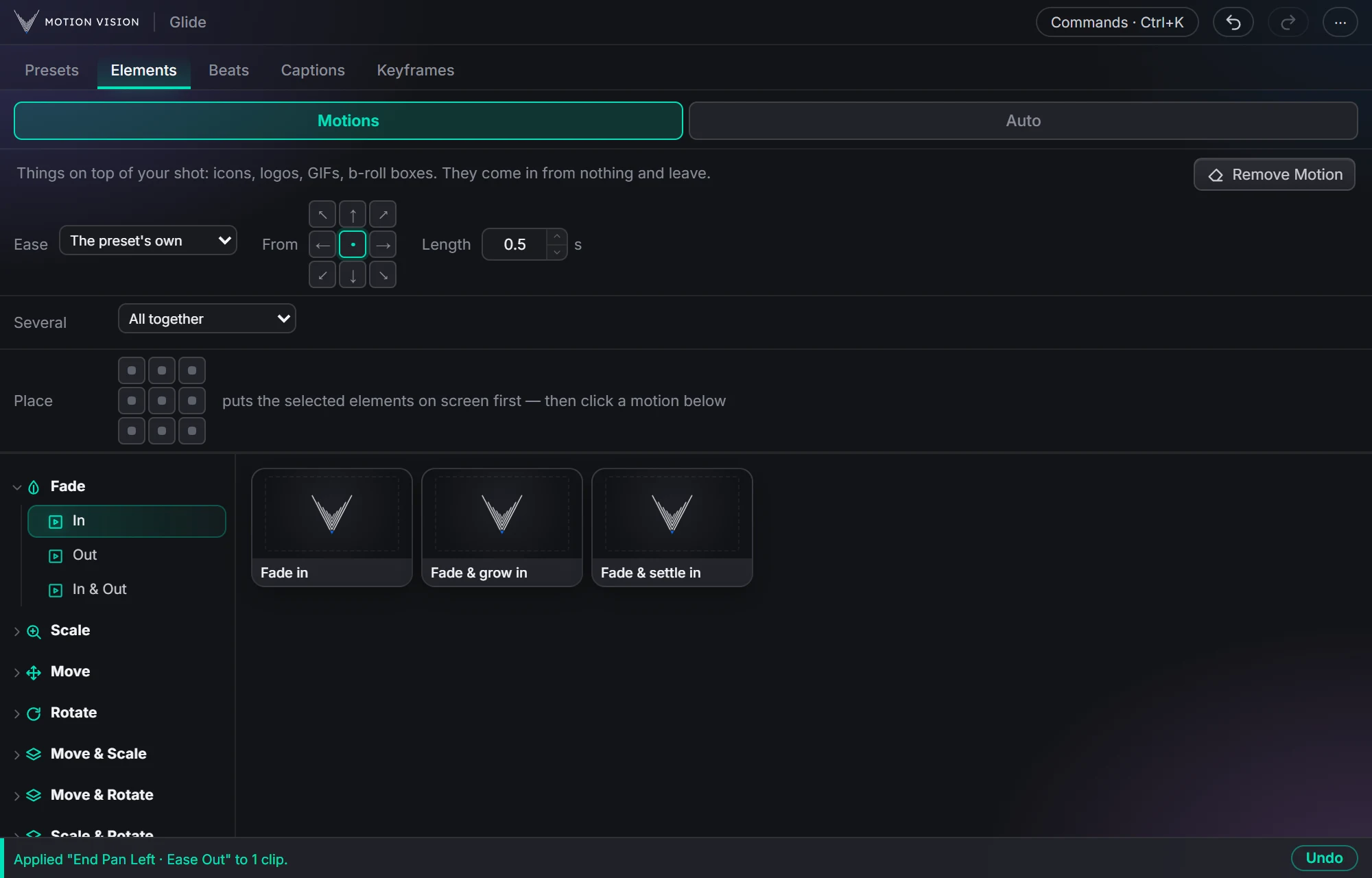 OverlaysElementsIcons, logos and b-roll that come in and leave.Learn more →
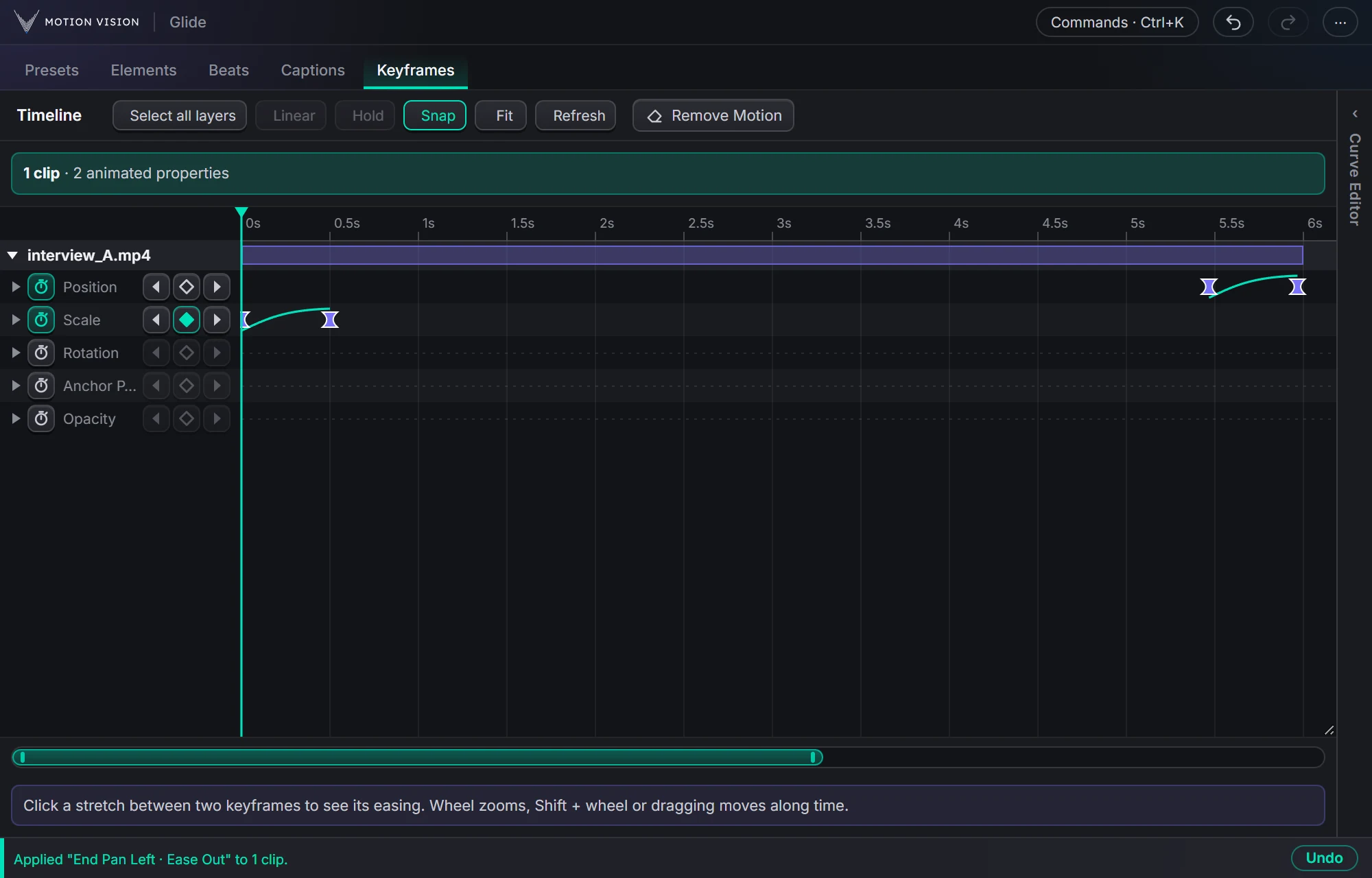 KeyframesTimelineEvery keyframe of the selected clips, in one view you can edit.Learn more →
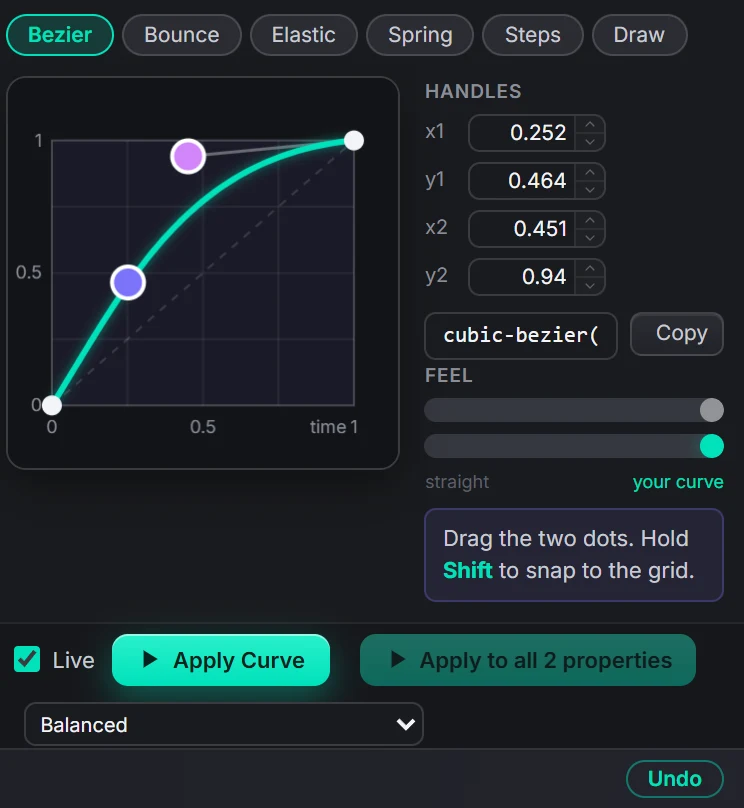 Curve editorEasingBezier, bounce, elastic, spring, steps, or draw your own.Learn more →
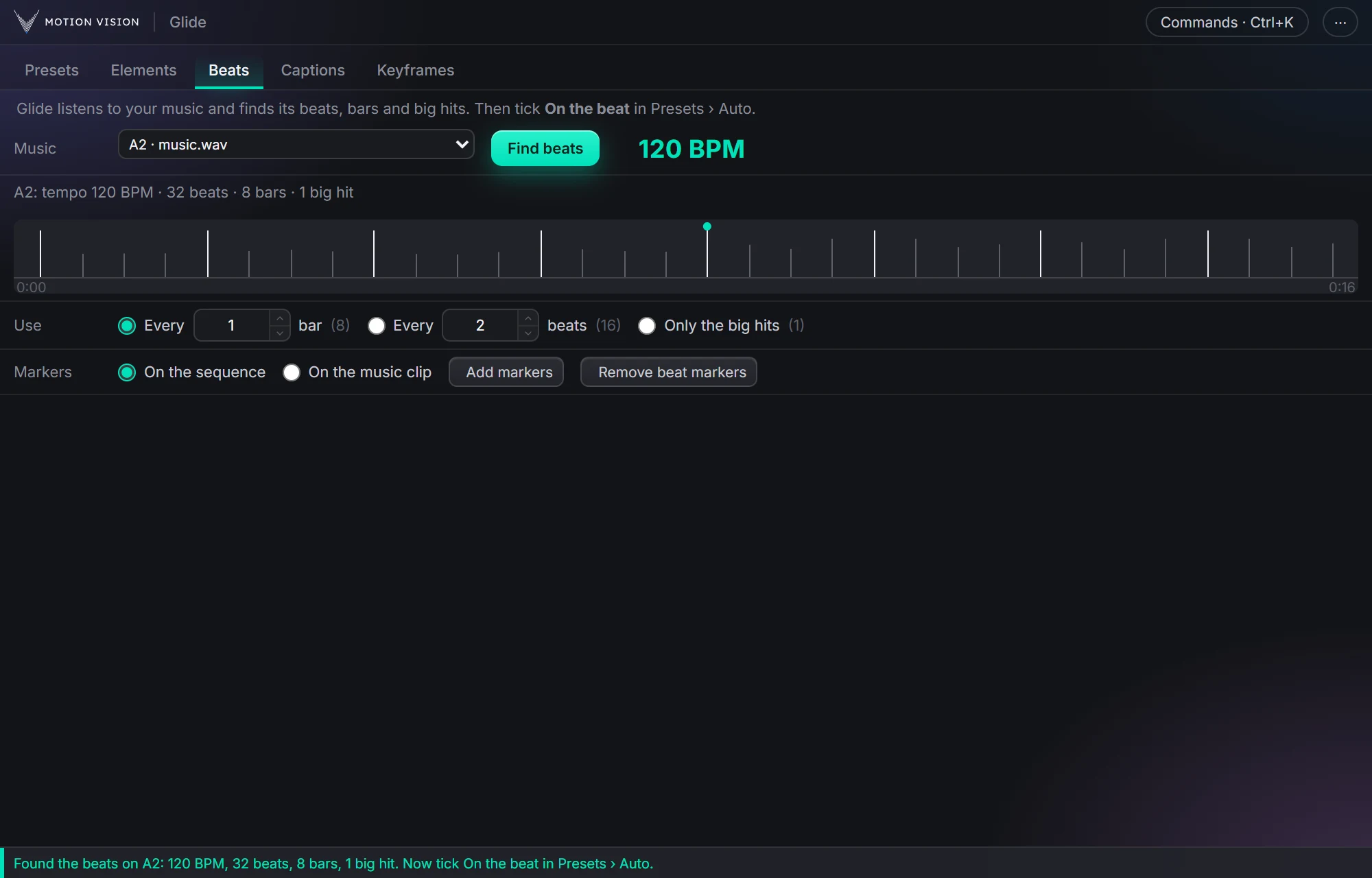 MusicBeatsReads the music and puts the punches on the beat.Learn more →
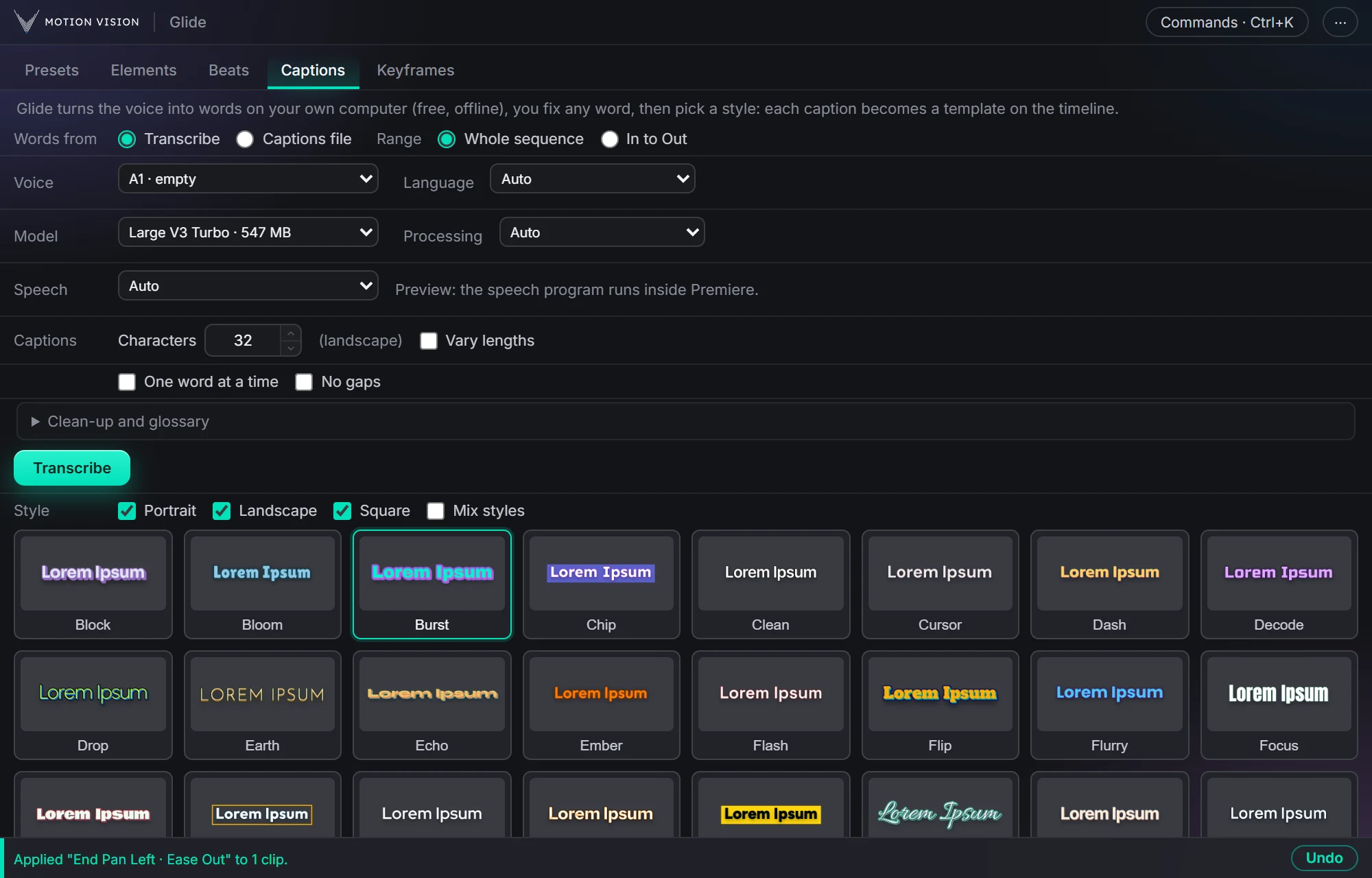 Speech to textCaptionsOffline transcription and 40 animated styles.Learn more →
Get Advanced motionwith everything else.
One licence, all eight tools. Try everything free for 14 days first.