
PresetsCamera moves in one click.
Zooms, pans, punches, overshoots, pulses, continuous drifts and fades. Hover a card to preview it, click to put it on the clip.
- 100+ presets
- 11 families
- Start / End / Both
- 3 easings each
- Anchor picker
- Favourites & search
- Remove Motion
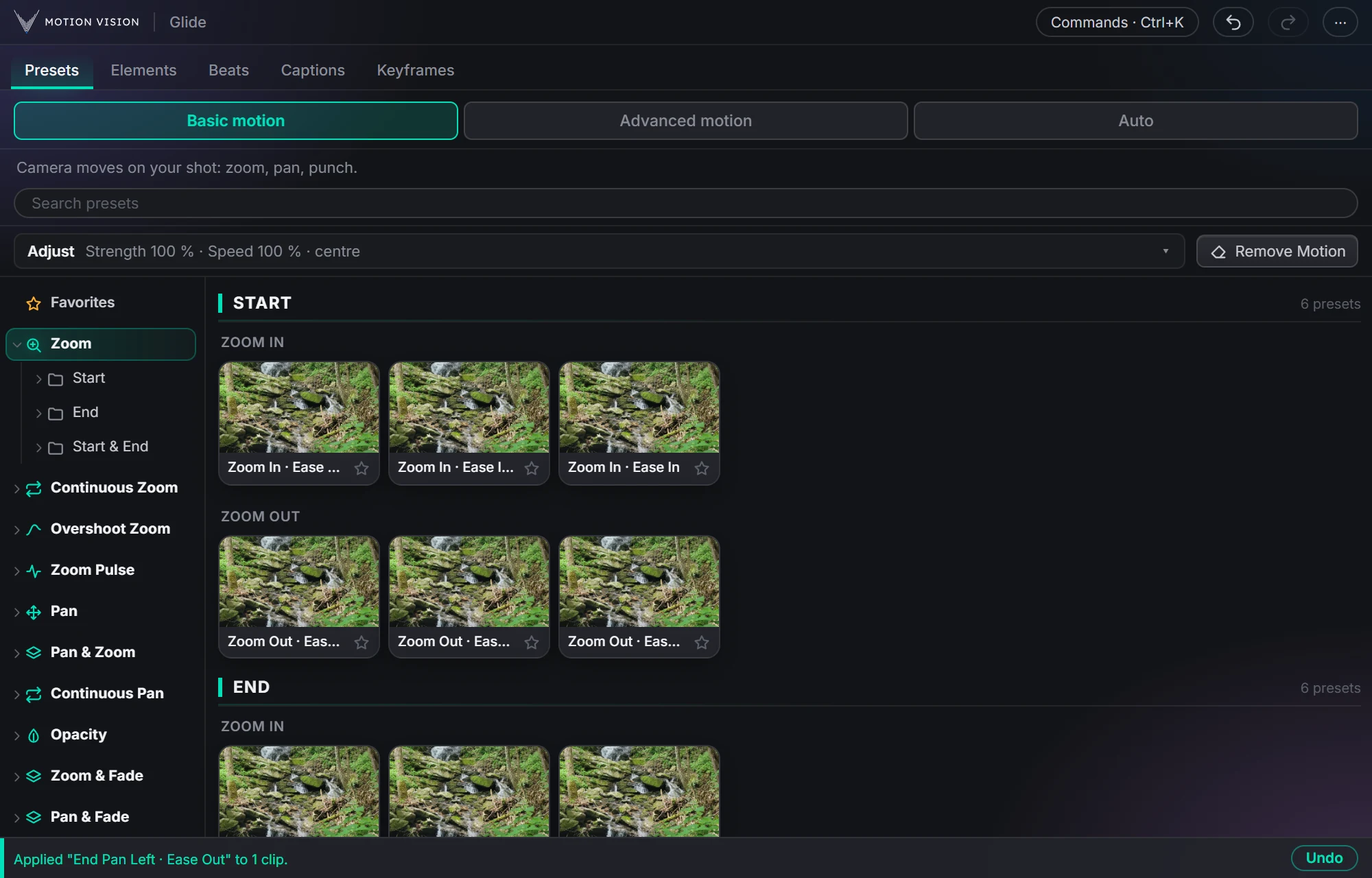
Every preset is a real camera move written as keyframes on the clip's own Scale, Position and Opacity. Eleven families, each in Start, End and Start & End versions with three easings. Pick where the move pivots, how strong it is and how fast, star the ones you keep coming back to, and search when the tree is too much.
102 moves on real footage.
Hover a card and the frame moves with that preset's own keyframes, the same preview the panel shows. Continuous presets drift for a few seconds.
What Presets gives you.
Preview before you click
Hover any card and it plays. Click, and the same move is on your selected clips, scaled to the clip and the sequence so no black edges appear.
Start, End, or both
Each family has Start, End and Start & End folders: a move in, a move out, or a move that does both, like In then Out or Out then In.
Anchor point
Zoom from any point on the frame, not just the centre. Click or drag on a picture of the clip, snap to edges, corners and the centre, or type exact X and Y.
Strength and speed
One Adjust row for the whole tab. Turn a subtle drift into a punch, or slow a move down, without touching a keyframe.
Three easings each
Ease Out, Ease In Out and Ease In versions of every move, so the same zoom can feel soft or sharp.
Favourites and search
Star the presets you use, they gather at the top of the tree. Search finds a preset by any word in its name.
Eleven kinds of move.
Each family is a folder in the tree, with Start, End and Start & End inside it where that makes sense.
Zoom
The basic push in and pull out. Start, End, and four Start & End pairs: In then In, In then Out, Out then In, Out then Out.
Continuous Zoom
A slow drift across the whole clip, in or out, that never stops. The talking-head staple.
Overshoot Zoom
A zoom that goes a little past its target and settles back. Feels like a handheld push.
Zoom Pulse
A quick swell and return. For a beat, a word, a reveal.
Pan
Left, right, up, down, at the start, the end, or both.
Pan & Zoom
Twenty-four combinations of a direction and a zoom, so a move can travel and push at once.
Continuous Pan
A slow slide across the whole clip in any of four directions.
Opacity
Fade in, fade out, or both. Plain keyframes on Opacity, nothing else.
Zoom & Fade
A zoom with a fade on top, for openings and endings.
Pan & Fade
A slide with a fade, in any direction.
Pan, Zoom & Fade
All three together, twenty-four ways. The most cinematic in and out.
What a click actually does.
Reads the clip first
Glide reads the clip's size, shape and current Scale, Position and Anchor, and fits the move to them. A landscape 4K clip in a vertical sequence gets the right amount of zoom-out.
Writes plain keyframes
The move lands on the clip's built-in Motion and Opacity. No effect, no nest, no adjustment layer.
Smoothness setting
Curves are written as small straight steps. Five levels, from Smoothest (most keyframes) to Lightest (fewest), one setting for the whole panel.
Remove Motion
Puts the clip back to its own Scale, Position and Anchor, even after several presets.
Undo and Redo
The panel's own history for what it changed, separate from Premiere's. If you edited a value in Effect Controls since, it asks before overwriting it.
Commands · Ctrl+K
Type the name of any preset or action and press Enter. Faster than the tree once you know the names.
Three steps.
Select a clip
Click any video clip on your timeline. Several clips get the same move each.
Hover, then click a preset
The card previews the move. Click to apply it.
Adjust, or don't
Strength, speed and anchor in one row. Remove Motion puts the clip back exactly as it was.
Questions about Presets.
Are they real keyframes?
Yes. Ordinary Premiere keyframes on the clip's Motion and Opacity. Open Effect Controls and move, copy or delete them like any other.
Can I change my mind after applying?
Use Undo in the panel, or Remove Motion and pick another preset. The clip goes back to its own scale, position and anchor.
Does it work on vertical or square sequences?
Yes. Landscape, 9:16, square and 4:5, and clips that are a different shape than the sequence. Zoom-outs and pans are scaled so nothing shows black edges.
Can I put a Start move and an End move on the same clip?
Yes. Apply a Start preset, then an End one; they sit at their own ends of the clip. The Timeline tab shows both.
How many presets are there?
Just over a hundred across the eleven families.
The rest of the panel.
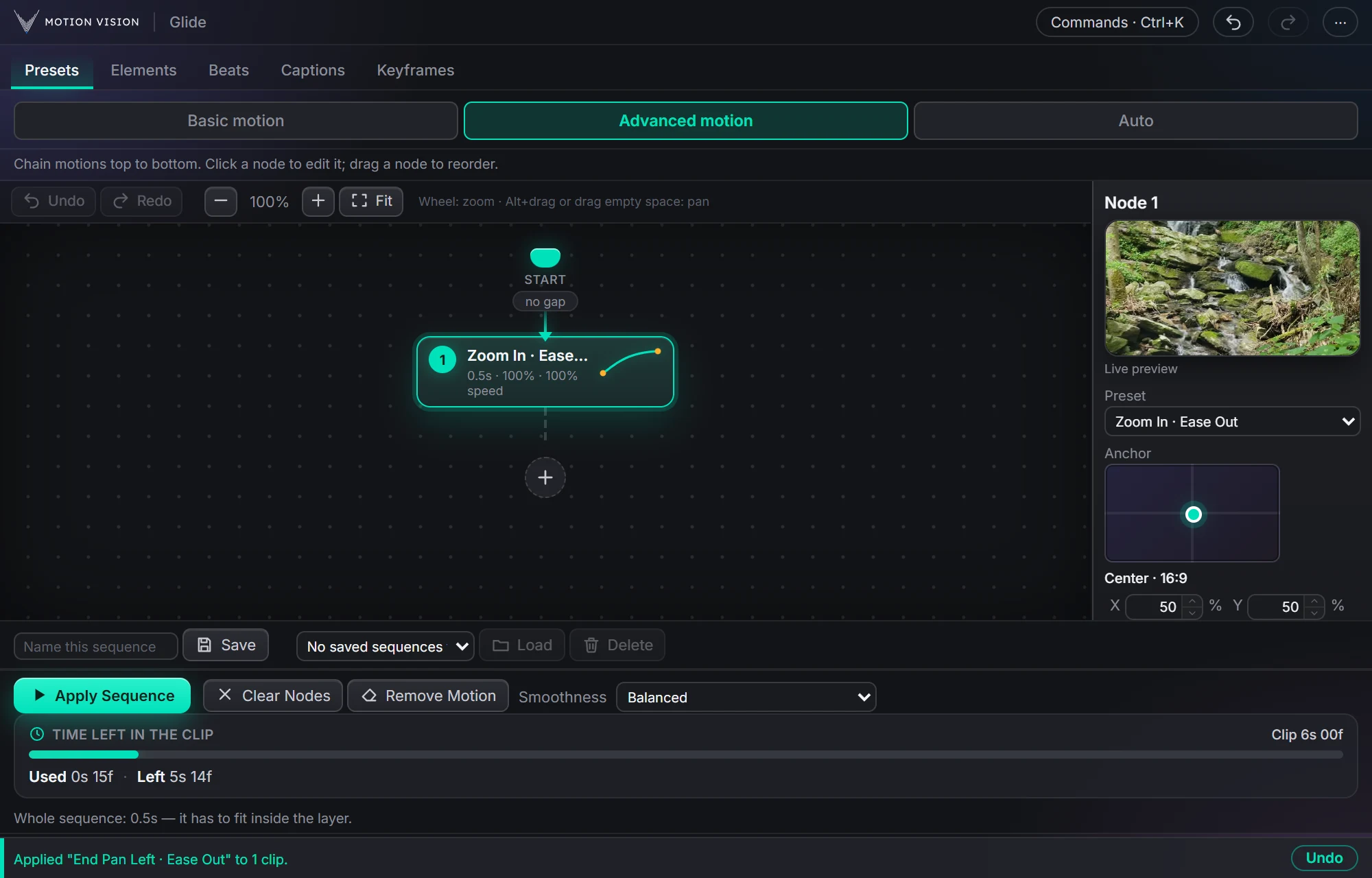 SequencesAdvanced motionChain moves as nodes and apply the whole sequence.Learn more →
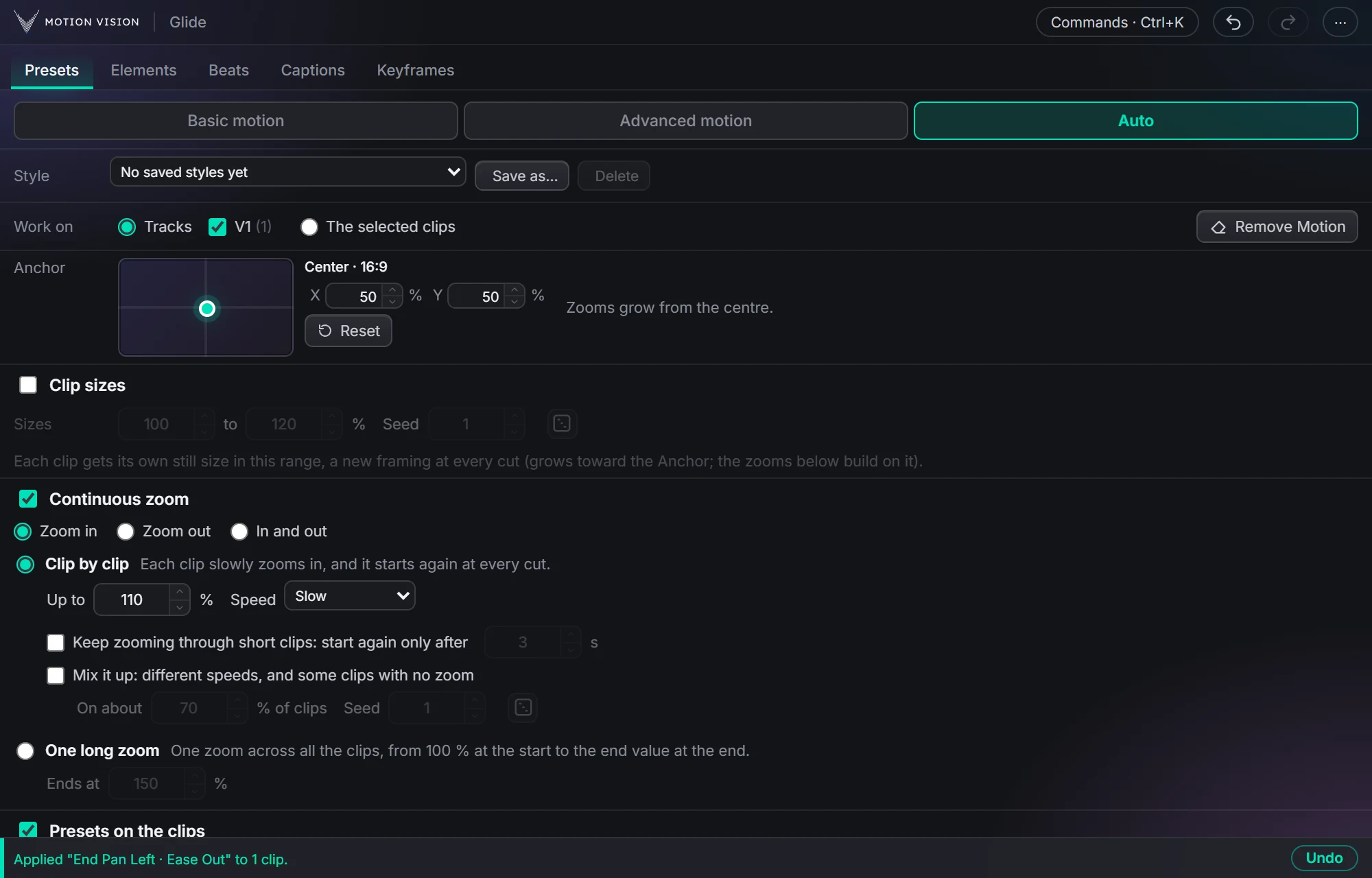 Whole timelineAutoAnimate whole tracks in one click, on the beat if you like.Learn more →
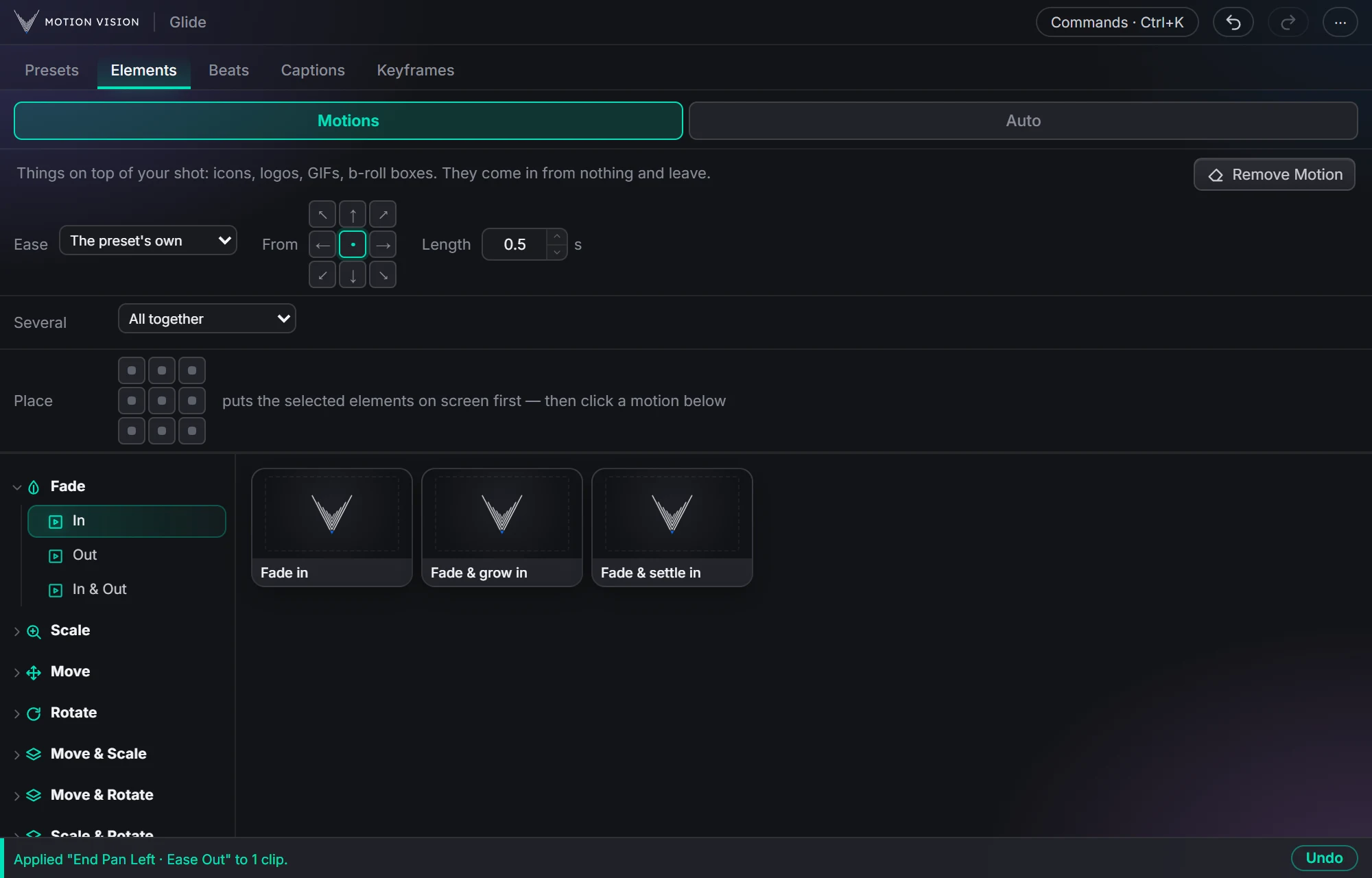 OverlaysElementsIcons, logos and b-roll that come in and leave.Learn more →
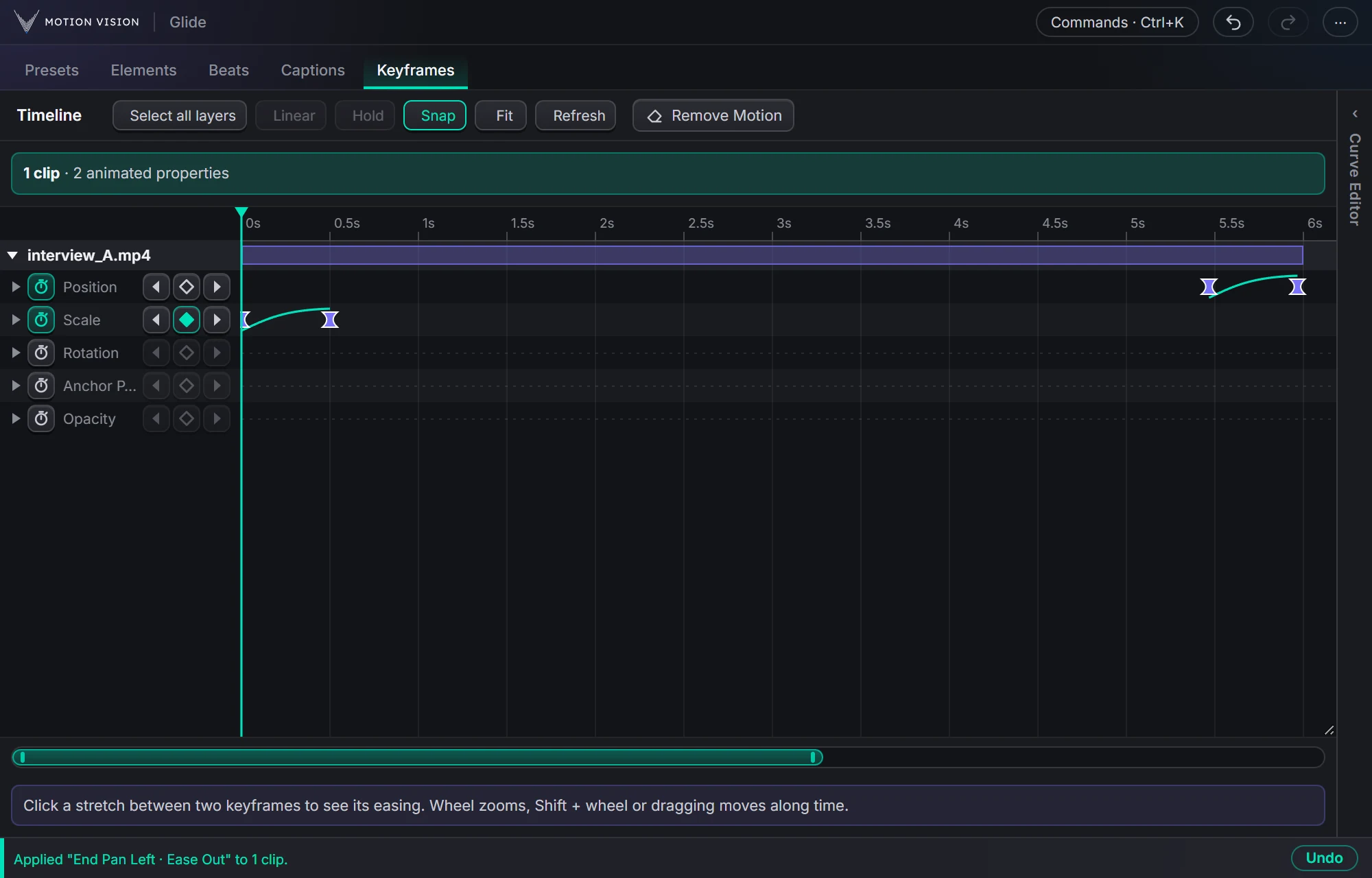 KeyframesTimelineEvery keyframe of the selected clips, in one view you can edit.Learn more →
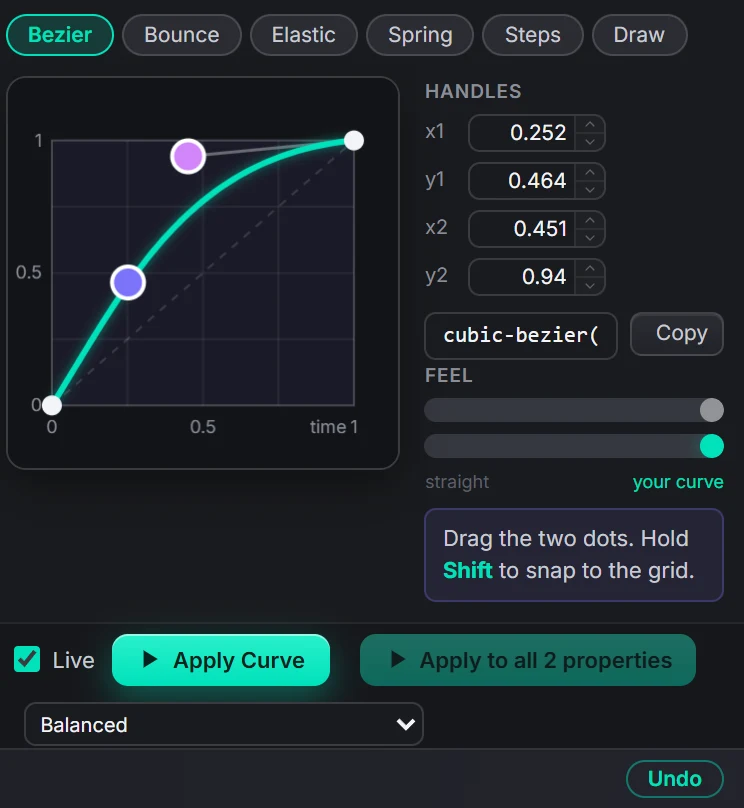 Curve editorEasingBezier, bounce, elastic, spring, steps, or draw your own.Learn more →
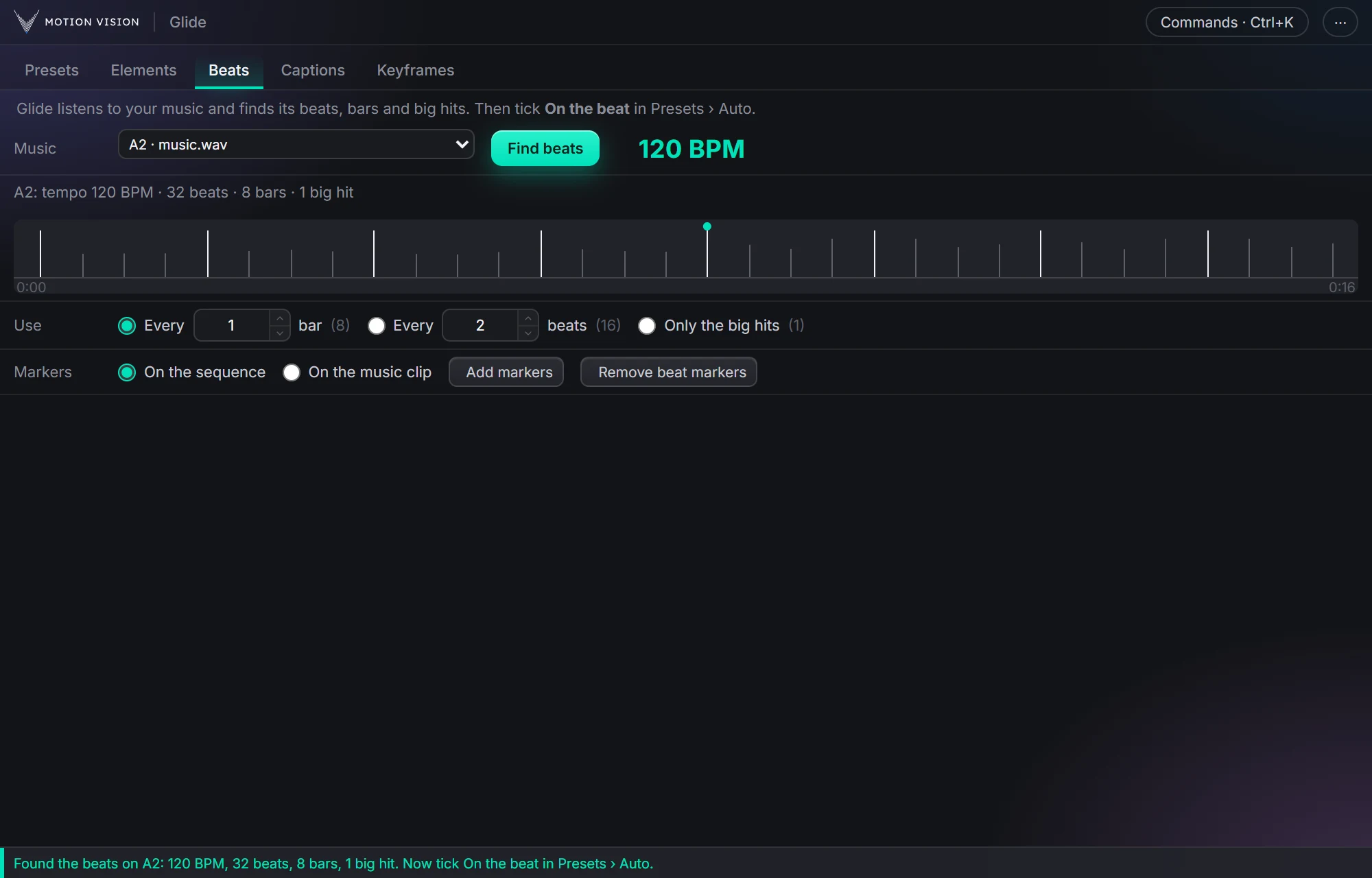 MusicBeatsReads the music and puts the punches on the beat.Learn more →
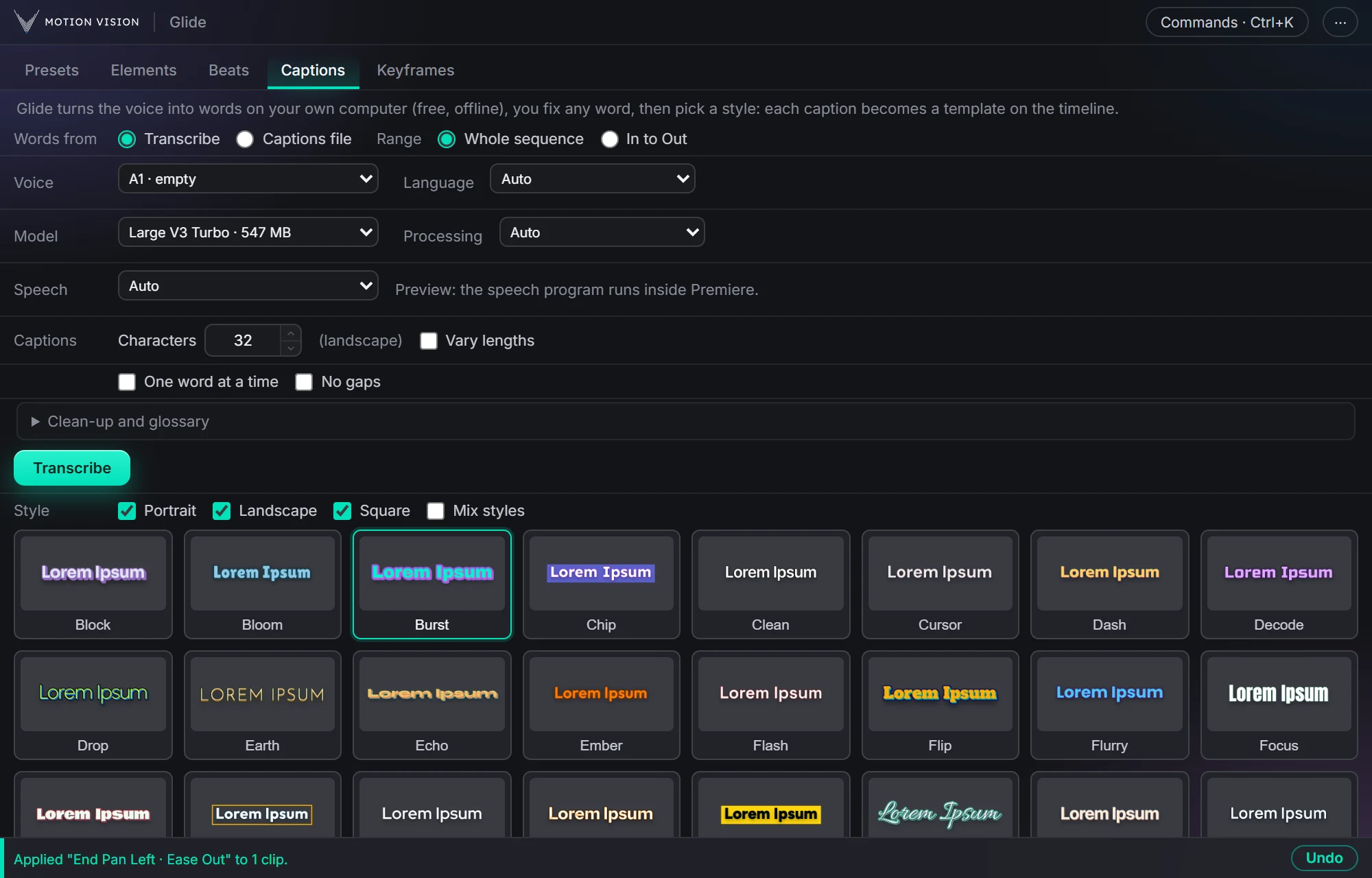 Speech to textCaptionsOffline transcription and 40 animated styles.Learn more →
Get Presetswith everything else.
One licence, all eight tools. Try everything free for 14 days first.