
AutoThe whole timeline, one click.
Pick the tracks, tick what you want, press Add. Continuous zooms on every clip, a fresh framing at every cut, presets on the clips, and it can all land on the beat.
- Per-track
- Continuous zoom
- Clip sizes
- Presets on clips
- Seeds
- On the beat
- Saved styles
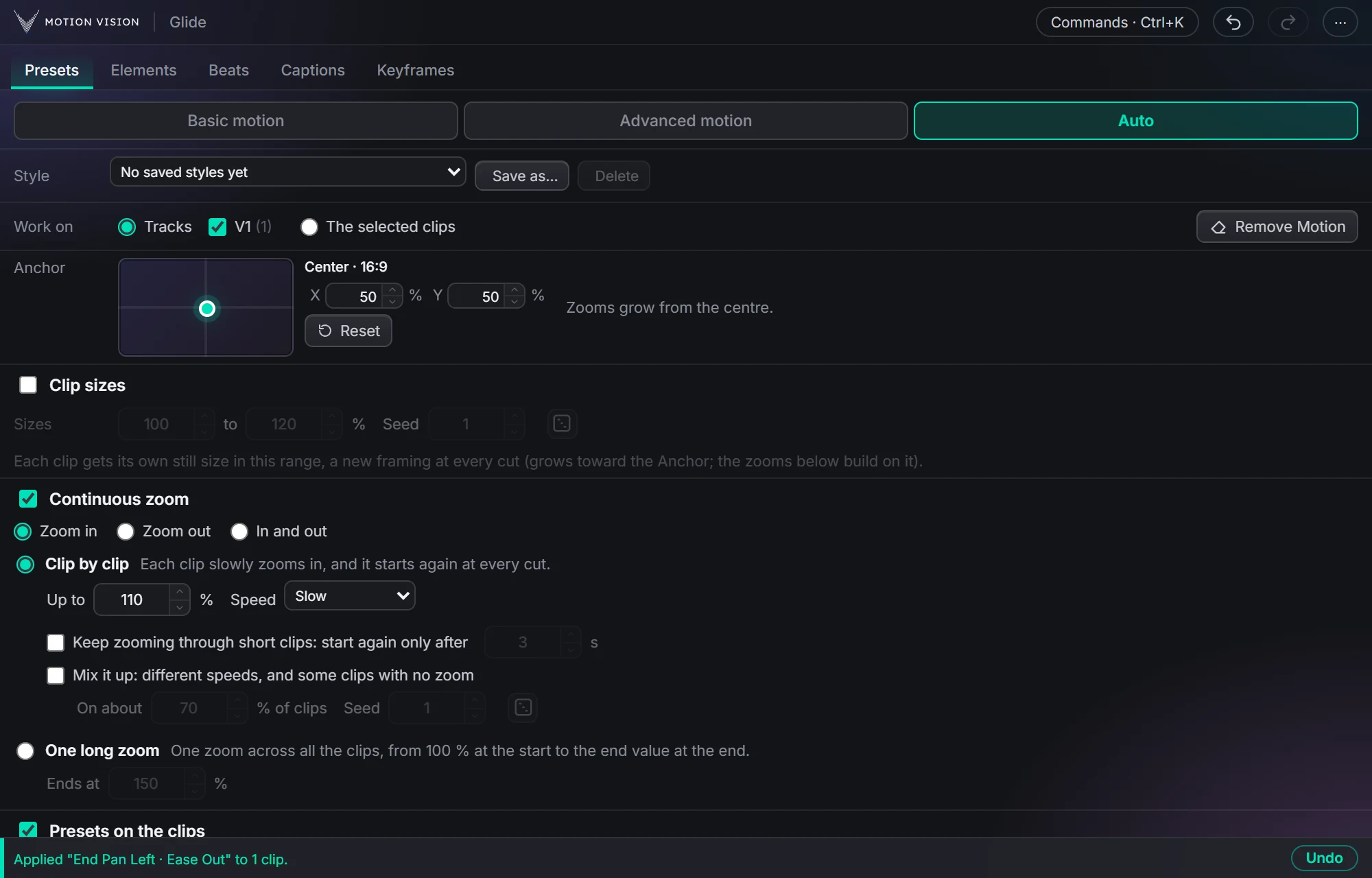
Auto is for the talking-head edit, the podcast, the long b-roll pass: the work that is not creative but takes an hour. It plans the motion across every clip on the tracks you choose and writes it in one go. Every random part has a seed, so the same settings give the same result again, and Add always replaces its own earlier pass instead of piling on.
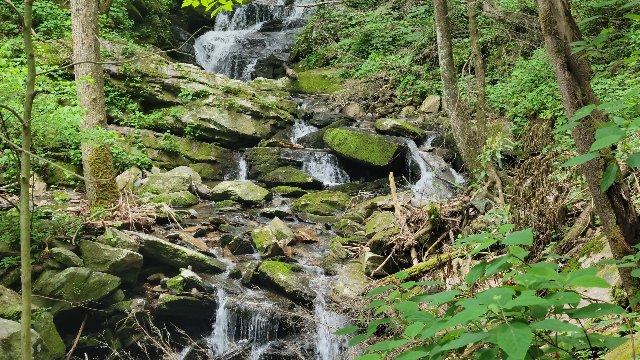
Six clips, one Add.
Each clip has its own framing and slowly zooms from its cut; two sit still, the way Mix it up leaves them. The playhead is Premiere's.
 123456
- Clip sizes 100–115 %
- Continuous zoom, clip by clip
- Mix it up: 2 of 6 still
What Auto gives you.
Work on tracks or the selection
Tick V1, V2, V3 or work on the clips you selected. Each track is planned on its own, because tracks overlap in time.
Continuous zoom
Clip by clip, restarting at every cut, or one long zoom across everything. In, out, or a wave in and out.
Clip sizes
Each clip gets its own still framing in a range you set, so every cut feels like a new angle. The zooms build on top.
Presets on the clips
Tick the presets you like; every clip, every second clip or a percentage gets one, in order or at random.
On the beat
With the Beats tab, punches peak exactly on the beat of the music track, bigger on the big hits.
Saved styles
Save the whole mix as a style and reuse it on the next edit. Everything but the tracks is in it.
Two ways to drift.
Clip by clip
Each clip slowly zooms and it starts again at every cut. Up to a percentage you set; Slow, Medium or Fast.
Keep zooming through short clips
Quick cuts don't restart the zoom; it only starts again after a length you choose.
Mix it up
Different speeds on different clips and a share of clips with no zoom at all, so a long edit doesn't feel mechanical. Seeded.
One long zoom
A single zoom across all the clips, from 100 % at the start to an end value, or peaking at the cut nearest the middle.
In and out
Wave: in, then back out, with no jump at the paired cut. Or at random.
Anchor
Where every zoom grows from, shared by the whole tab. Pans ignore it.
Your presets, spread over the edit.
The picker
Choose presets with a search box and filters: type (a chip per family), where it sits (Start, End, both) and feel (the easing).
Which clips
Every clip, every 2nd clip, or about a percentage of them. Skip clips shorter than a length you set.
In order or at random
Cycle through your picks in order, or shuffle with no repeats in a row. A seed makes the shuffle repeatable.
Strength and speed ranges
Give each clip its own strength and speed inside a range, so no two moves are identical.
One per clip
A clip never gets two presets stacked; the plan keeps it clean.
Works with the rest
Presets sit on top of the continuous zoom and the clip sizes; the maths keeps the picture inside the frame.
Three steps.
Choose what to work on
Tracks or the selected clips, and the anchor point zooms grow from.
Tick the sections you want
Clip sizes, continuous zoom, presets on the clips, on the beat. Anything that can't combine greys out.
Add
One click, one undo step. Add again replaces the earlier pass instead of piling on top.
Questions about Auto.
Does Add pile up motion if I run it twice?
No. Add first removes Glide's earlier motion on those clips, then writes the new plan. It is one undo step.
Can I keep some clips still?
Yes: Mix it up leaves a share of clips without a zoom, and Skip clips shorter than a length you set.
Random, but repeatable?
Every random choice has a Seed. Same seed, same result; change it and you get a new variation.
What about my own keyframes?
Auto works on the tracks you pick. Motion added by hand on those clips is replaced by the pass, so keep hand-animated clips on another track, or run Auto on a selection instead.
The rest of the panel.
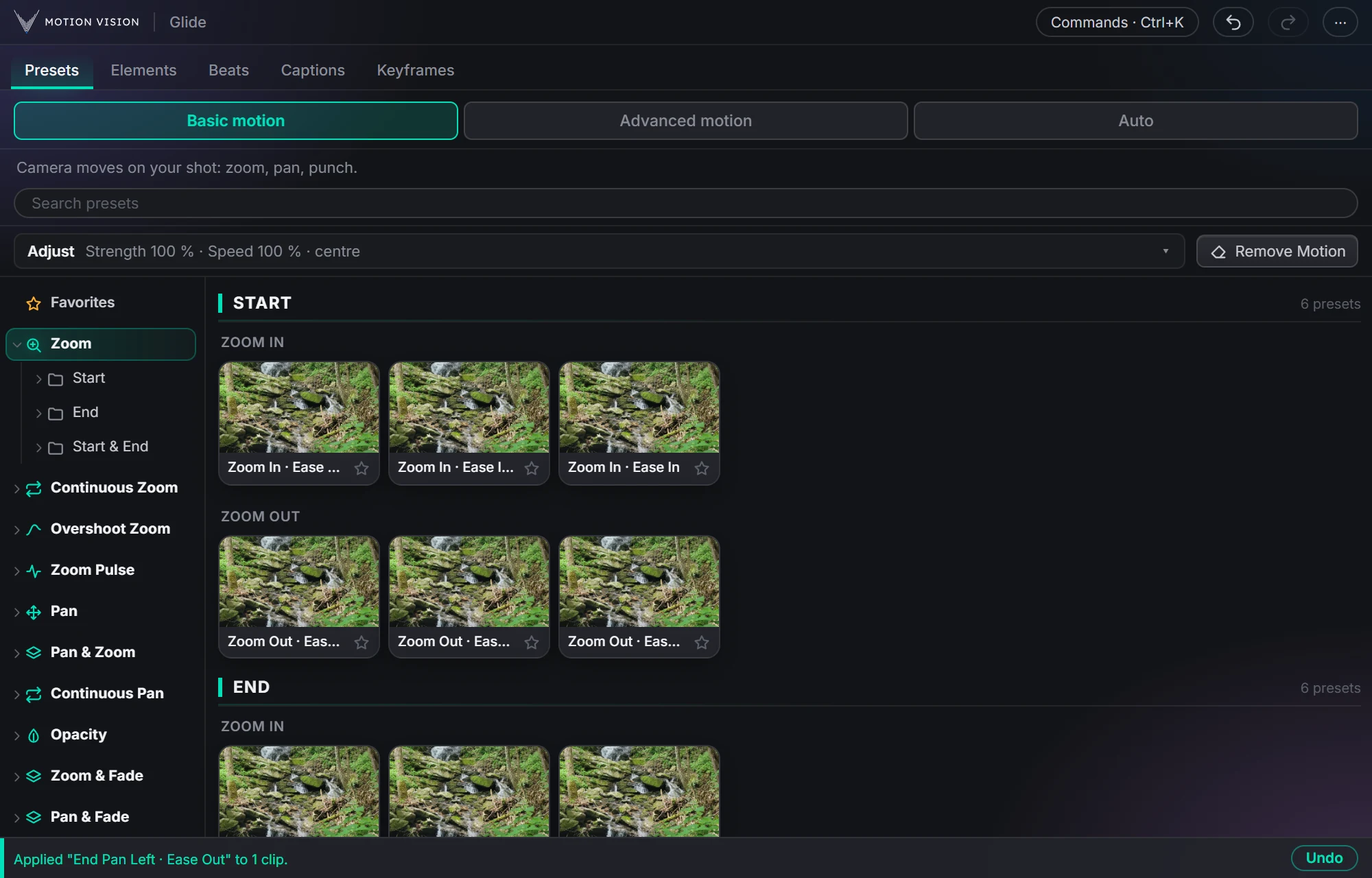 Camera movesPresetsZooms, pans, punches and fades in one click.Learn more →
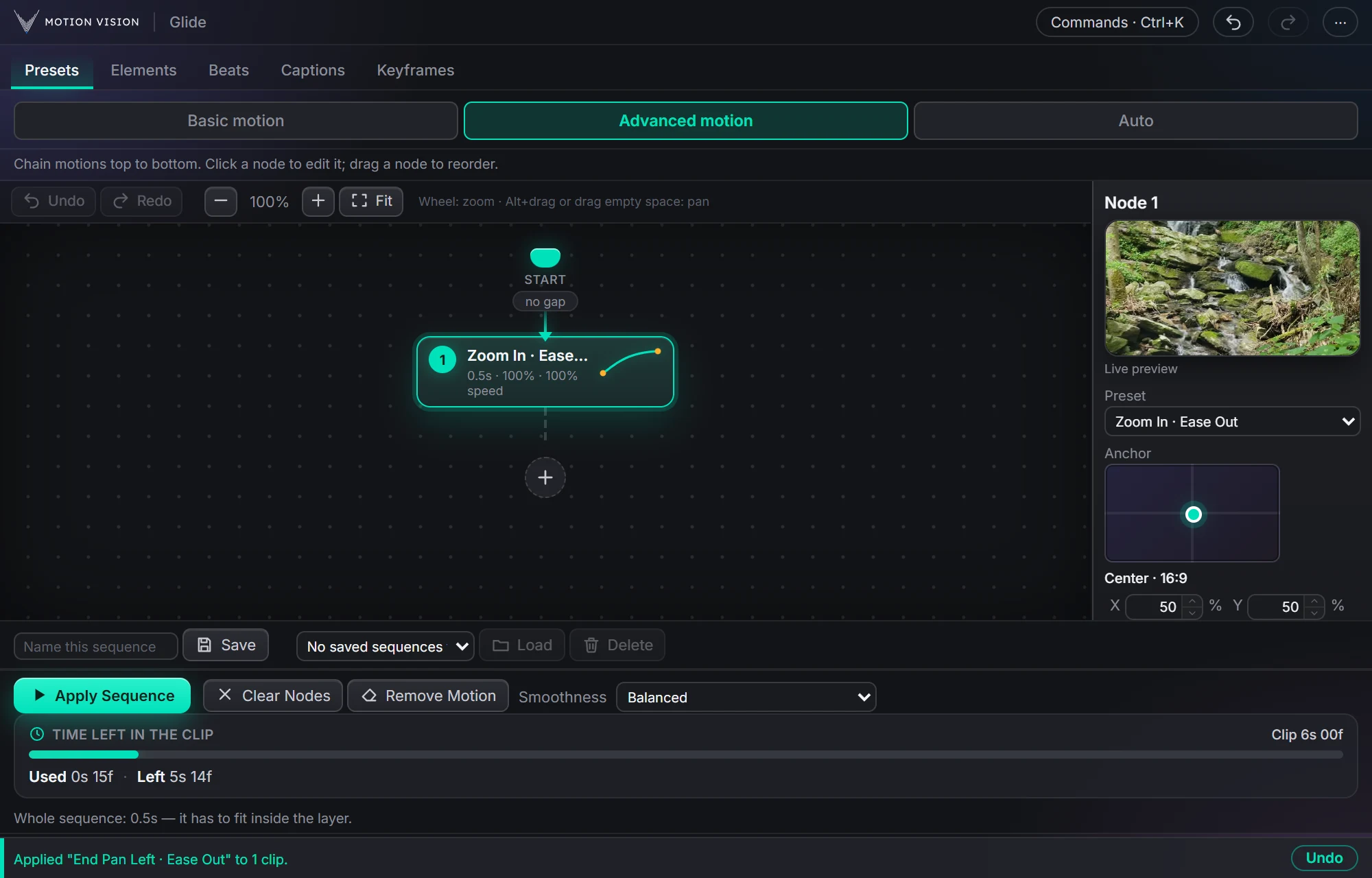 SequencesAdvanced motionChain moves as nodes and apply the whole sequence.Learn more →
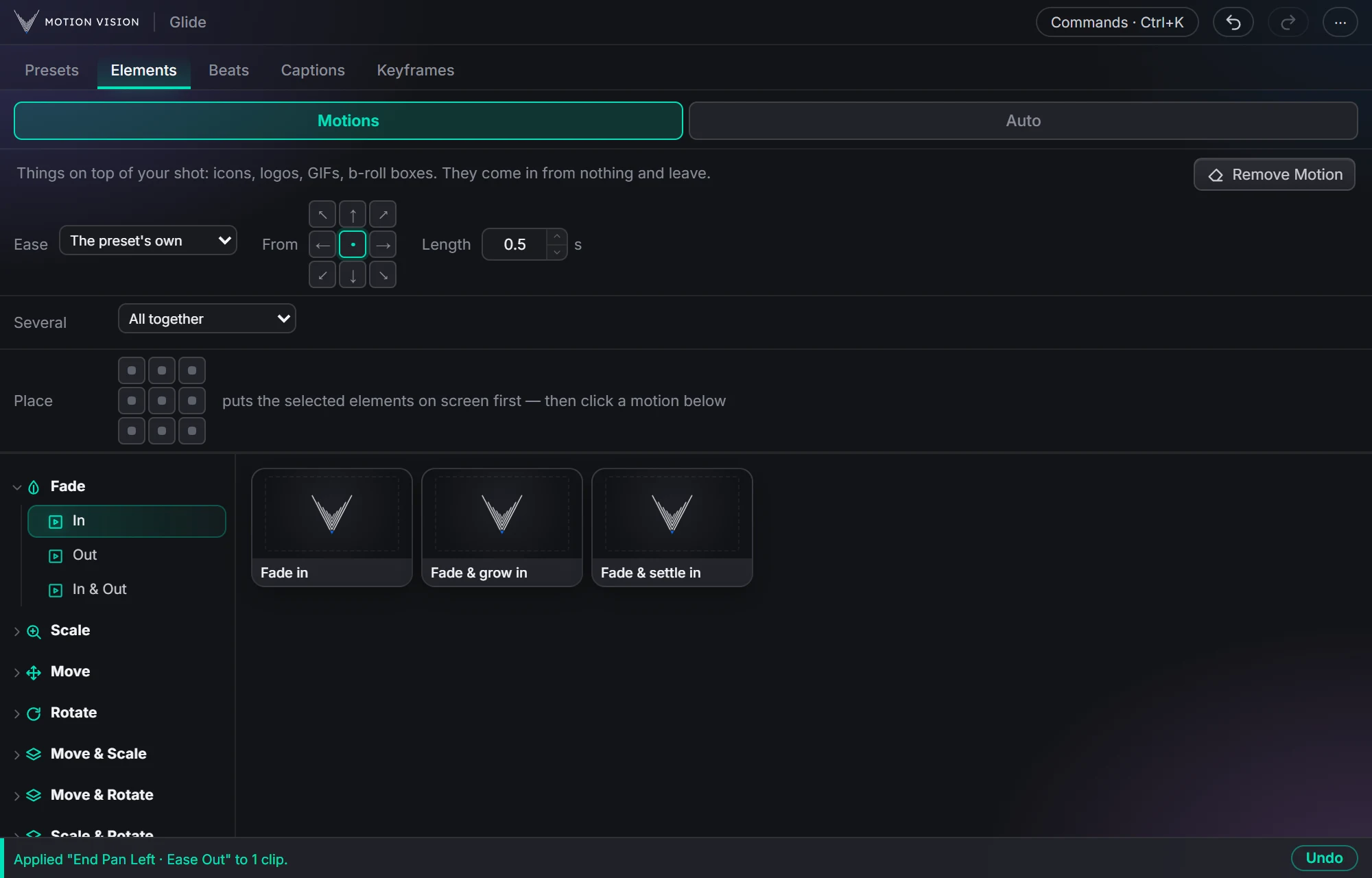 OverlaysElementsIcons, logos and b-roll that come in and leave.Learn more →
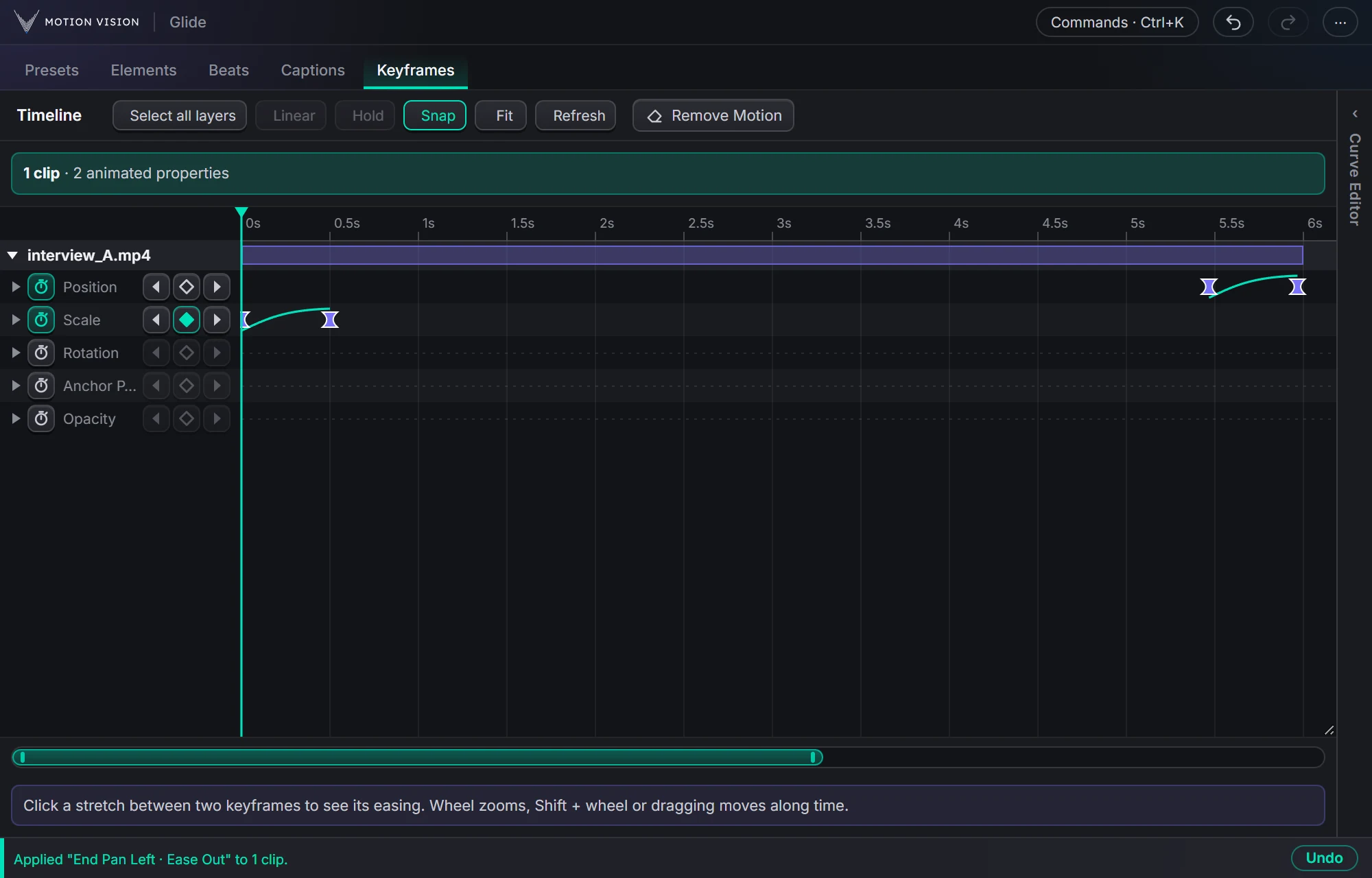 KeyframesTimelineEvery keyframe of the selected clips, in one view you can edit.Learn more →
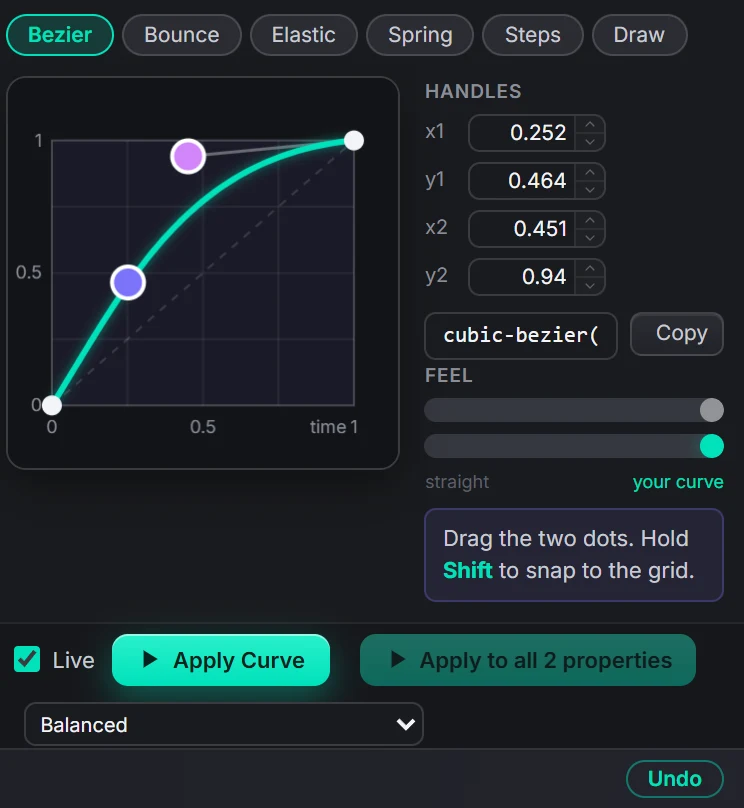 Curve editorEasingBezier, bounce, elastic, spring, steps, or draw your own.Learn more →
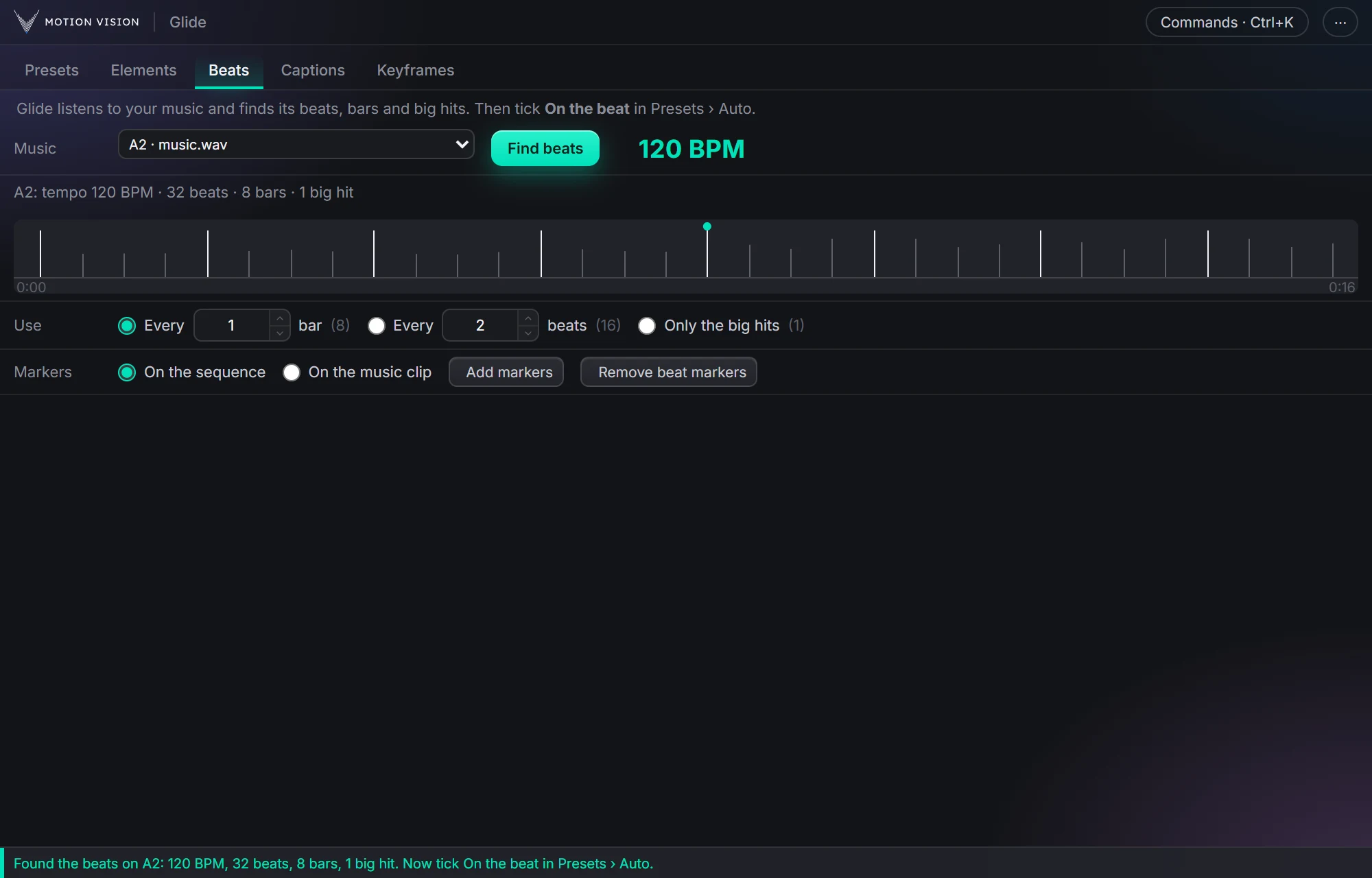 MusicBeatsReads the music and puts the punches on the beat.Learn more →
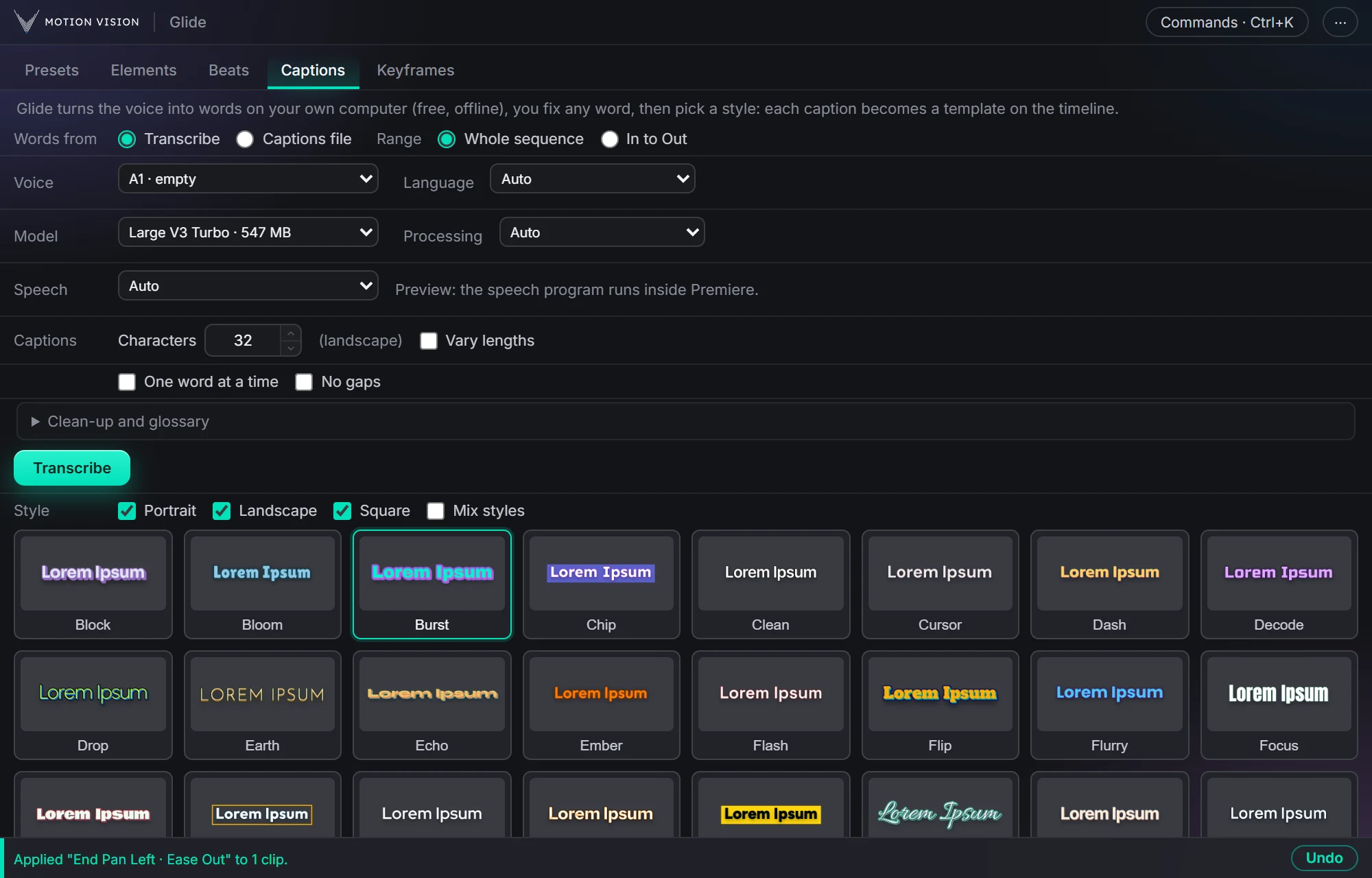 Speech to textCaptionsOffline transcription and 40 animated styles.Learn more →
Get Autowith everything else.
One licence, all eight tools. Try everything free for 14 days first.