
ElementsThings that arrive, and leave.
Icons, logos, GIFs, b-roll boxes. They come in from nothing, sit exactly where you put them, and leave again.
- 24 motions
- In / Out / In & Out
- From any side
- 6 eases
- Stagger
- Place grid
- Auto for many
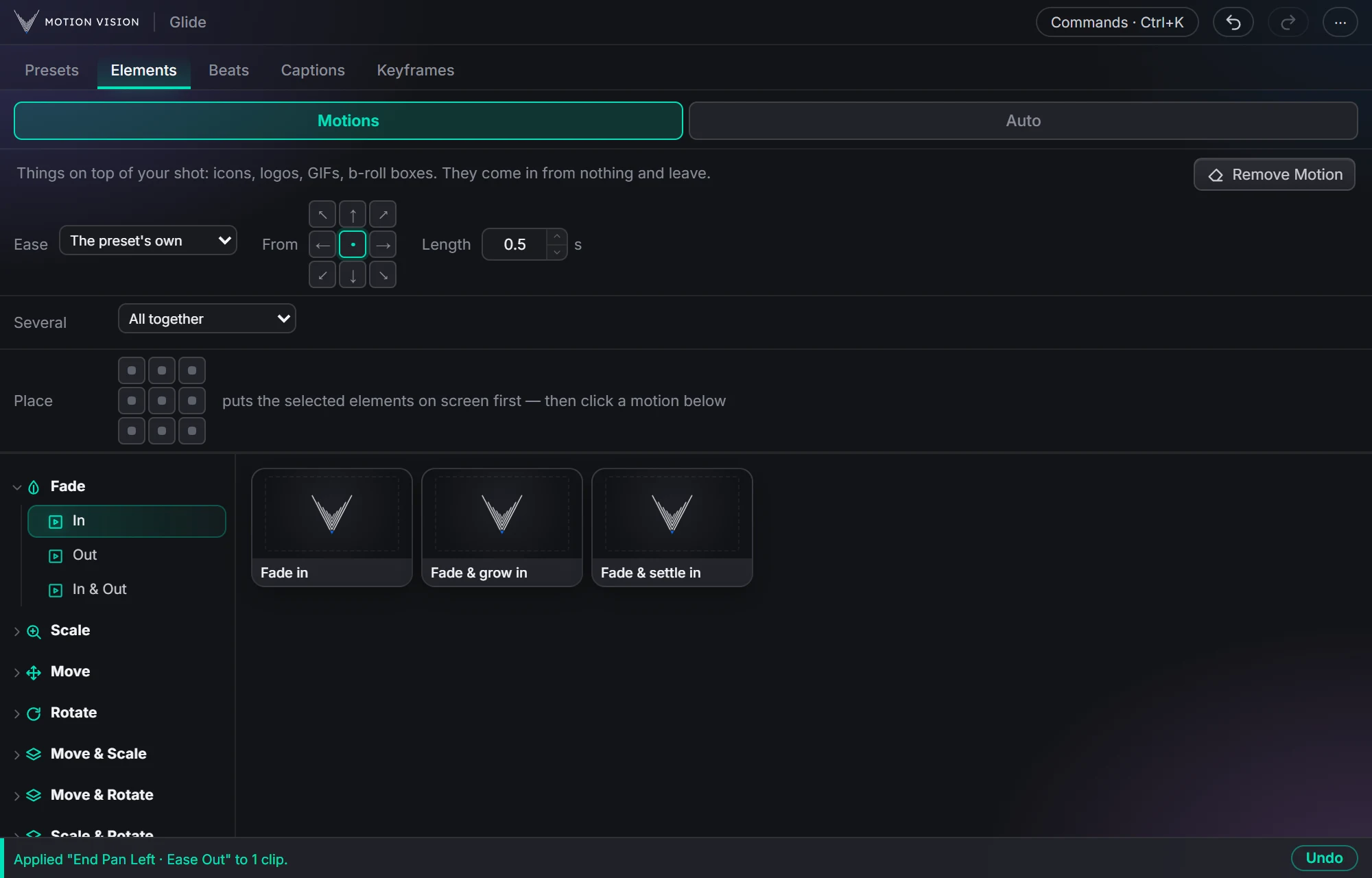
Elements is Presets for the things on top of your shot. Place an element where it belongs, choose where it comes from and how it eases, and click a motion. Every motion ends at home, the spot you chose, so your layout never drifts. Elements › Auto does the same for every element on the tracks you pick.
24 ways in and out, live.
Hover a motion: the mark comes in, holds, and leaves, computed by the same code that writes the keyframes in Premiere.

What Elements gives you.
Twenty-four motions
Fade, Scale, Move and Rotate, and their combinations. Each as In, Out, or In & Out.
From any side
A 3 × 3 grid says where an element comes from and leaves to. The centre means it grows in place.
Ease and length
The preset's own ease, or Smooth, Snappy, Overshoot, Bouncy, Elastic. Length in seconds.
Several at once
All together, or one after another with a delay between them.
Home stays home
A new In replaces the old In without touching the Out, and the element always lands where you placed it.
Place grid
Put the selected elements on a spot of the frame first, then animate.
Twenty-four ways in and out.
Grouped by what moves. Every one exists as In, Out and In & Out.
Fade
Fade · Fade & grow · Fade & settle
Scale
Pop · Grow · Zoom down
Move
Slide · Glide · Drop
Rotate
Spin · Swing · Roll
Move & Scale
Slide & grow · Glide & pop · Drop & grow
Move & Rotate
Slide & tilt · Glide & swing · Drop & swing
Scale & Rotate
Pop & twist · Zoom & spin · Grow & tilt
Move, Scale & Rotate
Tumble · Fly · Toss
Ease
The preset's own, Smooth, Snappy, Overshoot, Bouncy, Elastic
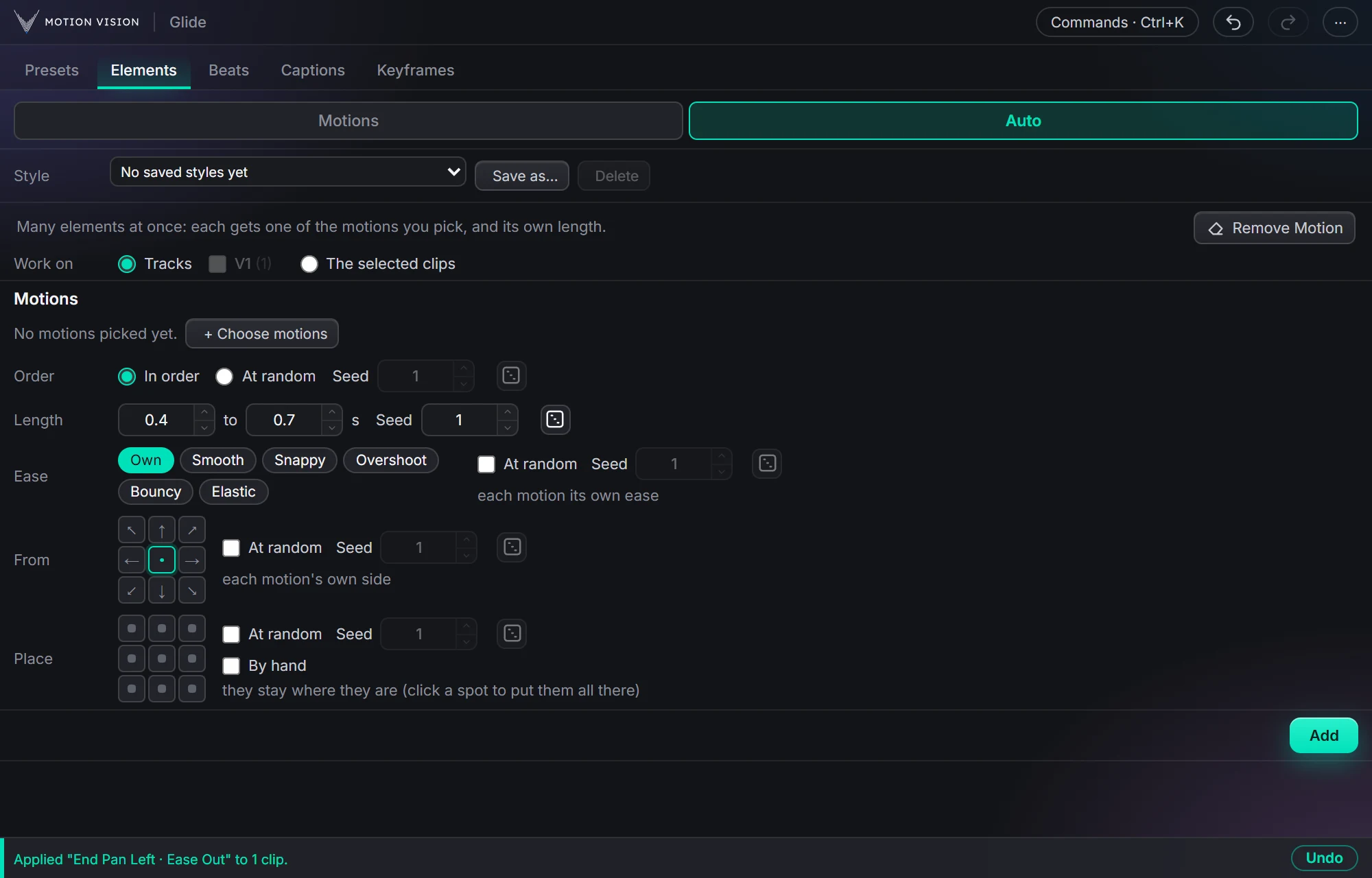
Every element on a track, each its own way.
Work on
Every element on the tracks you tick (above the shot), or the selected clips.
Pick motions
Choose any set of motions with the same filter picker as Presets › Auto. In order or at random, with a seed.
Length range
Each element gets its own length between two values you set. Seeded.
Ease, From, Place
One for all, or At random with a seed each. Place By hand keeps the spots you dragged to in Premiere.
Styles
Save the whole setup as a style, like Presets › Auto.
One Add
Removes the earlier motion on those elements, reads them again, and animates each one. One undo step.
Three steps.
Place the element
Drag it where it belongs in Premiere, or click a spot on the Place grid.
Choose From, Ease and Length
Where it comes from, how it moves, how long it takes.
Click a motion
In, Out, or In & Out. The element is animated and ends at home.
Questions about Elements.
Will it move my carefully placed logo?
No. Every motion ends at home, the position and size the element had when you clicked. Change your mind and click another motion: it replaces the last one on that side.
What counts as an element?
Any clip on a video track above your shot: a PNG, a GIF, a logo, a b-roll clip in a box, a shape.
Several at once?
Select them all. Several: All together or one after another with a delay. For a whole track of elements, use Elements › Auto.
Does it work with keyframes I made myself?
Glide reads the clip's keyframes back and only replaces the motion on the side you click. Your own animation on the other side stays.
The rest of the panel.
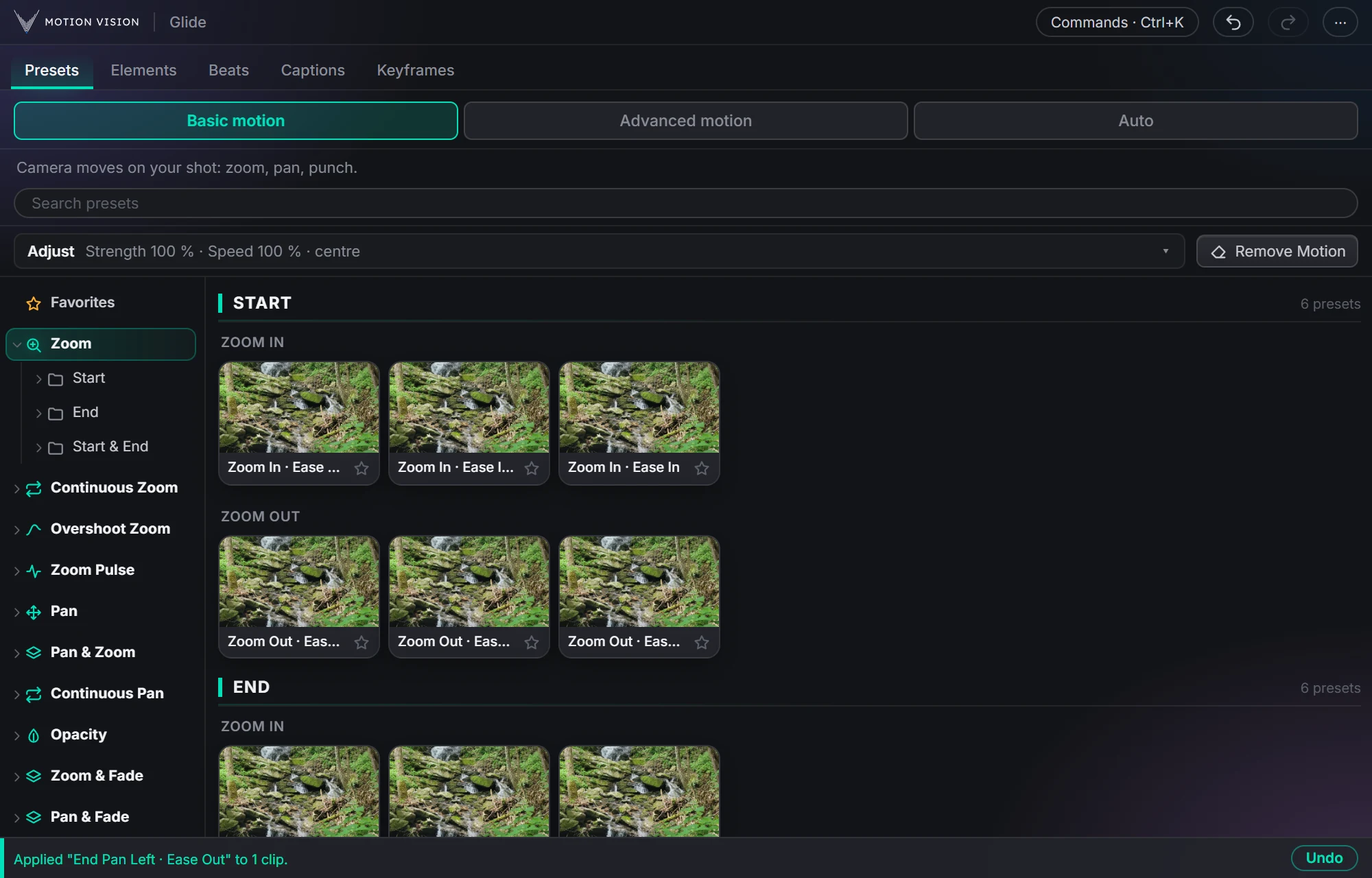 Camera movesPresetsZooms, pans, punches and fades in one click.Learn more →
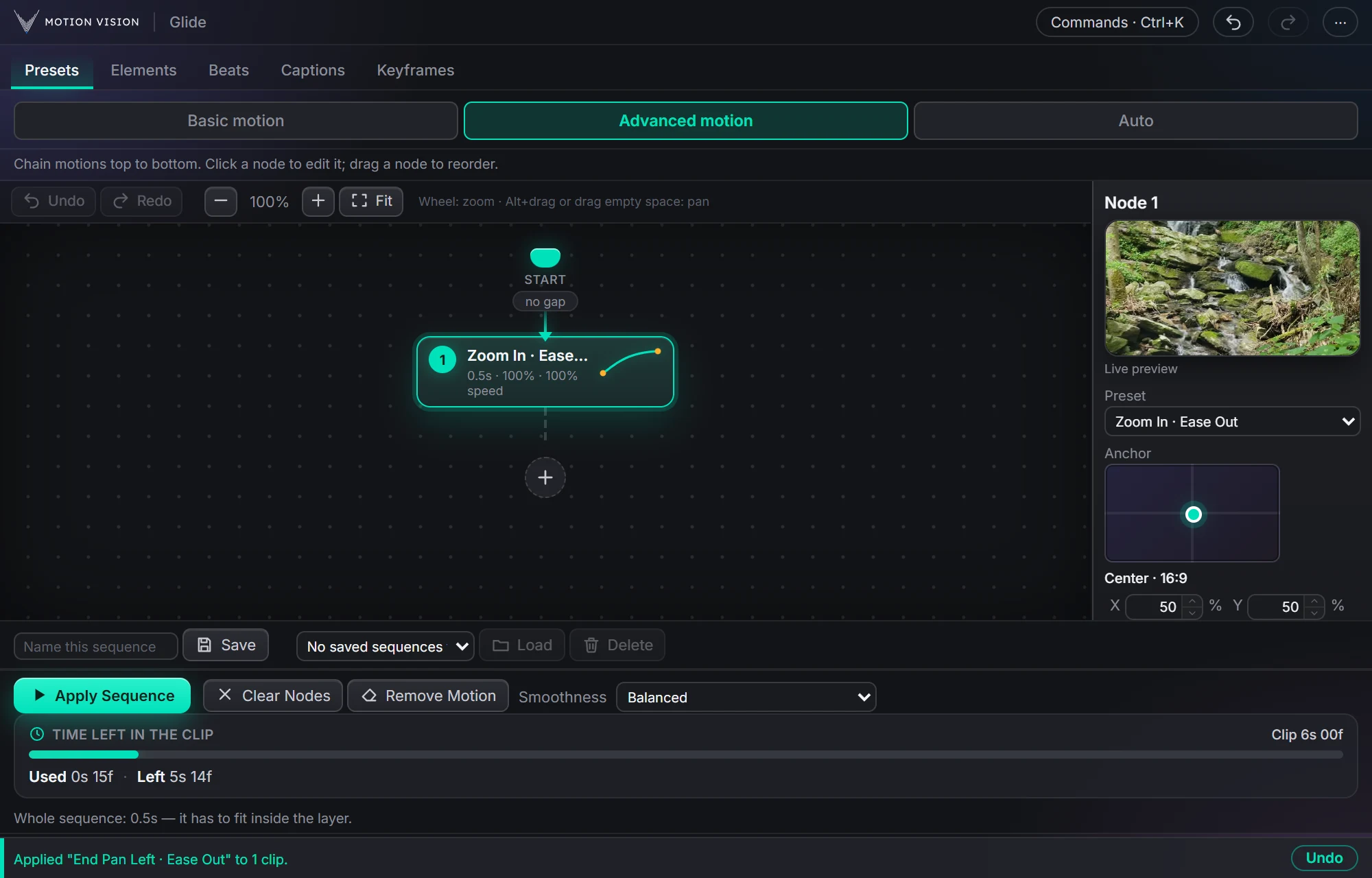 SequencesAdvanced motionChain moves as nodes and apply the whole sequence.Learn more →
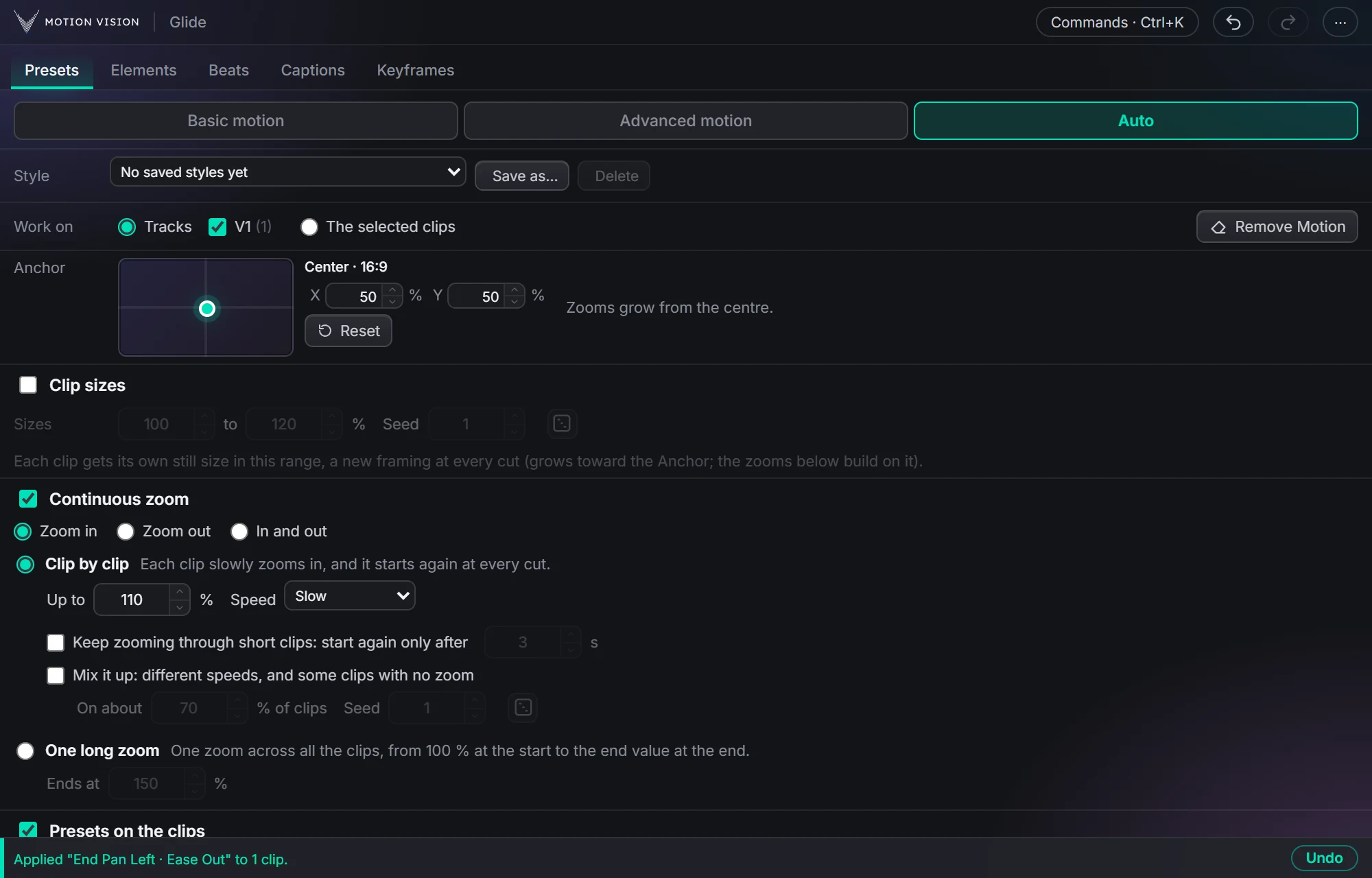 Whole timelineAutoAnimate whole tracks in one click, on the beat if you like.Learn more →
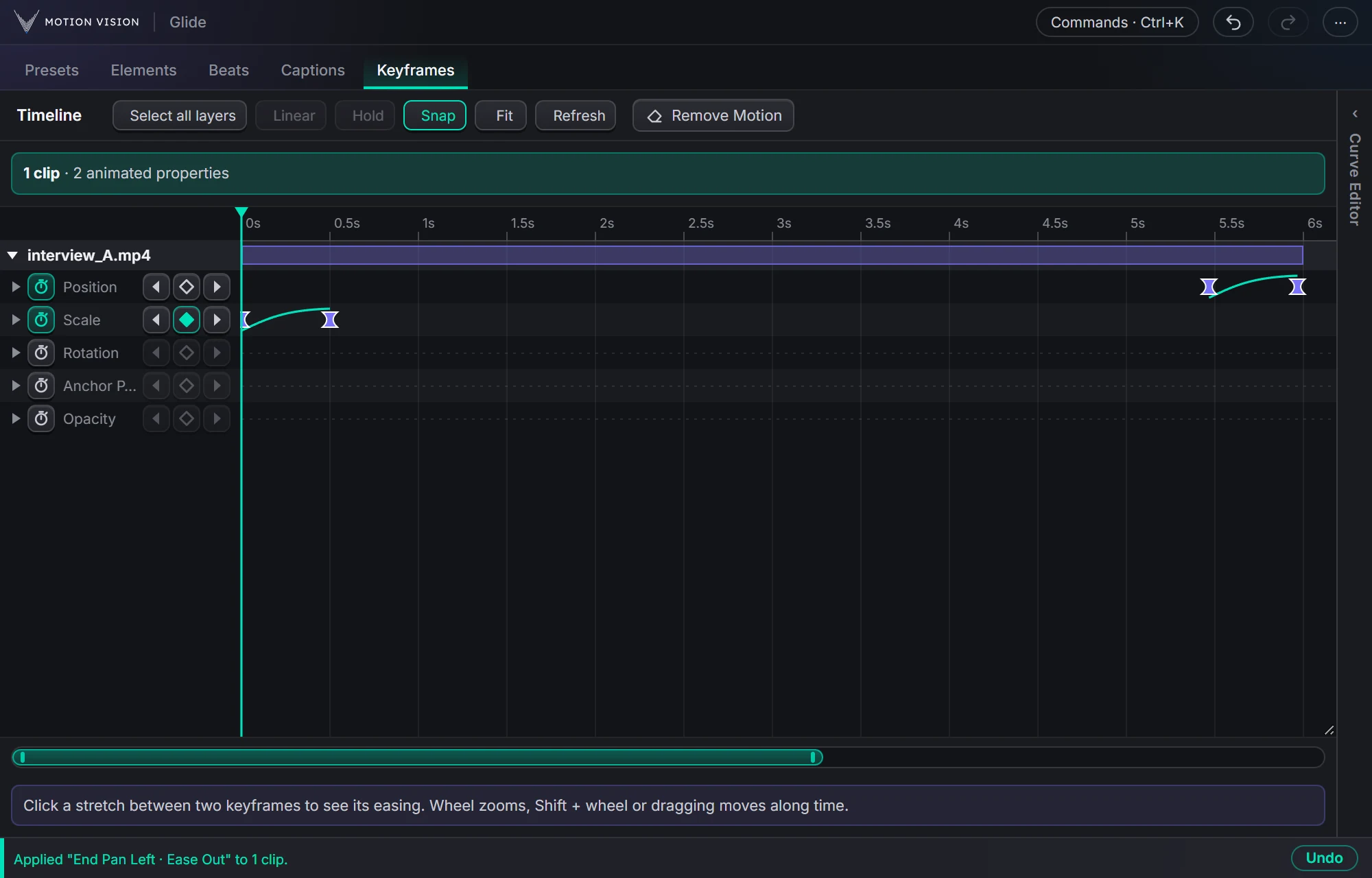 KeyframesTimelineEvery keyframe of the selected clips, in one view you can edit.Learn more →
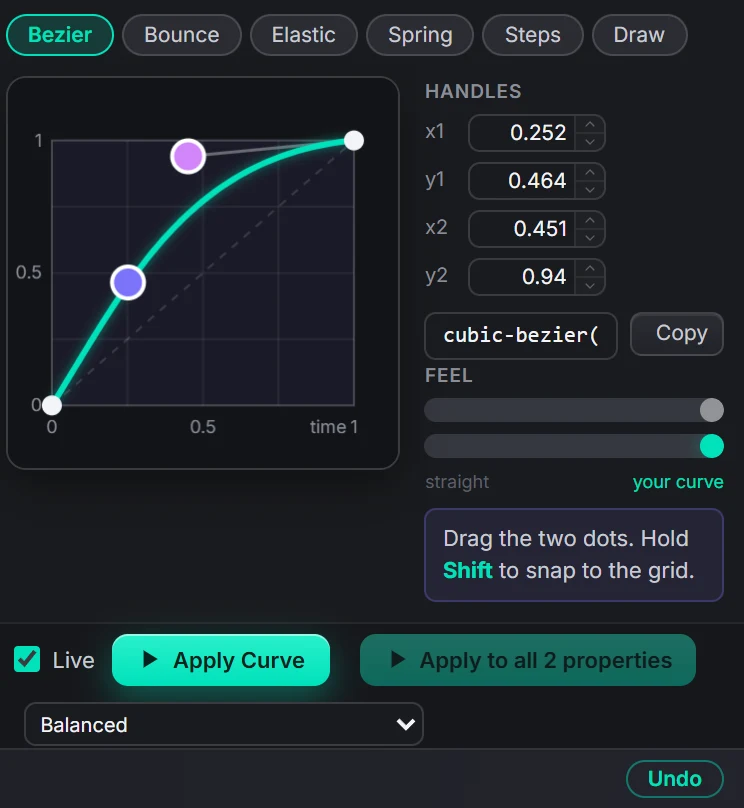 Curve editorEasingBezier, bounce, elastic, spring, steps, or draw your own.Learn more →
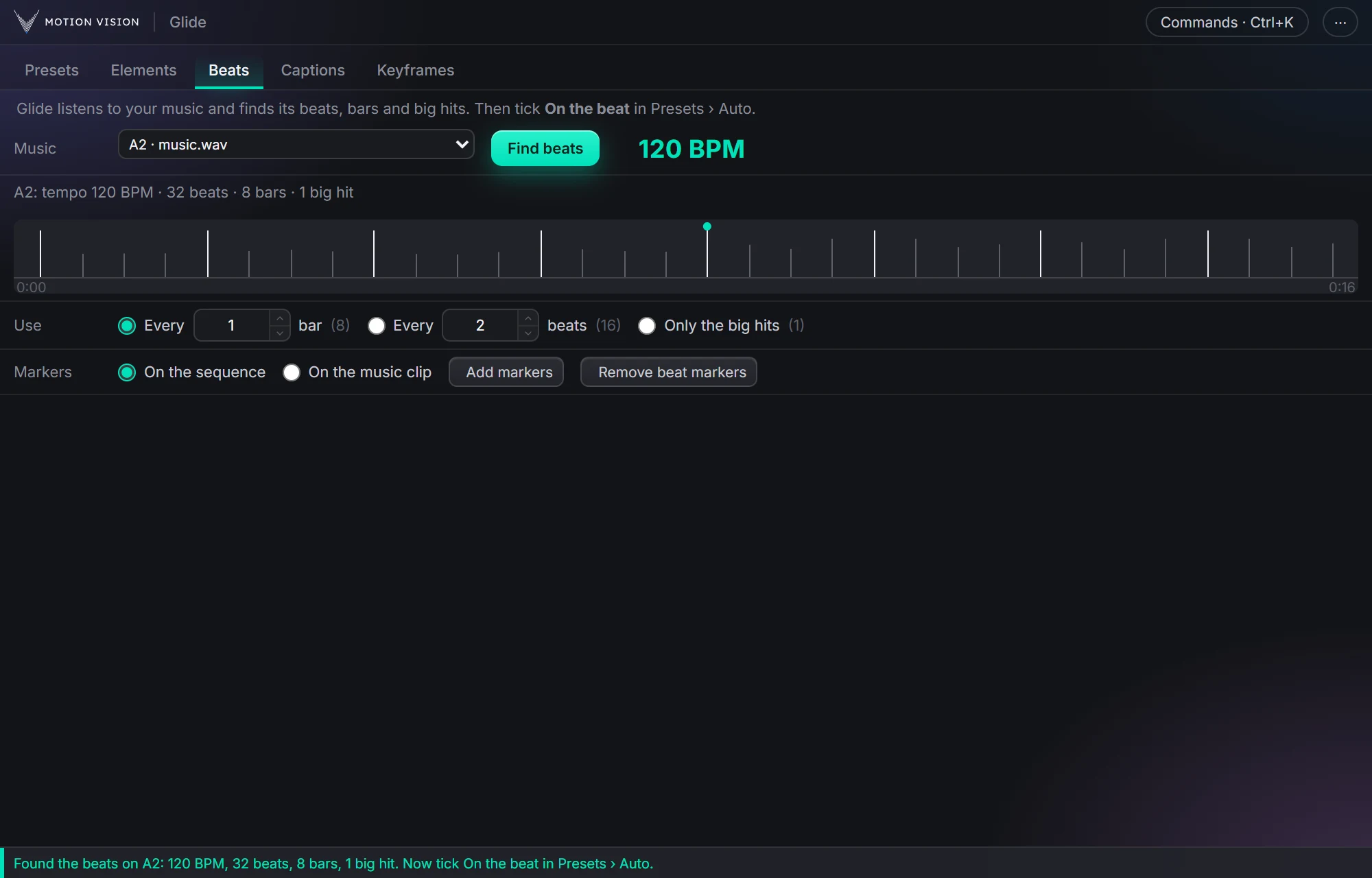 MusicBeatsReads the music and puts the punches on the beat.Learn more →
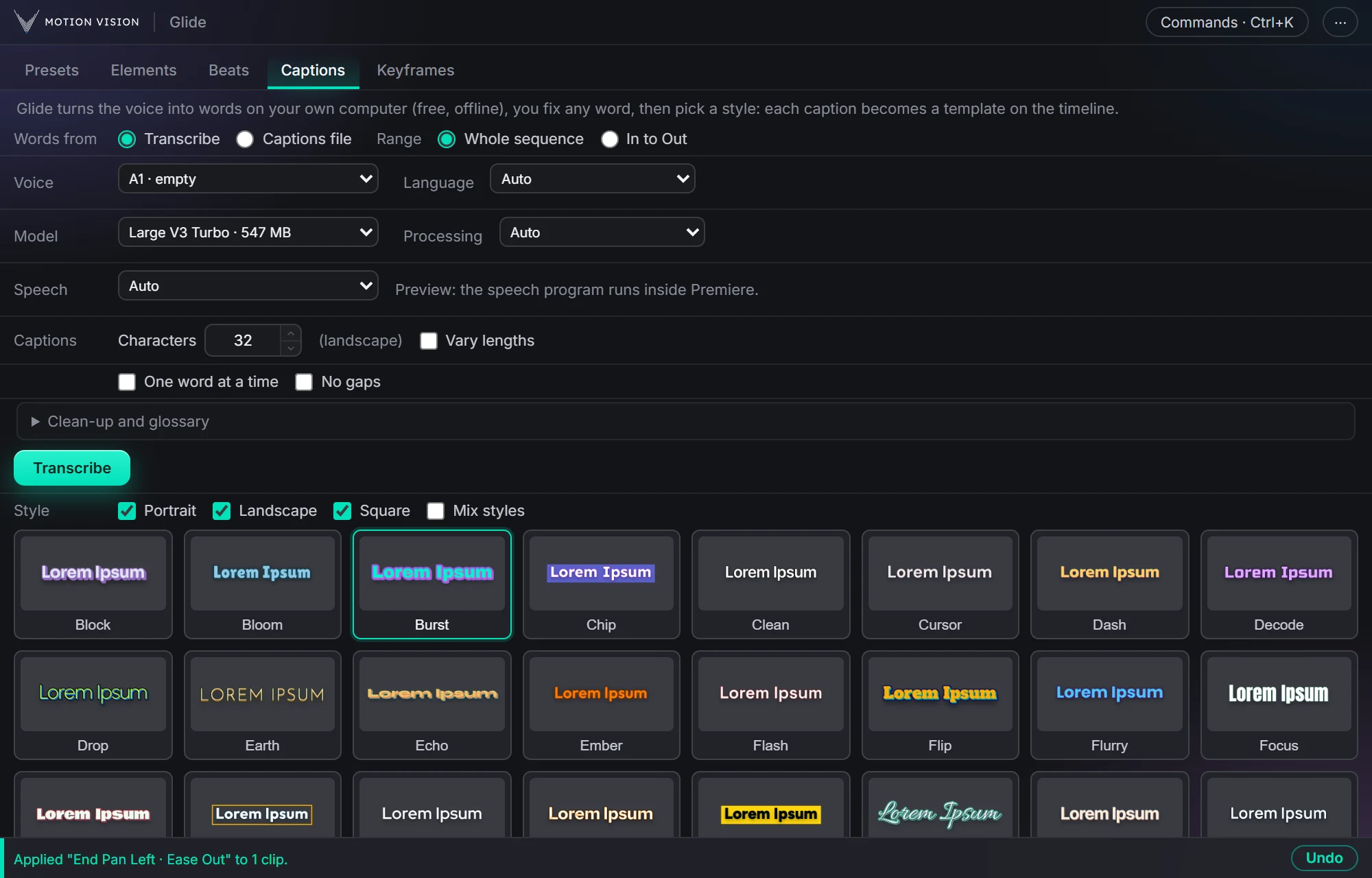 Speech to textCaptionsOffline transcription and 40 animated styles.Learn more →
Get Elementswith everything else.
One licence, all eight tools. Try everything free for 14 days first.