
BeatsMotion that hits on the beat.
Glide reads the music file itself, finds the beats, bars and big hits on the track you choose, and the punches peak exactly on them.
- Beats · bars · hits
- Music track only
- BPM
- On the beat in Auto
- Markers
- No export
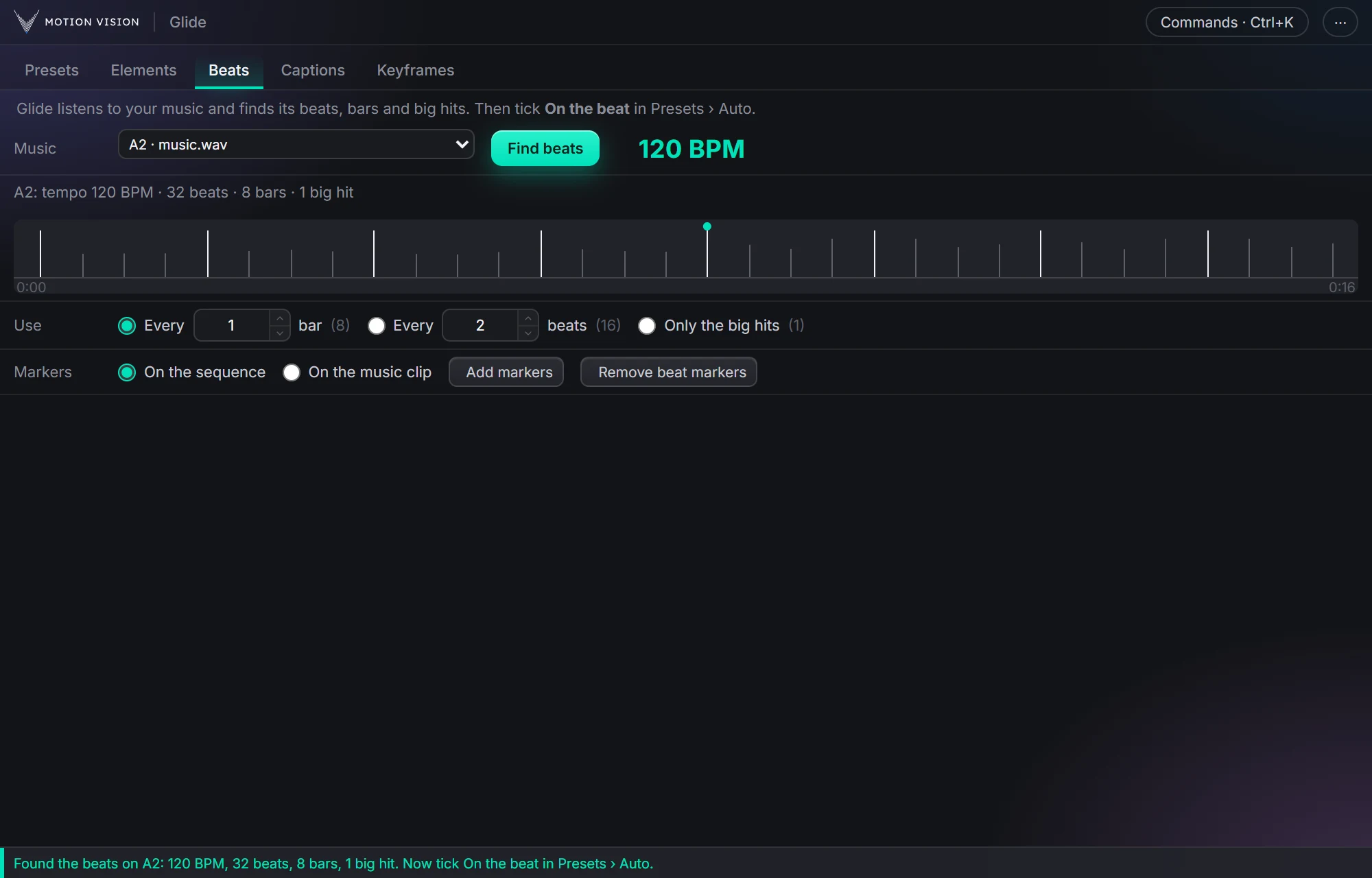
Beat tools usually drop markers and leave the rest to you. Beats listens to the music track only, so a voice on another track can't confuse it, and hands the beats to Auto: punches that peak on the beat, bigger on the big hits. If you cut by hand, it adds markers instead, and the Timeline's Punch zoom can use those markers too.
The punch lands on the hit.
Four seconds of a 120 BPM song: a beat every half second, a bar every two, a drop halfway. The frame punches on every bar and harder at the drop.
What Beats gives you.
Reads the file, no export
Pick the music track; Glide decodes the audio itself and shows the BPM, measured from the beat steps.
Beats, bars, big hits
Use every bar, every N beats, or only the big hits: the drops and accents that carry the edit.
Peaks on the beat
In Presets › Auto, tick On the beat. Punches land on the beat rather than starting there, and the size follows how hard the beat hits.
Markers
Add beat markers on the sequence or on the music clip, and remove them again in one click.
What Beats hears and what it does with it.
The music track
Choose the audio track with the song. Every clip on it is read; cuts in the music are followed.
Beats and bars
The steady pulse and the first beat of each bar. Use every bar, or every N beats, for a calmer or busier edit.
Big hits
Drops and accents where the music gets loud. Only the big hits gives a few strong moves instead of many small ones.
On the beat
A tick in Presets › Auto. Punch presets are timed so their peak lands on the beat; harder hits get bigger punches.
Markers
On the sequence, for cutting by eye, or on the music clip itself so they travel with it. Remove beat markers clears only Glide's.
Cached
A song is analysed once; changing the settings afterwards is instant.
Three steps.
Pick the music track
The one with the song. Voice stays on its own track.
Find beats
Glide reads the file and shows the beats and the BPM.
Use them
Tick On the beat in Auto, or Add markers and cut by hand.
Questions about Beats.
Do I need to export the audio first?
No. Glide reads the clip's file straight from the track.
Which audio formats?
MP3 and WAV are the safe choice. Other formats depend on what Premiere's decoder hands over.
Does voice on another track confuse it?
No. Only the track you pick is read.
Can I cut on the beat too?
Add markers on the sequence and cut to them. Motion on the beat is the part other tools don't do.
The rest of the panel.
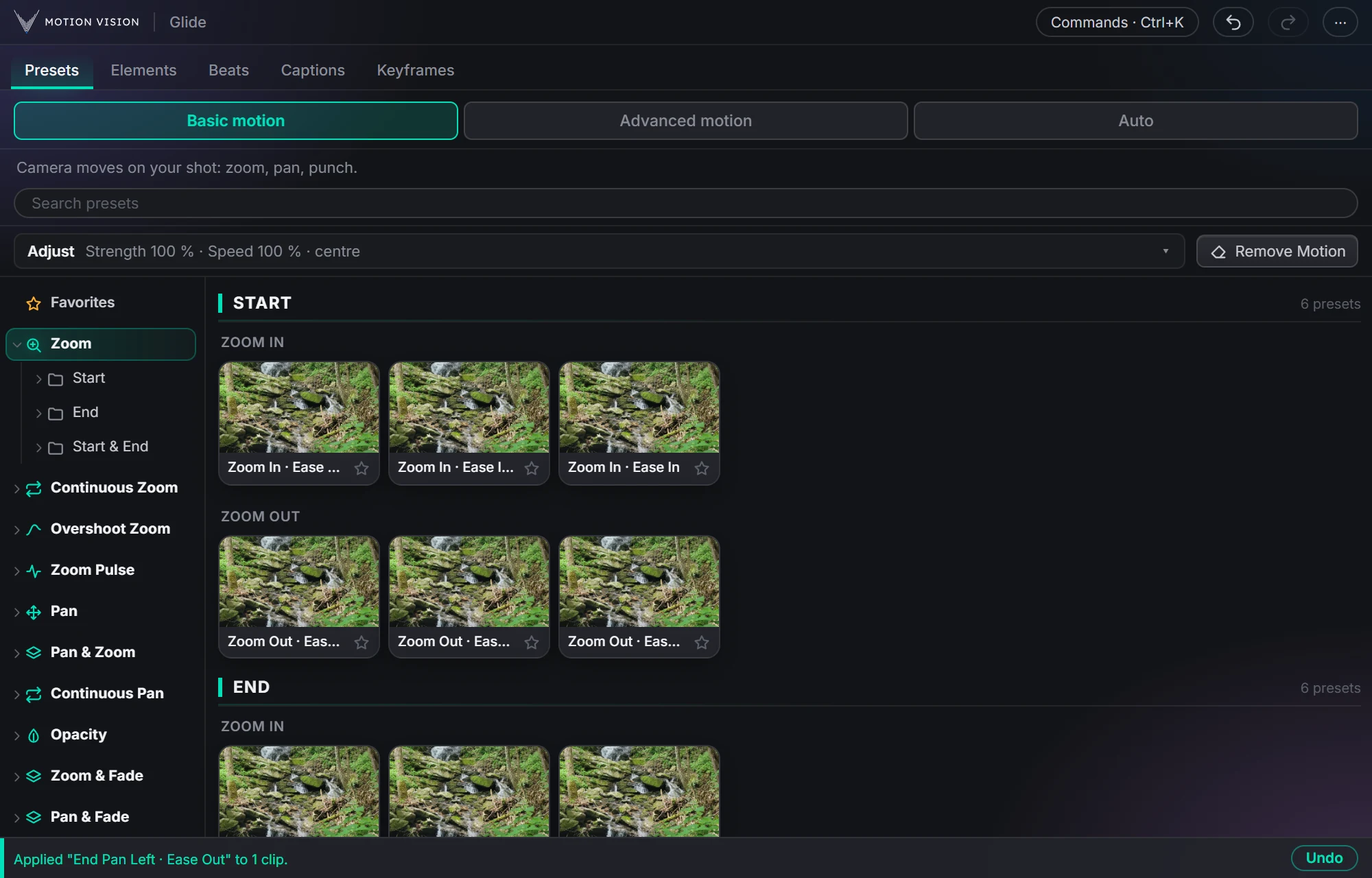 Camera movesPresetsZooms, pans, punches and fades in one click.Learn more →
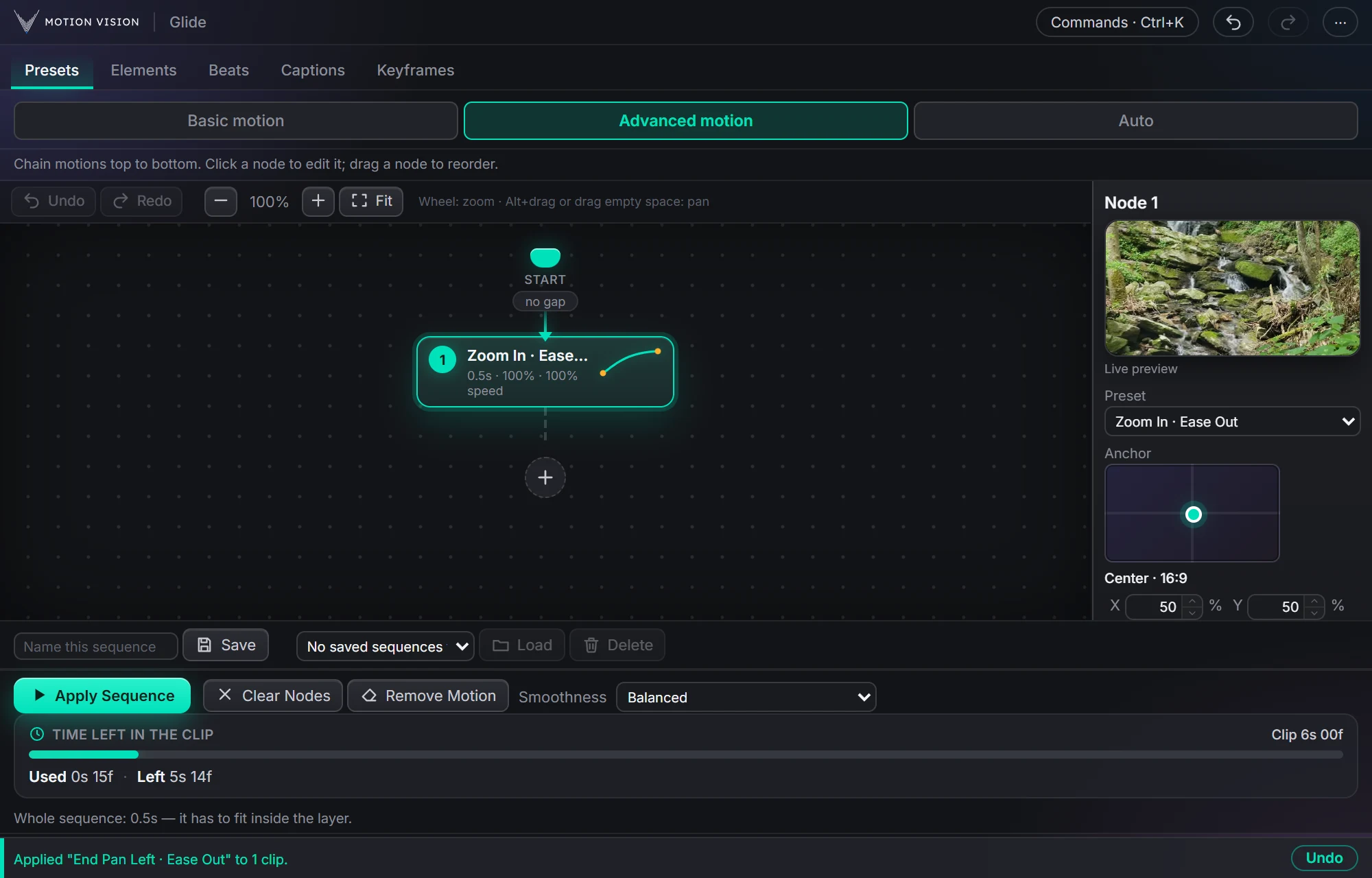 SequencesAdvanced motionChain moves as nodes and apply the whole sequence.Learn more →
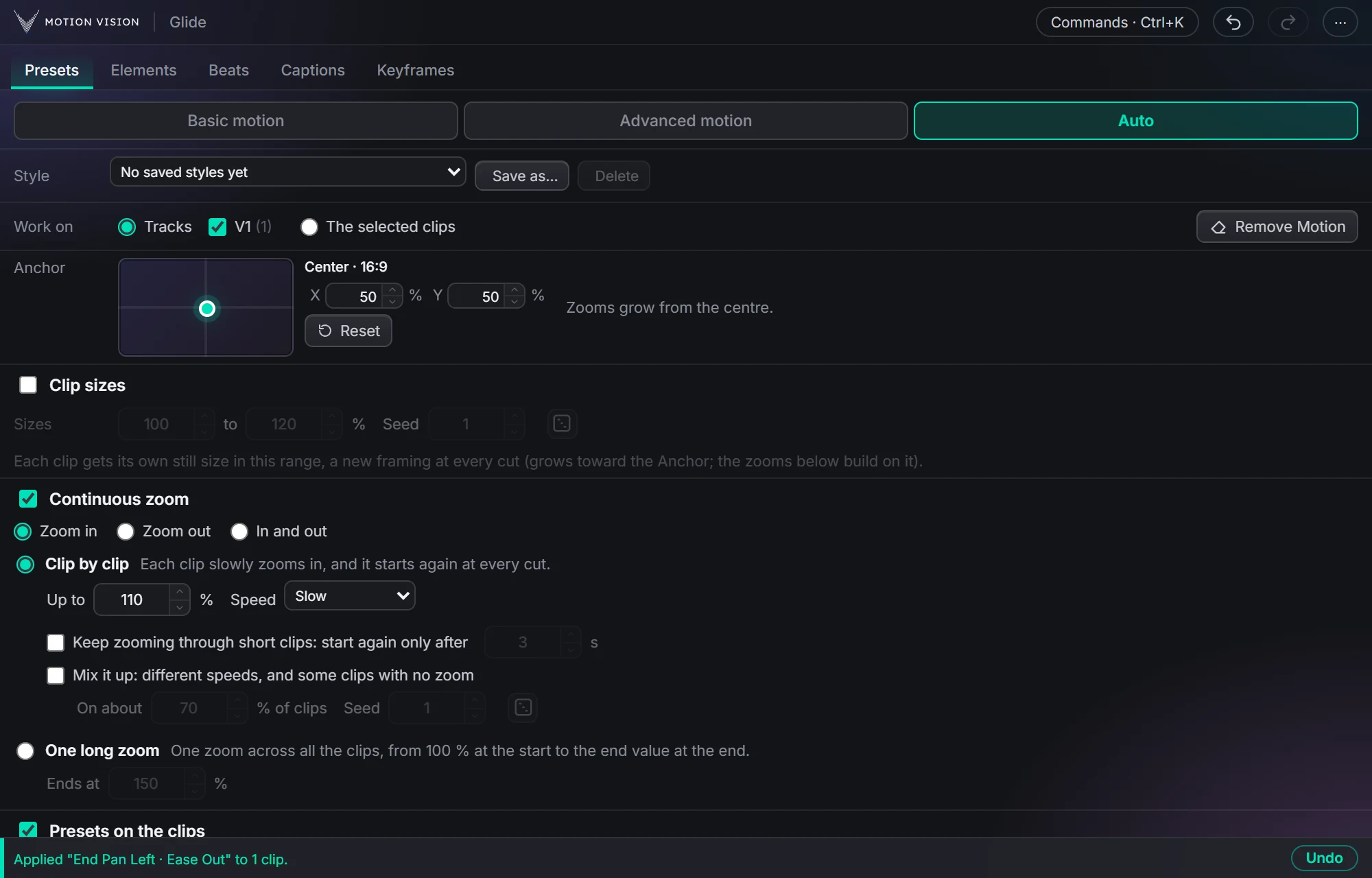 Whole timelineAutoAnimate whole tracks in one click, on the beat if you like.Learn more →
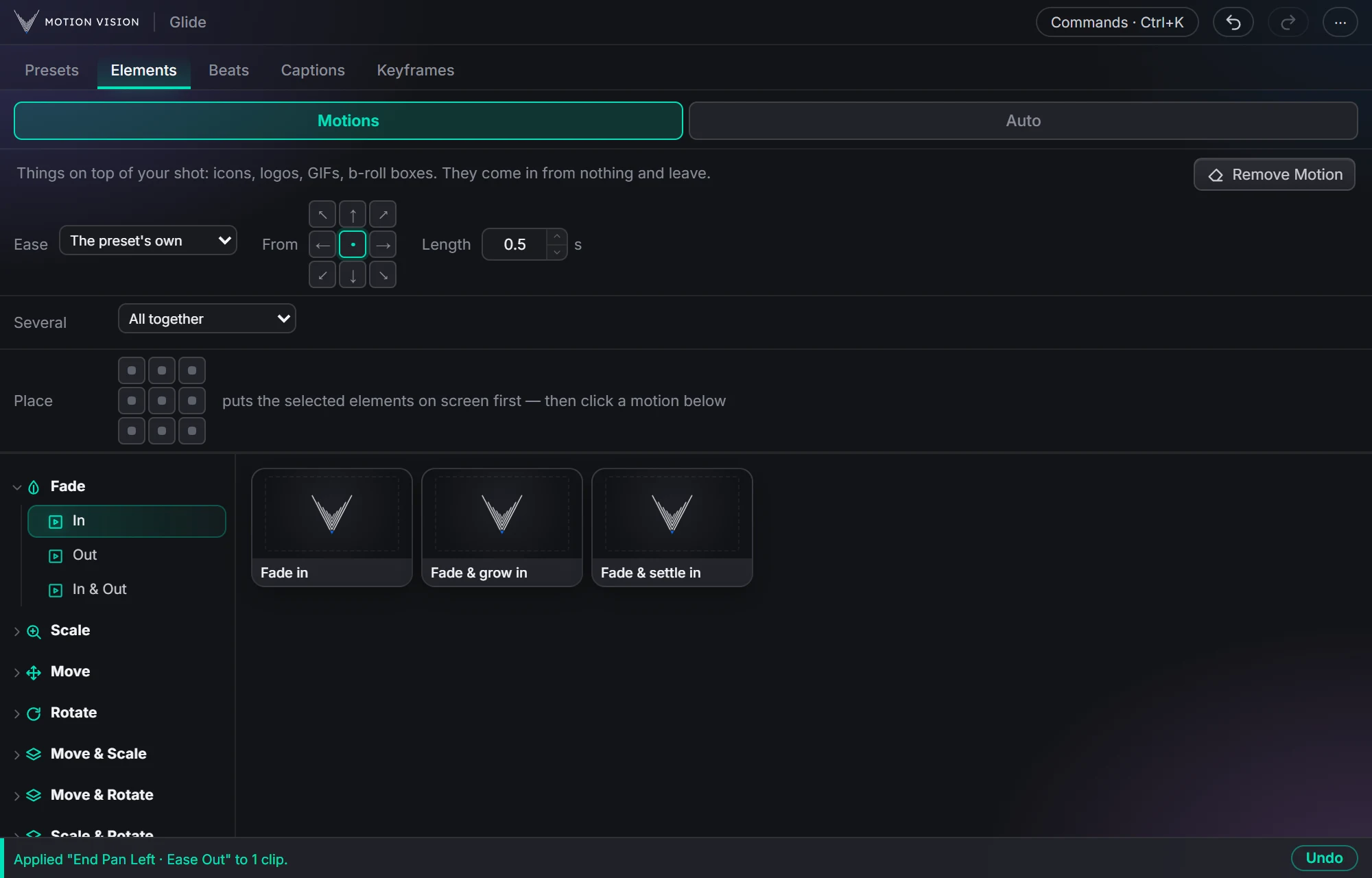 OverlaysElementsIcons, logos and b-roll that come in and leave.Learn more →
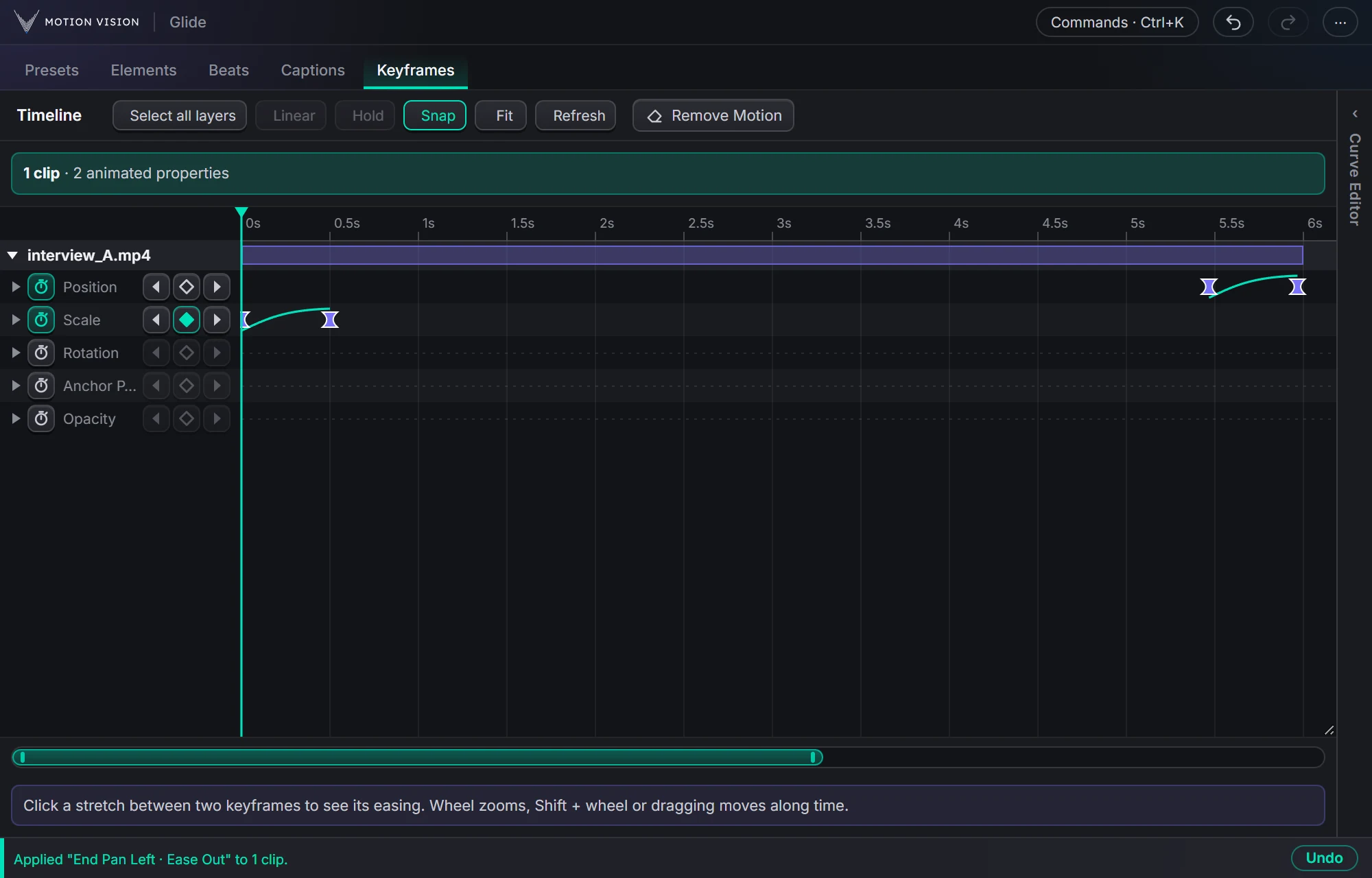 KeyframesTimelineEvery keyframe of the selected clips, in one view you can edit.Learn more →
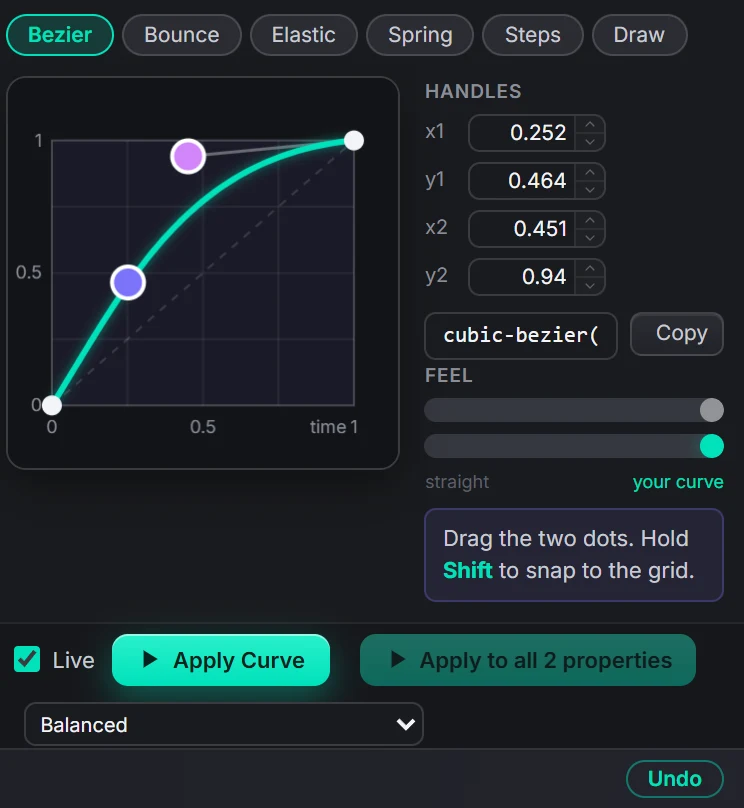 Curve editorEasingBezier, bounce, elastic, spring, steps, or draw your own.Learn more →
 Speech to textCaptionsOffline transcription and 40 animated styles.Learn more →
Get Beatswith everything else.
One licence, all eight tools. Try everything free for 14 days first.