
Guides › Clip presets
How to make a smooth zoom in Premiere Pro
A zoom looks jerky when it starts and stops at full speed. The fix is two Scale keyframes and an ease on each, so the move starts gently and settles gently. Here is how to do it by hand, and how to get the same move in one click.
The short answer
- Add two Scale keyframes in Effect Controls.
- Right-click the first one: Temporal Interpolation › Ease Out.
- Right-click the last one: Temporal Interpolation › Ease In.
The names feel backwards: Ease Out goes on the keyframe the move leaves from, Ease In on the one it arrives at.
Way 1: by hand, with keyframes
- Select the clip on your timeline and open Effect Controls (Window › Effect Controls).
- Set the first keyframe. Put the playhead where the zoom should start. Under Motion, click the stopwatch next to Scale. That makes a keyframe at the current size.
- Set the second keyframe. Move the playhead to where the zoom should end and change Scale, for example from 100 to 120. A second keyframe appears.
- Ease the start. Right-click the first keyframe and choose Temporal Interpolation › Ease Out.
- Ease the end. Right-click the last keyframe and choose Temporal Interpolation › Ease In.
- Shape the curve. Open the little arrow next to Scale to see the speed graph. Drag the handles to make the move start slower or land softer.
- Aim the zoom. By default the picture grows from its centre. To zoom towards a face, move the Anchor Point onto it before you set the keyframes, or keyframe Position along with Scale.
Way 2: one click, with Glide
Glide is a panel that sits inside Premiere. Its Clip presets tab holds ready-made camera moves, already eased. They are written as ordinary keyframes on the clip's own Motion, so you can open Effect Controls and change them like any you made yourself.
- Select a clip. Several clips at once each get the same move.
- Hover, then click a preset. The card previews the move on your footage. Click to apply it at the clip's start, its end, or where the playhead is.
- Adjust, or don't. Strength, Speed, Anchor and Smoothness sit under Adjust. Remove Motion puts the clip back exactly as it was.
Zoom-outs and pans are scaled automatically, so no black edges appear.
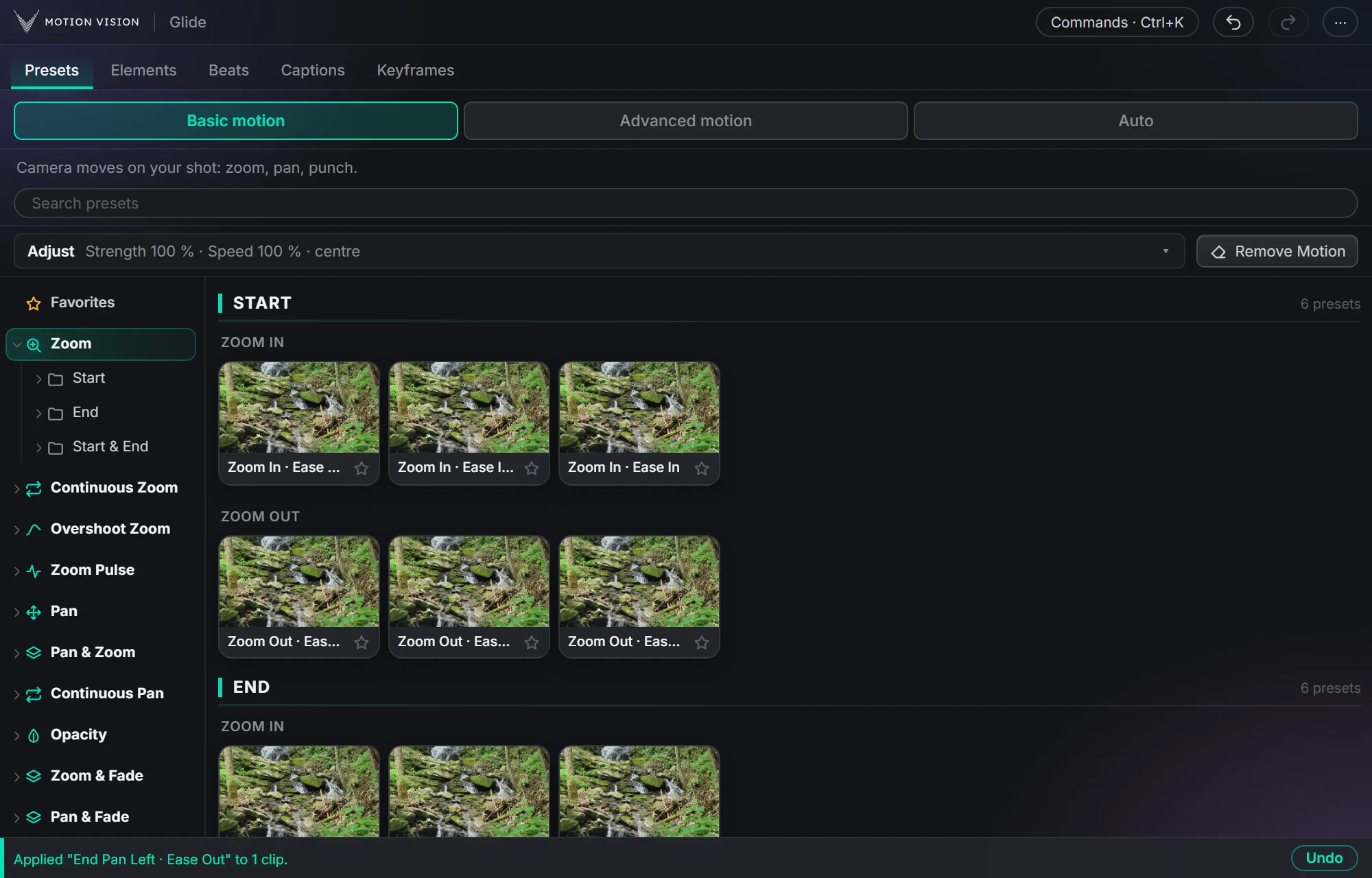
Try the camera moves right here.
A small working version of the tab, made from Glide's own presets. Change the strength, the speed and the smoothness and watch the move.
Questions
Why is my zoom jerky in Premiere Pro?
Because keyframes are linear by default: the move starts and stops at full speed. Add Ease Out to the first keyframe and Ease In to the last.
How do I zoom in slowly?
Put the two Scale keyframes further apart and keep the change small, for example 100 to 108 across the whole clip. Ease both ends.
How do I zoom towards one spot instead of the centre?
Move the Anchor Point to that spot first, or keyframe Position together with Scale. In Glide, Anchor under Adjust sets where the move aims.
Is there a shortcut for easing keyframes?
Not for a whole clip. Each keyframe is right-clicked on its own. A preset or a plugin applies the eased move in one go.
Are Glide's zooms real keyframes?
Yes. They are ordinary Premiere keyframes on the clip's built-in Motion. Nothing is rendered or locked.
Get Glide
Glide works in Premiere 2022 or newer, on Windows and on a Mac. You pay once.
Buy Glide · $39 Everything Clip presets does
More guides: Add animated captions · Remove silence automatically